MFA requests now reach you through a system notification on Windows, macOS and Linux. Approve or deny the request from the notification itself, instead of having to open the XFA tray menu to find it.
Dashboard: rolling-release Linux devices show the basis for their OS assessment, including the last full update and local package vulnerability information, instead of treating “rolling” as a version number.
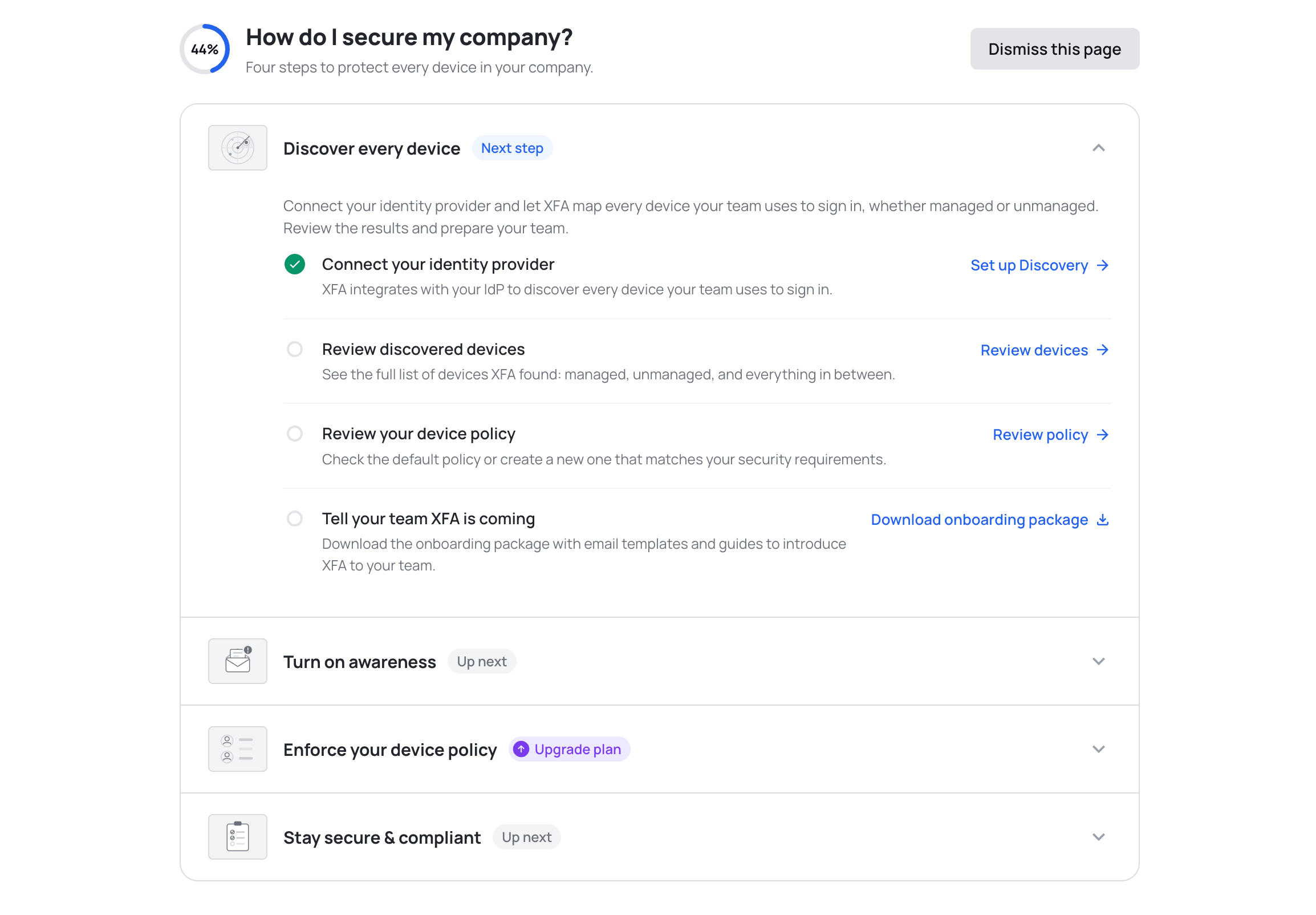
The new Getting Started page helps you get more out of XFA. It lays out four tracked steps, from discovering every device to staying secure and compliant, so you always know what to set up next.
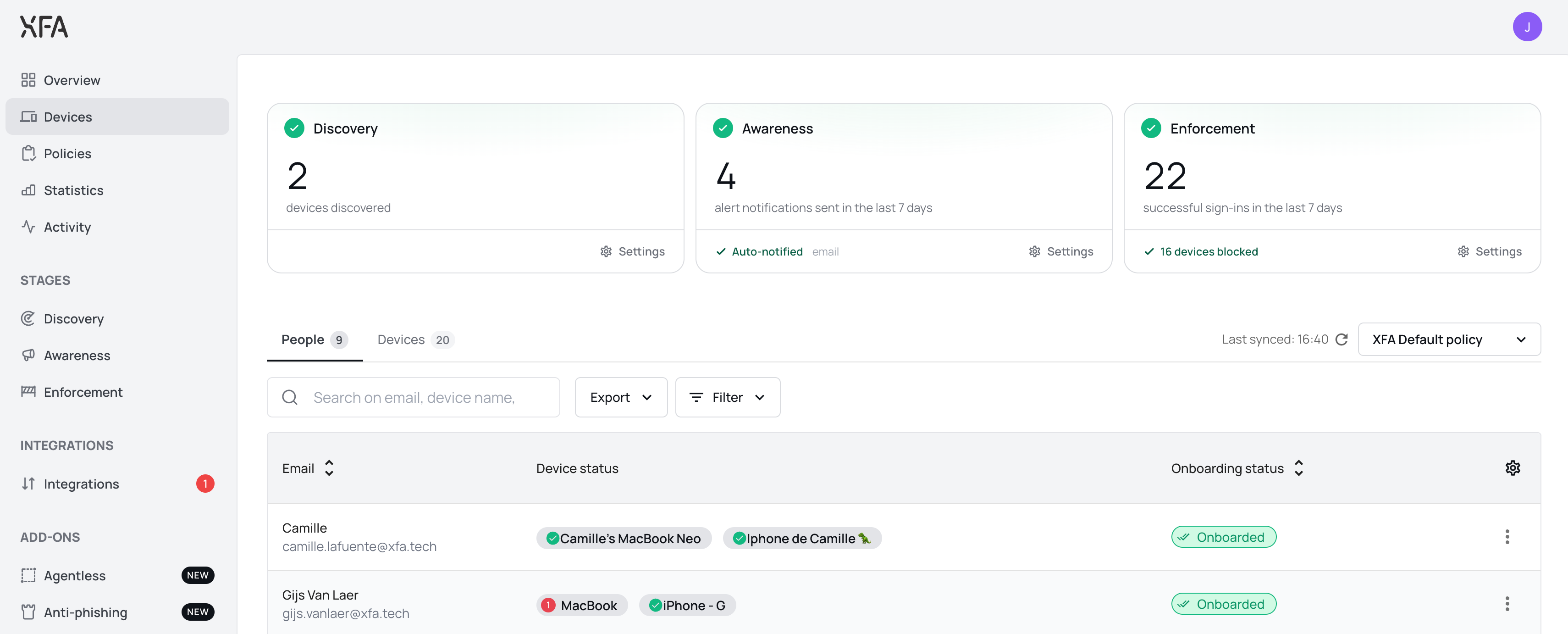
The Devices page now opens with a card for Discovery, Awareness and Enforcement, so you can see at a glance where your organization stands. Each card says whether that pillar is running or waiting on you, with the number behind it: devices discovered, alerts sent, successful sign ins. See the Devices overview
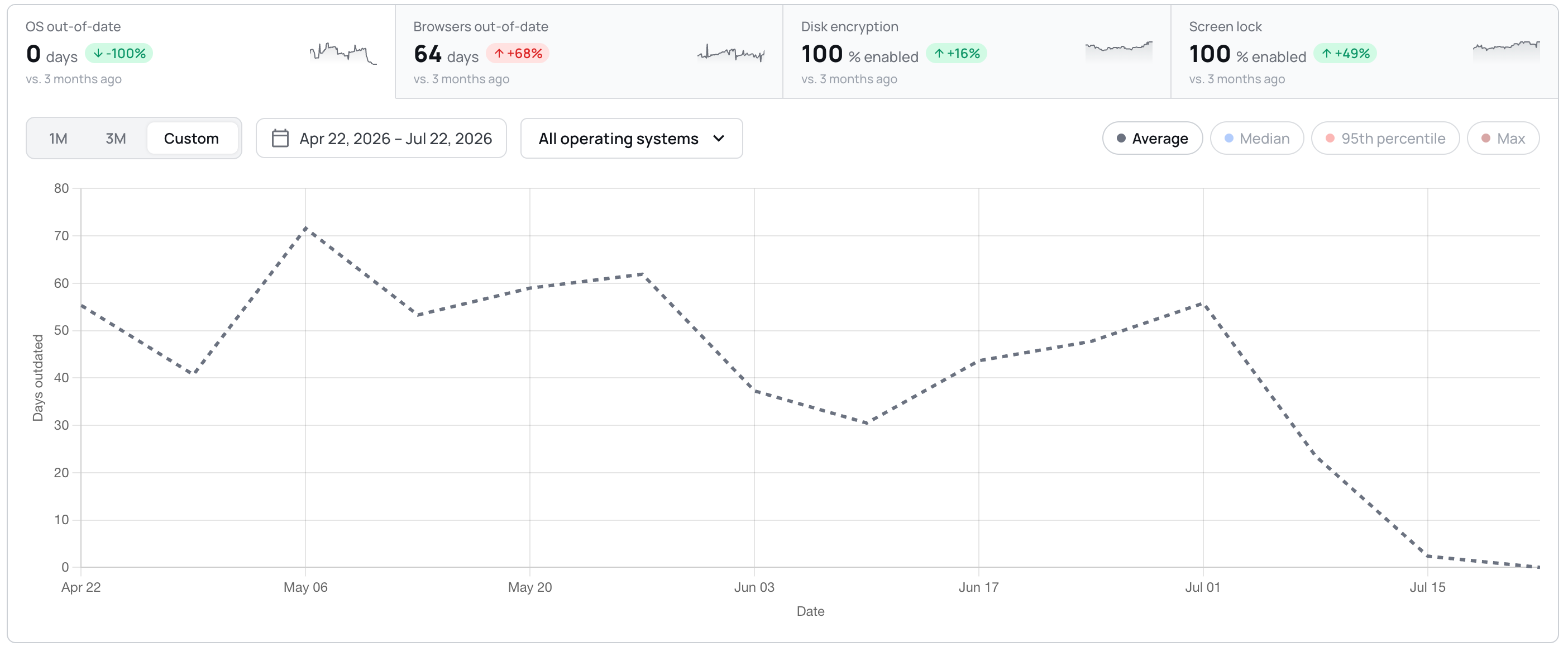
Trends are now a single card: four tiles act as tabs above one chart, with the period, the operating system filter and the chart type on the card instead of in a fullscreen modal. Custom date ranges are supported, and the BETA labels are gone.
The device detail view now reports whether a device allows unattended remote access, and explains what the check looks for. You can act on it in your policy; XFA does not change the setting on the device. See your device policy
Dashboard: a Discovery integration that was never connected now shows a red alert and a Reconnect button, and counts towards the Discovery badge.
Dashboard: smaller interface fixes throughout, including larger tooltip and dismiss targets, steadier invoice rows, and long organization names that truncate instead of pushing controls off screen.
Dashboard: the Discovery page no longer shows a next run in the past. It is now anchored to the coming hour.
Dashboard: confirming a delete no longer leaves the button spinning. The dialog closes once the delete succeeds, and shows an error if it fails.
Desktop: the screen lock timeout row now shows a warning icon when the check fails on the timeout, instead of staying green while the check warns.
Desktop: the OS updates check now follows your policy grace in the app, the systray and the web flow alike.
Desktop: eighteen strings in the check details and fix actions are now translated in German, Spanish, French and Dutch, instead of falling back to English.
Mobile: approving MFA on another device no longer leaves the mobile app waiting.
The checks that flag a jailbroken, rooted or developer-mode device, or one that was just rebooted, already ran in the XFA app and showed in your dashboard. They now also reach the access decision at sign-in for mobile devices, so a risky mobile device is warned or blocked at login per your policy, the same way it already is on desktop. Nothing new is installed: the mobile app simply reports these signals when it verifies the device at sign-in. See your device policy
Dashboard: a lighter, more responsive feel, with smoother transitions, clearer hover and loading states, skeleton placeholders while data loads, and success confirmations that appear only once an action has actually saved. Motion respects your reduced-motion setting.
Dashboard: notifications are rebuilt to be calmer and more legible, and no longer duplicate, flicker or jump when several arrive at once.
Dashboard: Discovery and Enforcement now have a Watch demo action that opens a short guided tour without leaving the dashboard.
Desktop: the device-lock check now applies your organization's maximum screen-lock timeout, so it no longer shows OK in the app while sign-in is actually being blocked.
Desktop: the OS updates check on Fedora Linux is much faster, and no longer reports a device as out of date right after a reboot before its update data is ready.
Dashboard: setting up Google Workspace discovery no longer skips the domain-wide delegation step. You now confirm delegation is configured before continuing.
Web app: MFA and TOTP sign-in are more reliable. Trusted devices register after approval, malformed device tokens are refreshed instead of failing, and TOTP email confirmation links open the right step.
Dashboard: fixed a rare case where the dashboard could get stuck reloading right after a new version was deployed.
Dashboard: fixed a redirect loop that could bounce you back and forth during MFA sign-in.
Dashboard: blocked-account access handling is more consistent, and you now review your billing details before checkout.
Dashboard: an invited user's signup now always uses the invited email address, even if an earlier unfinished signup was left in the browser.
Add an extra layer of protection to your organization with Time-based One-Time Password (TOTP) authentication, a new MFA method alongside Built-in passkey.
TOTP as MFA Method: Enable TOTP authentication on any integration, allowing users to authenticate using authenticator apps like Google Authenticator, Microsoft Authenticator, or Authy
Recovery Options: Built-in support for recovery codes and admin reset capabilities
Industry Standard: Compatible with any RFC 6238 compliant authenticator app
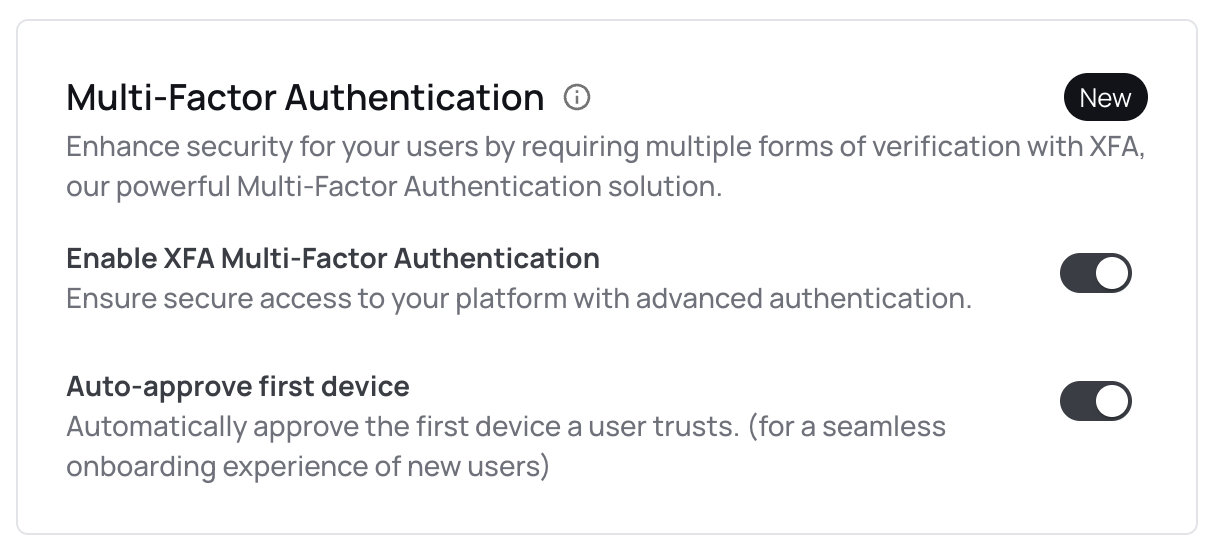
Administrators can enable TOTP from the Enforcement page in the XFA dashboard. Navigate to Enforcement → Manage on your integration, then enable TOTP under Multi-Factor Authentication.
You can now automatically approve the first device a user trusts in our Built-in passkey flow. This will guarantee a seamless onboarding experience of new users.
When using XFA as an extra factor to your identity provider, you don't use the security of a second factor.
Our new MFA feature can be easily enabled on an integrations through the XFA dashboard. Once it is enabled users will be asked to trust their device, a first device needs to be confirmed through an email link, a next device needs to be confirmed by an already enrolled device.
Once devices are trusted, the user will not be asked for a second factor anymore, but the device will inherently act as a second factor.