Create a SAML application in XFA
A SAML application in XFA adds device verification to a SAML sign-in flow. XFA sits between your identity provider and application, checks the device during login, and forwards the SAML response only when your policy decision allows access. Use it to enter the right values and test the sign-in flow.
When a user signs in to your application, the following happens:
- your application → XFA → your IdP: your application redirects the user to XFA, which immediately redirects to your identity provider (e.g. Google Workspace) to authenticate. The Entity ID configured in your IdP is the one for your application. It identifies what the user is authenticating for.
- Your IdP → XFA: After authentication, the identity provider sends the user back to the ACS URL, which points to XFA instead of directly to your application.
- XFA verifies the device: XFA checks the security posture of the device against your policy.
- XFA → your application: If the device passes, XFA forwards the authentication to your application using the application's real ACS URL and access is granted.
Note: This article assumes that you have an account set up with XFA for your organization and your are an admin for that organization. If you do not have an account, you can create one at https://dashboard.xfa.tech/signup.
1. Login to the XFA dashboard
2. Create a new application under Enforcement > New > SAML Integration

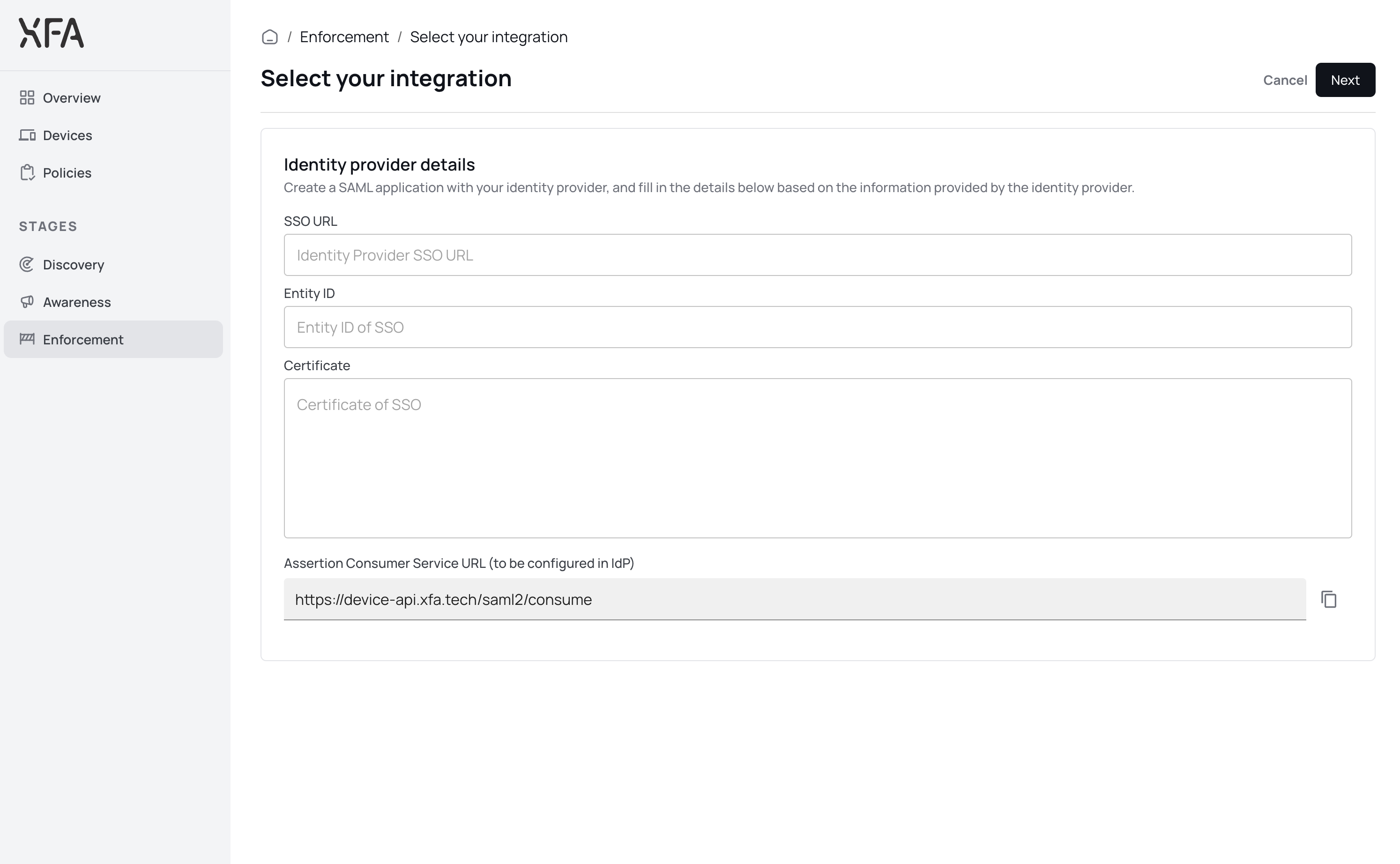
3. Fill in the identity provider details
Fill in the SSO URL, Entity ID and certificate provided by the identity provider for your SAML application. Click Next to continue.
4. Fill in the service provider details
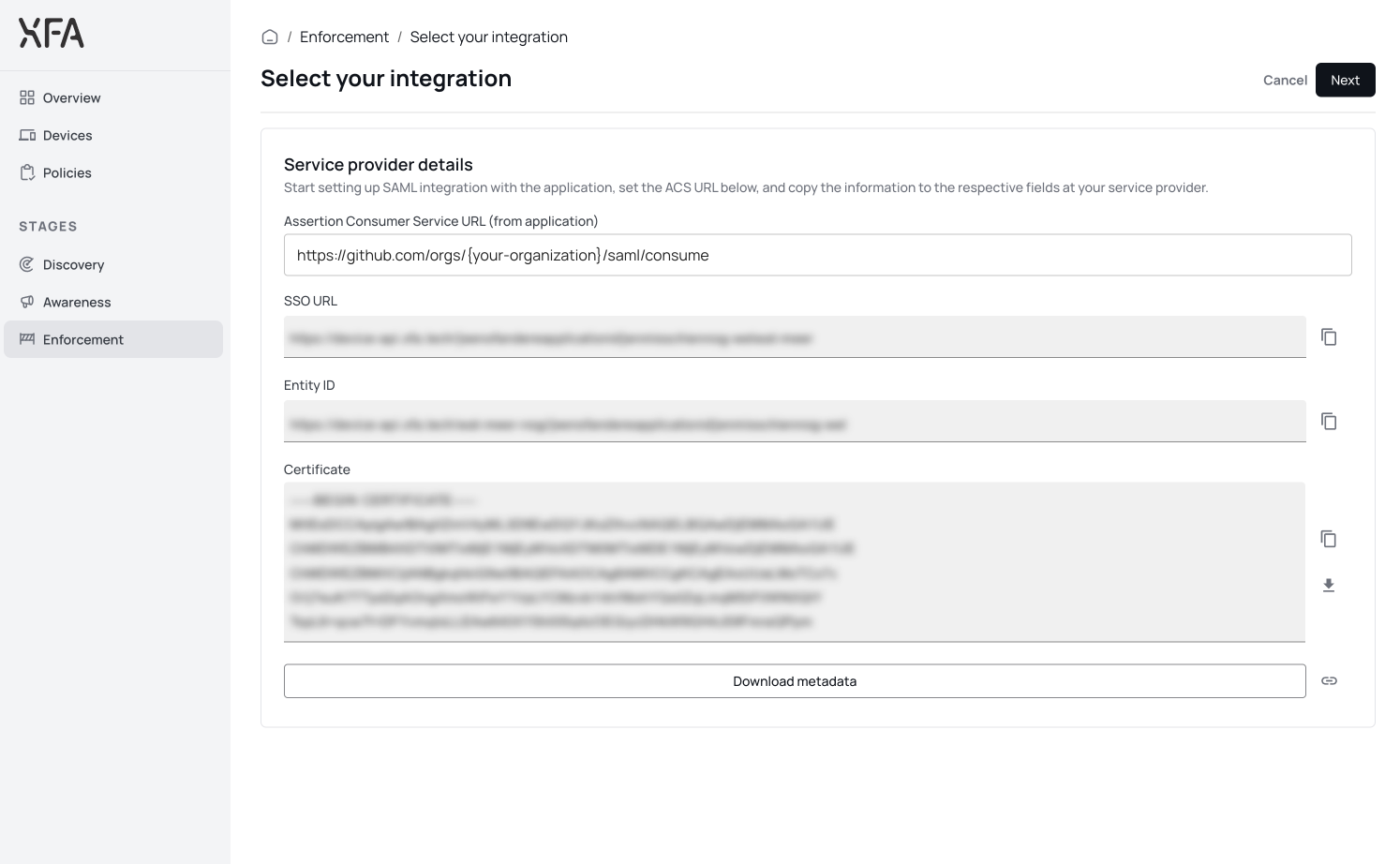
- Complete ACS-URL with the ACS URL of the application you are configuring, this is often provided or can be found with a quick Google Seach on
ACS URL <your application>. - Copy the the SSO URL, Entity ID and Certificate of your new application. Click Next to continue.
- Copy the SSO URL, Issuer and Certificate of XFA for the next step in the application you'd like to connect to XFA.