Guided setup, device posture at a glance, and rebuilt Statistics trends
Three new dashboard surfaces this week, and a new device check.
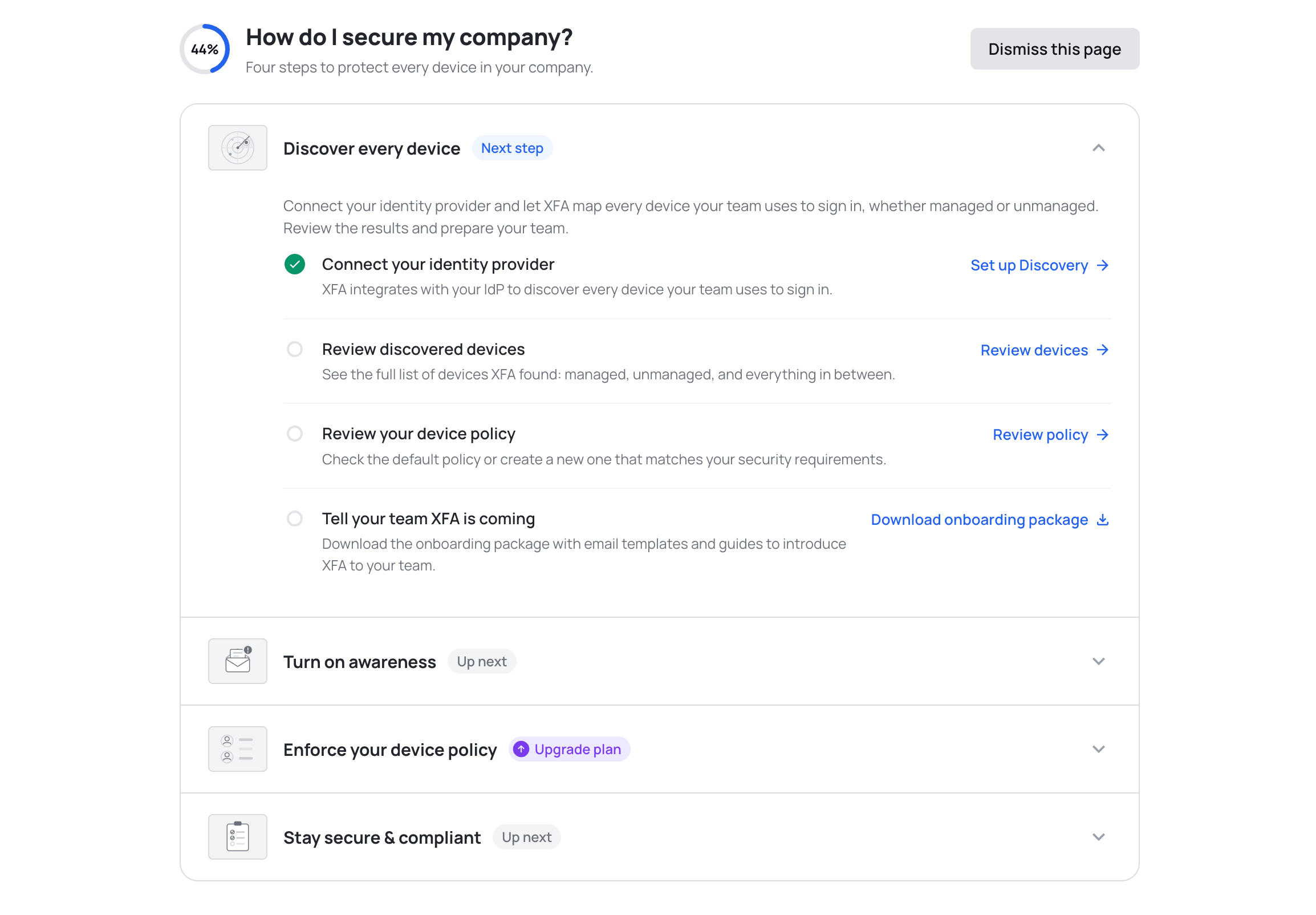
A guided way to secure your company
The new Getting Started page helps you get more out of XFA. It lays out four tracked steps, from discovering every device to staying secure and compliant, so you always know what to set up next.
See where Discovery, Awareness and Enforcement stand
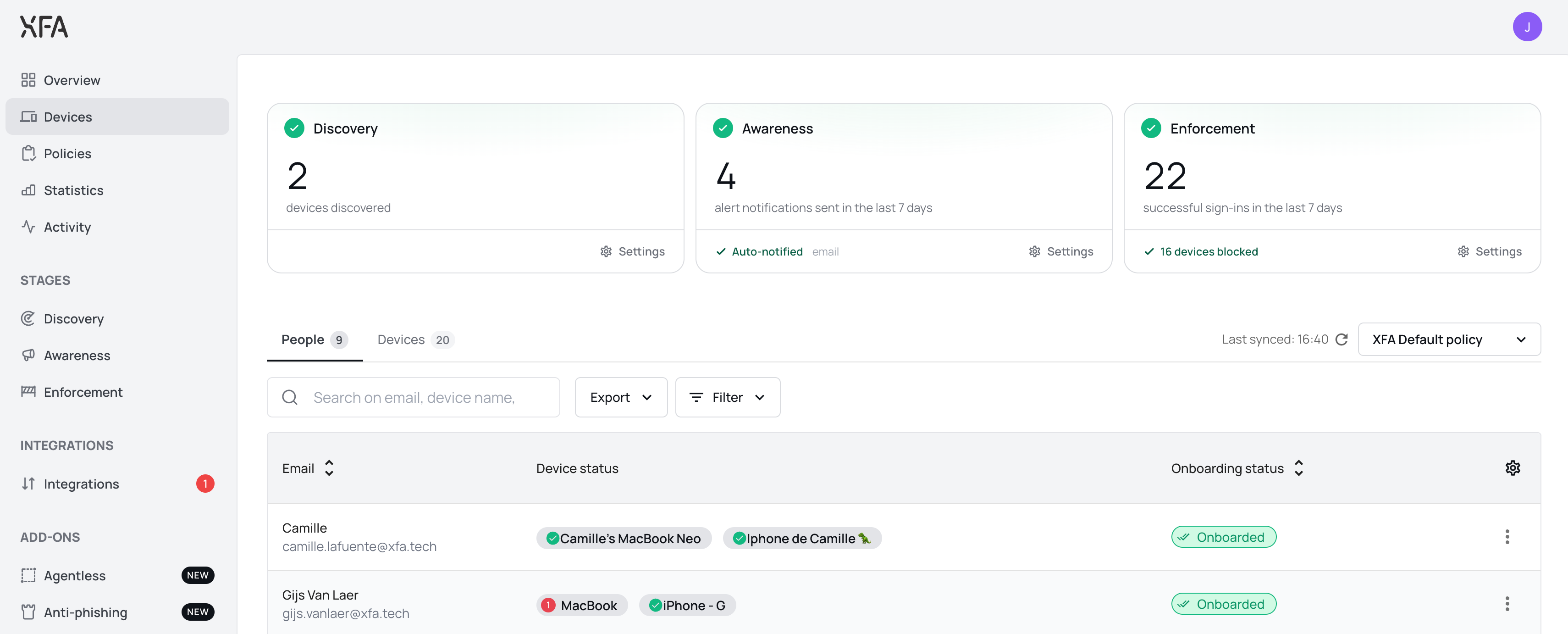
The Devices page now opens with a card for Discovery, Awareness and Enforcement, so you can see at a glance where your organization stands. Each card says whether that pillar is running or waiting on you, with the number behind it: devices discovered, alerts sent, successful sign ins. See the Devices overview
Statistics trends, rebuilt and out of BETA
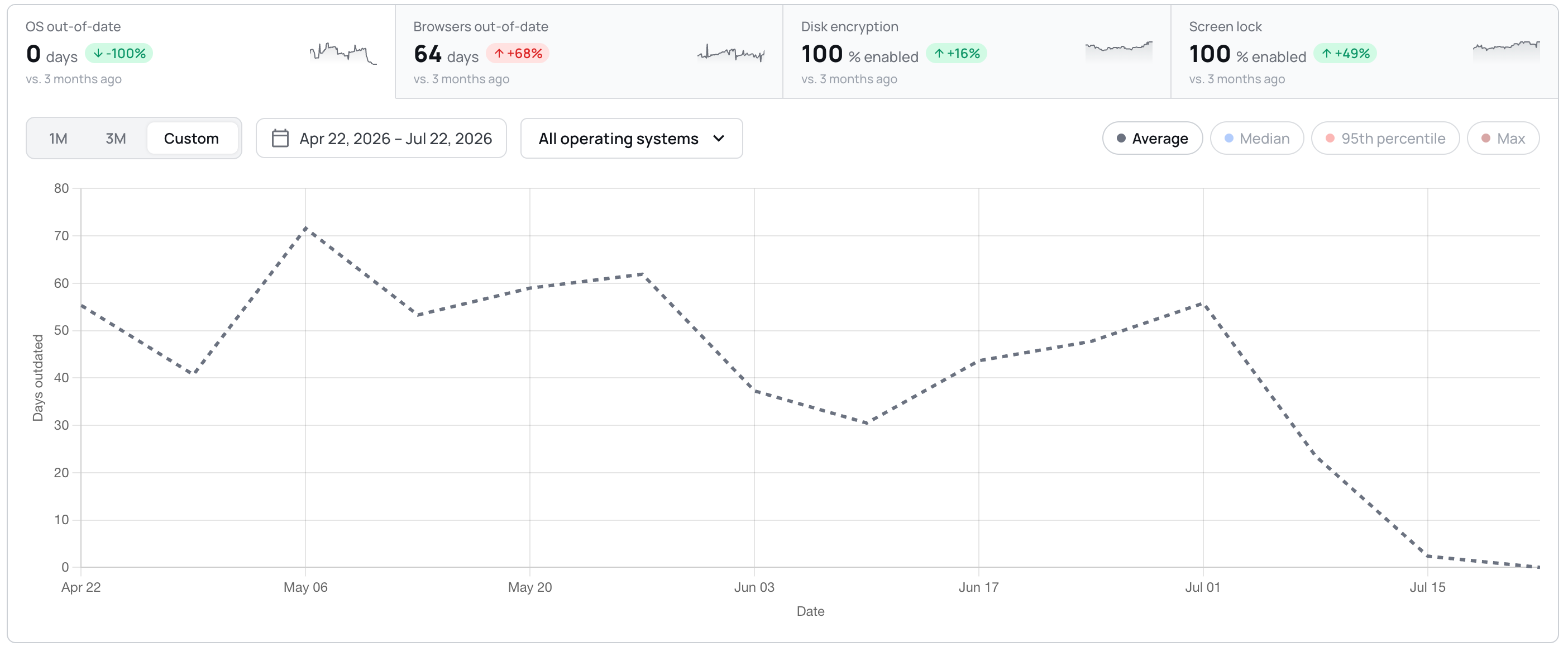
Trends are now a single card: four tiles act as tabs above one chart, with the period, the operating system filter and the chart type on the card instead of in a fullscreen modal. Custom date ranges are supported, and the BETA labels are gone.
Unattended remote access, visible on the device
The device detail view now reports whether a device allows unattended remote access, and explains what the check looks for. You can act on it in your policy; XFA does not change the setting on the device. See your device policy
- Dashboard: a Discovery integration that was never connected now shows a red alert and a
Reconnectbutton, and counts towards the Discovery badge. - Dashboard: smaller interface fixes throughout, including larger tooltip and dismiss targets, steadier invoice rows, and long organization names that truncate instead of pushing controls off screen.
- Dashboard: the Discovery page no longer shows a next run in the past. It is now anchored to the coming hour.
- Dashboard: confirming a delete no longer leaves the button spinning. The dialog closes once the delete succeeds, and shows an error if it fails.
- Desktop: the screen lock timeout row now shows a warning icon when the check fails on the timeout, instead of staying green while the check warns.
- Desktop: the OS updates check now follows your policy grace in the app, the systray and the web flow alike.
- Desktop: eighteen strings in the check details and fix actions are now translated in German, Spanish, French and Dutch, instead of falling back to English.
- Mobile: approving MFA on another device no longer leaves the mobile app waiting.