The XFA Desktop Application now runs on NixOS. Install it with the same command as on every other Linux: it goes into your own nix profile, without root permissions, and XFA keeps itself up to date. Admins who manage NixOS centrally can add XFA to the system configuration instead. See how to install XFA on NixOS
The desktop app now has a personal view for checking your computer's security, even when you are not connected to an organization. A new setup wizard helps you get started, and separate views for each organization show which checks that organization requires.
You can also add personal checks alongside your organization's checks and choose which personal findings to ignore. Your personal choices stay separate from the requirements your organization sets, so it is clear what needs your attention and why.
Documentation: read the guides in English, Dutch, German, French, Spanish, Finnish or Portuguese, with search available in all seven languages.
Open the XFA desktop or mobile app, enter your work email and confirm it with a one-time code. XFA then shows the organizations you can connect to, so you can get started without asking an administrator to send a separate invitation.
Administrators decide whether their organization allows this through self invite in Awareness settings, where the feature is marked Beta. Connect from the XFA app
Organizations that already use Microsoft Intune, Configuration Manager or Jamf can now pre-install XFA and connect devices with their organization's enrollment token. Instead of waiting for each person to install the app, add XFA to your existing deployment so its checks are in place when people start using their devices.
The dashboard provides the setup steps, packages and commands for the rollout. MDM pre-installation is available on Enterprise. Deploy XFA through your MDM
MFA requests now reach you through a system notification on Windows, macOS and Linux. Approve or deny the request from the notification itself, instead of having to open the XFA tray menu to find it.
Dashboard: rolling-release Linux devices show the basis for their OS assessment, including the last full update and local package vulnerability information, instead of treating “rolling” as a version number.
Windows on Arm devices now have a native XFA build, rather than running the x64 app through emulation. Existing installations move across through the normal updater: first they receive the update that recognizes Arm devices, then a later update brings them the native build.
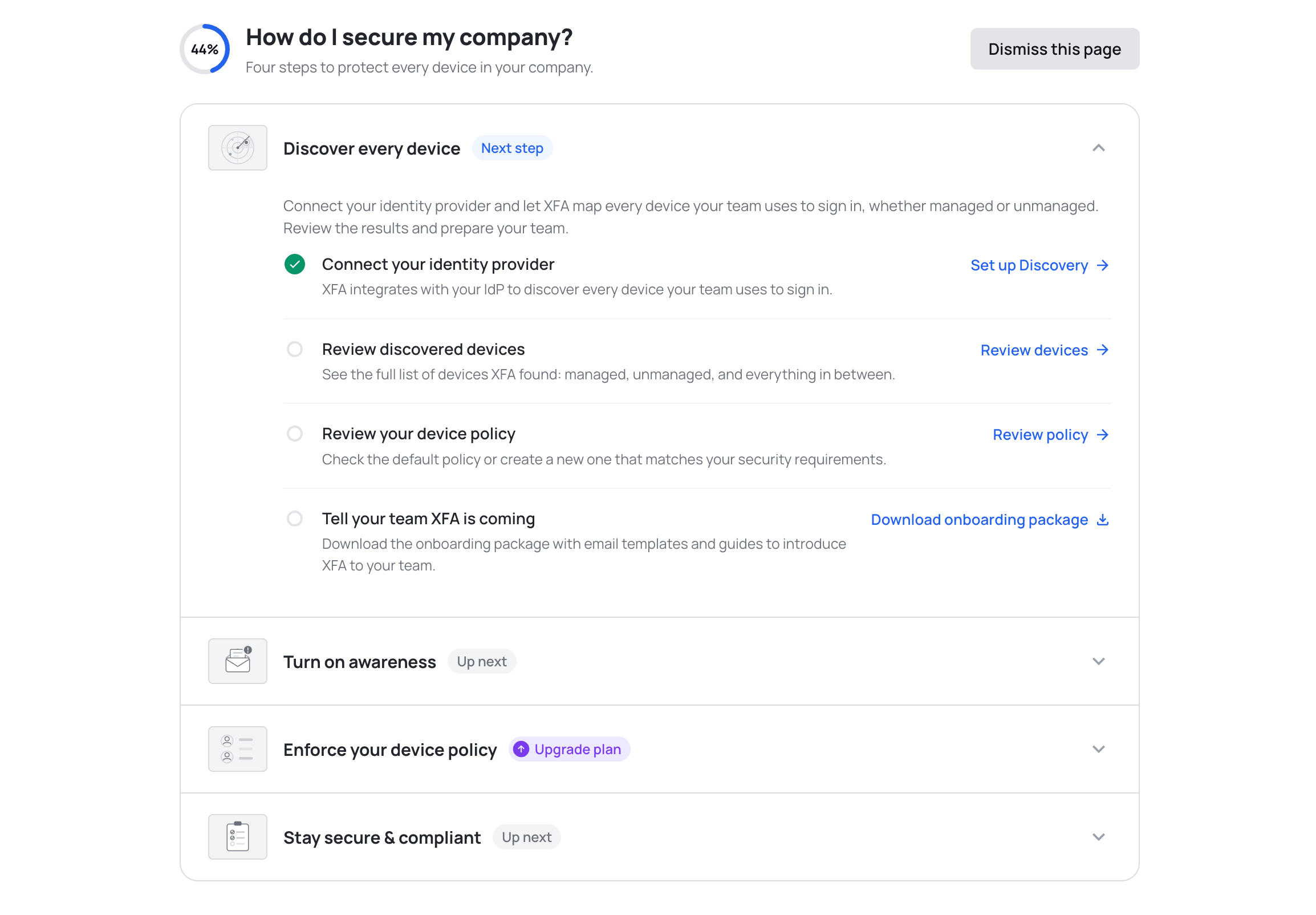
The new Getting Started page helps you get more out of XFA. It lays out four tracked steps, from discovering every device to staying secure and compliant, so you always know what to set up next.
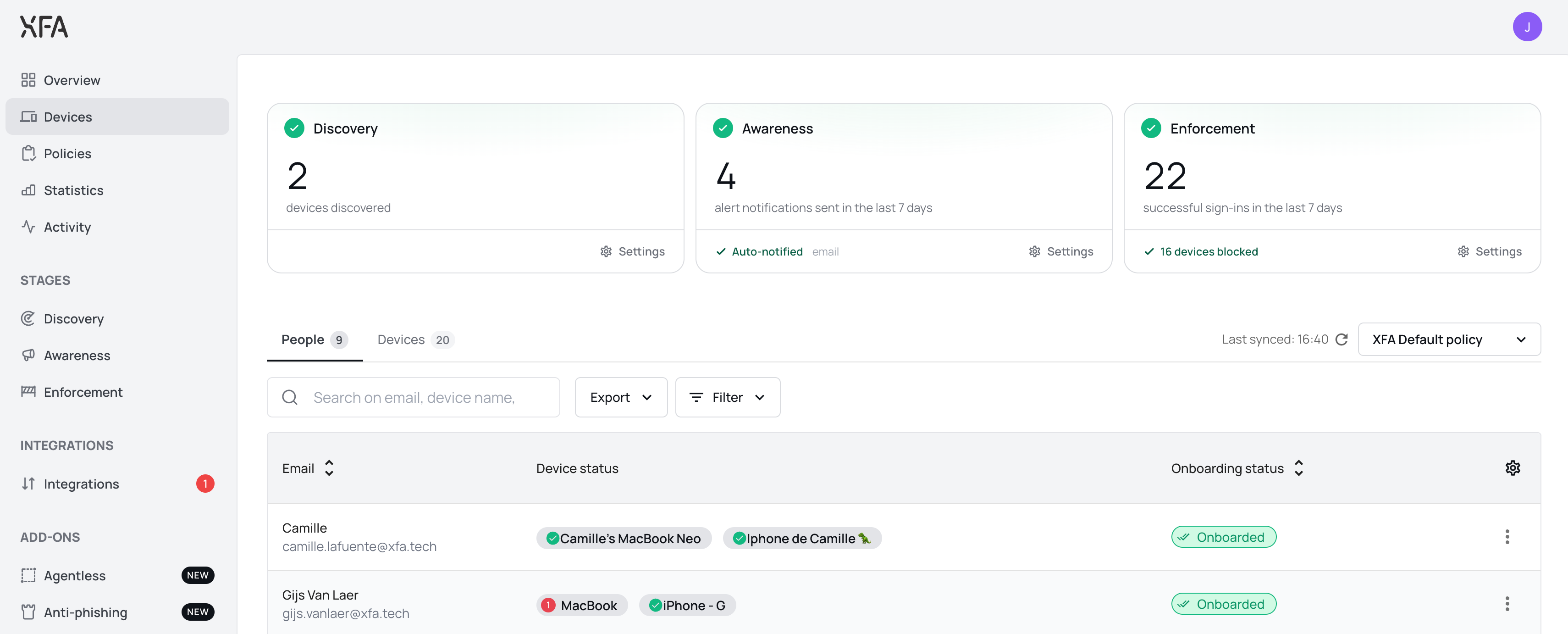
The Devices page now opens with a card for Discovery, Awareness and Enforcement, so you can see at a glance where your organization stands. Each card says whether that pillar is running or waiting on you, with the number behind it: devices discovered, alerts sent, successful sign ins. See the Devices overview
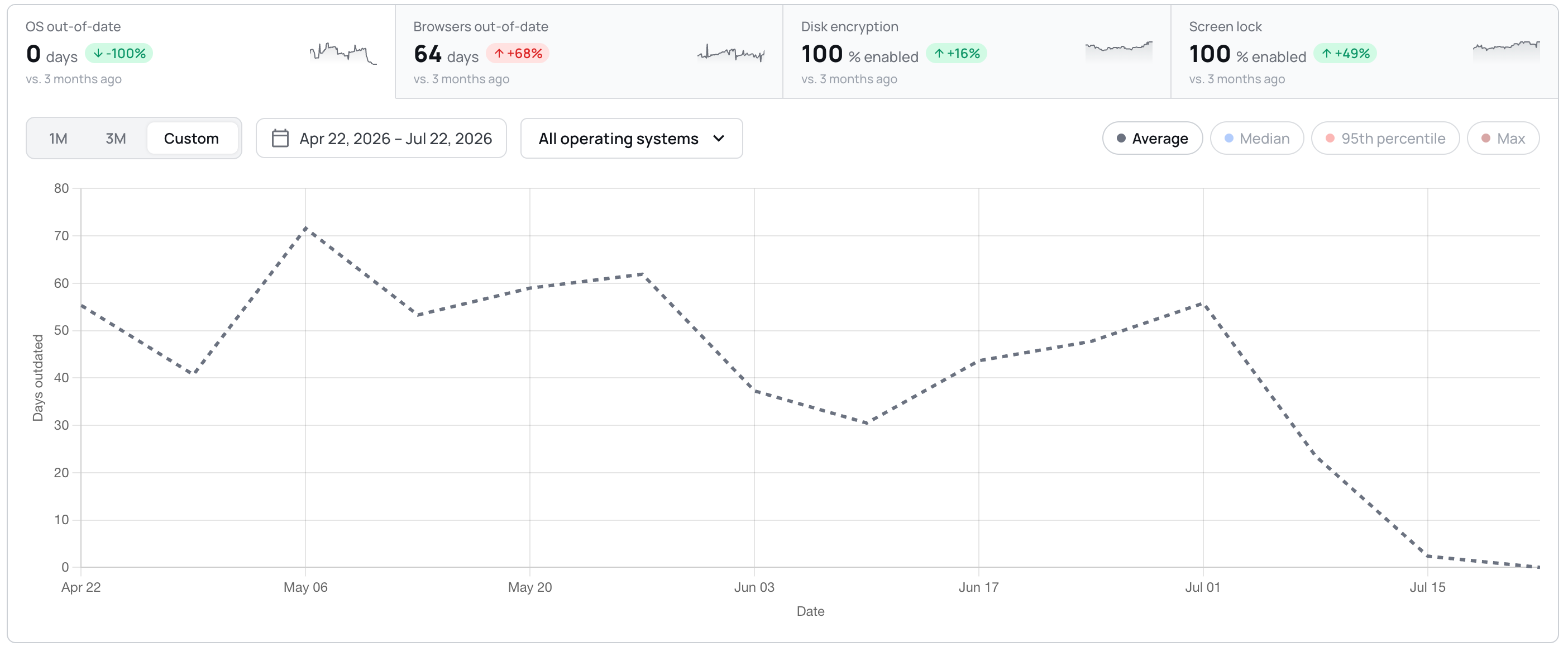
Trends are now a single card: four tiles act as tabs above one chart, with the period, the operating system filter and the chart type on the card instead of in a fullscreen modal. Custom date ranges are supported, and the BETA labels are gone.
The device detail view now reports whether a device allows unattended remote access, and explains what the check looks for. You can act on it in your policy; XFA does not change the setting on the device. See your device policy
Dashboard: a Discovery integration that was never connected now shows a red alert and a Reconnect button, and counts towards the Discovery badge.
Dashboard: smaller interface fixes throughout, including larger tooltip and dismiss targets, steadier invoice rows, and long organization names that truncate instead of pushing controls off screen.
Dashboard: the Discovery page no longer shows a next run in the past. It is now anchored to the coming hour.
Dashboard: confirming a delete no longer leaves the button spinning. The dialog closes once the delete succeeds, and shows an error if it fails.
Desktop: the screen lock timeout row now shows a warning icon when the check fails on the timeout, instead of staying green while the check warns.
Desktop: the OS updates check now follows your policy grace in the app, the systray and the web flow alike.
Desktop: eighteen strings in the check details and fix actions are now translated in German, Spanish, French and Dutch, instead of falling back to English.
Mobile: approving MFA on another device no longer leaves the mobile app waiting.
The checks that flag a jailbroken, rooted or developer-mode device, or one that was just rebooted, already ran in the XFA app and showed in your dashboard. They now also reach the access decision at sign-in for mobile devices, so a risky mobile device is warned or blocked at login per your policy, the same way it already is on desktop. Nothing new is installed: the mobile app simply reports these signals when it verifies the device at sign-in. See your device policy
Dashboard: a lighter, more responsive feel, with smoother transitions, clearer hover and loading states, skeleton placeholders while data loads, and success confirmations that appear only once an action has actually saved. Motion respects your reduced-motion setting.
Dashboard: notifications are rebuilt to be calmer and more legible, and no longer duplicate, flicker or jump when several arrive at once.
Dashboard: Discovery and Enforcement now have a Watch demo action that opens a short guided tour without leaving the dashboard.
Desktop: the device-lock check now applies your organization's maximum screen-lock timeout, so it no longer shows OK in the app while sign-in is actually being blocked.
Desktop: the OS updates check on Fedora Linux is much faster, and no longer reports a device as out of date right after a reboot before its update data is ready.
Dashboard: setting up Google Workspace discovery no longer skips the domain-wide delegation step. You now confirm delegation is configured before continuing.
Web app: MFA and TOTP sign-in are more reliable. Trusted devices register after approval, malformed device tokens are refreshed instead of failing, and TOTP email confirmation links open the right step.
Dashboard: fixed a rare case where the dashboard could get stuck reloading right after a new version was deployed.
Dashboard: fixed a redirect loop that could bounce you back and forth during MFA sign-in.
Dashboard: blocked-account access handling is more consistent, and you now review your billing details before checkout.
Dashboard: an invited user's signup now always uses the invited email address, even if an earlier unfinished signup was left in the browser.
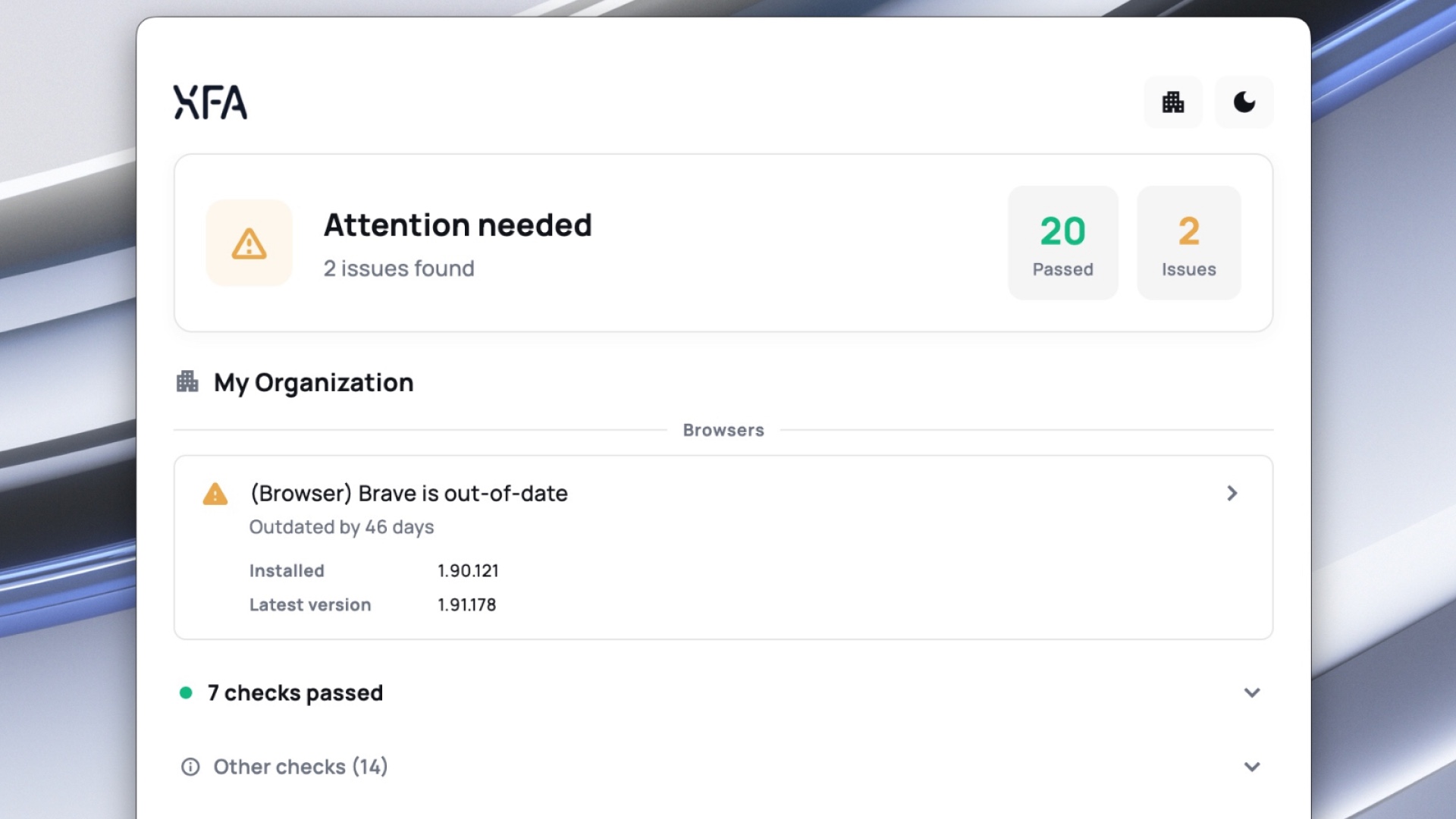
The XFA desktop app has a new look. The menu-bar icon now opens into a full app where anyone can see their device security in detail. Available on macOS, Windows, and Linux starting today.
Your users already have that icon on every device they verify. Until now it did its work quietly in the background. Now they can open it, see the device's security status, and go into the detail: every check XFA runs, marked pass or fail, with clear steps to fix anything that is not passing. No support ticket, no waiting on IT.
XFA has always kept the person using the device informed, not just IT. The redesign makes that experience better: a clear overview of whether the device is safe, with all the detail underneath it, each check and how to fix it. Understandable at a glance, with the depth there when someone wants it.
If you are on XFA, open the icon in your menu bar and take a look.
XFA now supports screen lock timeout enforcement in addition to the existing screen lock enable/disable check.
Previously, XFA only verified whether screen lock was enabled on a device. Now, admins can also configure a maximum allowed timeout duration — and XFA will verify that the device's screen lock timeout is within that limit.
What's new:
Admins can set a maximum screen lock timeout (in minutes) in their organization's policy
XFA checks both that screen lock is enabled and that the configured timeout does not exceed the maximum
Supports macOS, Windows, and Linux with platform-specific timeout detection
The timeout check works alongside the existing enable/disable check — both must pass for the device to be compliant
This gives organizations tighter control over idle device security, ensuring employees cannot set excessively long timeouts that leave devices exposed.
The XFA app now shows only the security checks that your organization requires, instead of displaying all available checks.
Each organization configures its own policy with specific security requirements. The app now dynamically matches these requirements and shows you exactly which checks apply to you:
Policy-scoped checks — Only checks defined in your organization's policy are evaluated and displayed.
Clear status per check — Each check shows whether your device passes, needs attention, or is blocked.
Not required checks — Checks that don't apply to your organization are marked as "Not required" so you always know what matters.
This makes it much easier to understand what your organization expects from your device and how to stay compliant.