App usage Beta
App usage shows which apps your people sign in to with their work account: per app who uses it, per person which apps they use, and whether on the web, in a desktop app or in a mobile app. XFA reads this from the sign-ins of your Microsoft connection. It does not show which device someone used, and it changes nothing in Microsoft.
App usage is in beta and is turned on per organization on request. Email support@xfa.tech with the name of your organization. Once it is on, App usage appears under Identity & Access in the menu of the XFA dashboard.
Before you start
- Microsoft connection: App usage needs a Microsoft Discovery connection. Google Workspace and Okta connections are not used yet.
- Role: organization administrators and read-only administrators can open App usage.
What XFA counts
XFA counts a successful sign-in a person made with their work account through Microsoft Entra ID. Background sign-ins, where an app renews its access by itself, and failed attempts are not counted. Apps people use with their own password, and guest accounts, are not included.
When you connect Microsoft, XFA reads the sign-ins of the last 30 days, as far back as Microsoft keeps them (7 days on a free Microsoft Entra ID plan). After that it reads new sign-ins every hour. An app stays listed until 90 days after the person's last sign-in to it. XFA also collects before App usage is turned on, so you see that history from the start.
The Apps tab
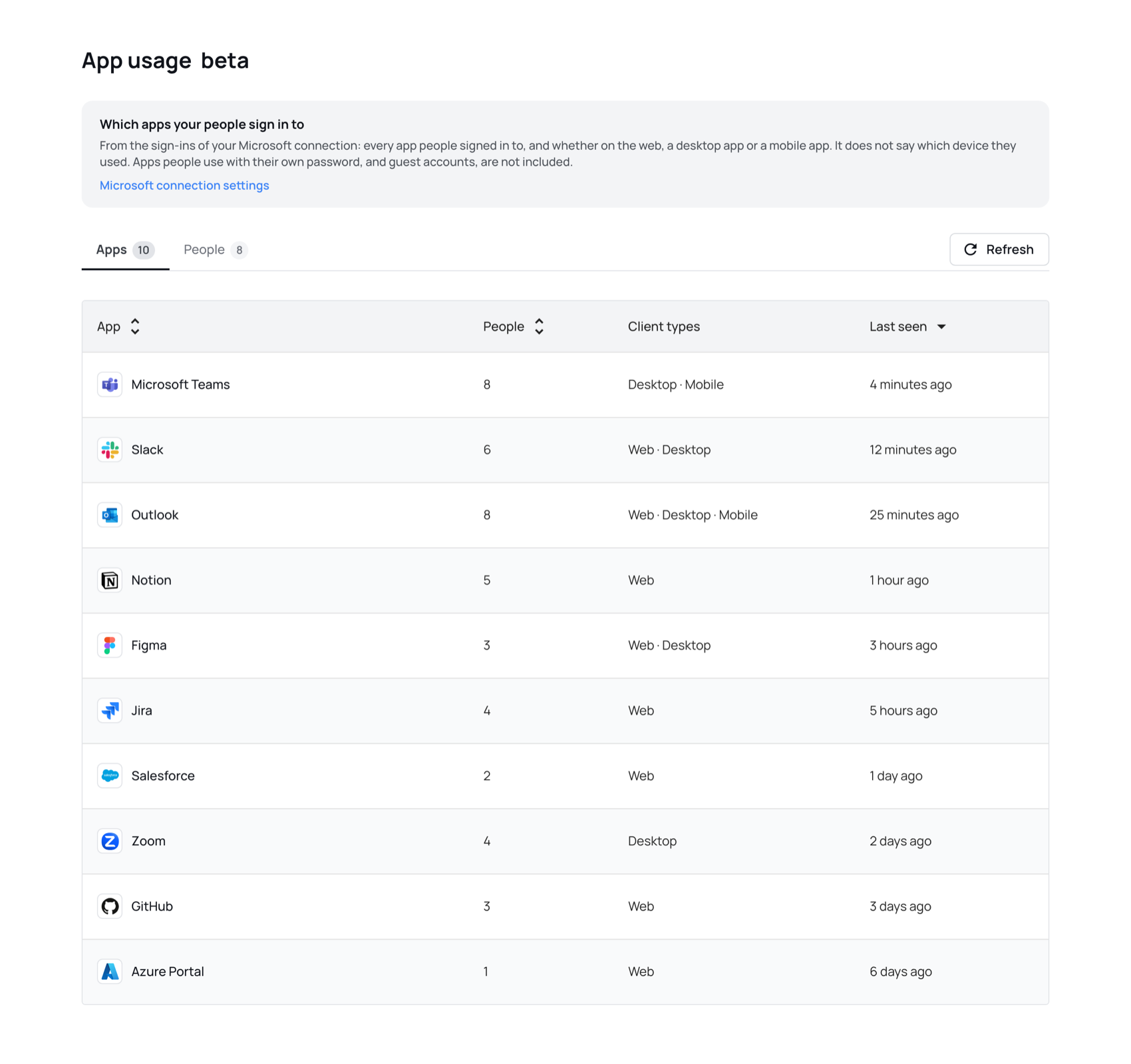
The Apps tab lists the apps your people signed in to, with how many People use each, their Client types and when it was Last seen.
If your Microsoft connection skips desktop or mobile devices, apps people only use there are missing. If it only reads some groups, people outside them are not counted. The page says so at the top.
The People tab
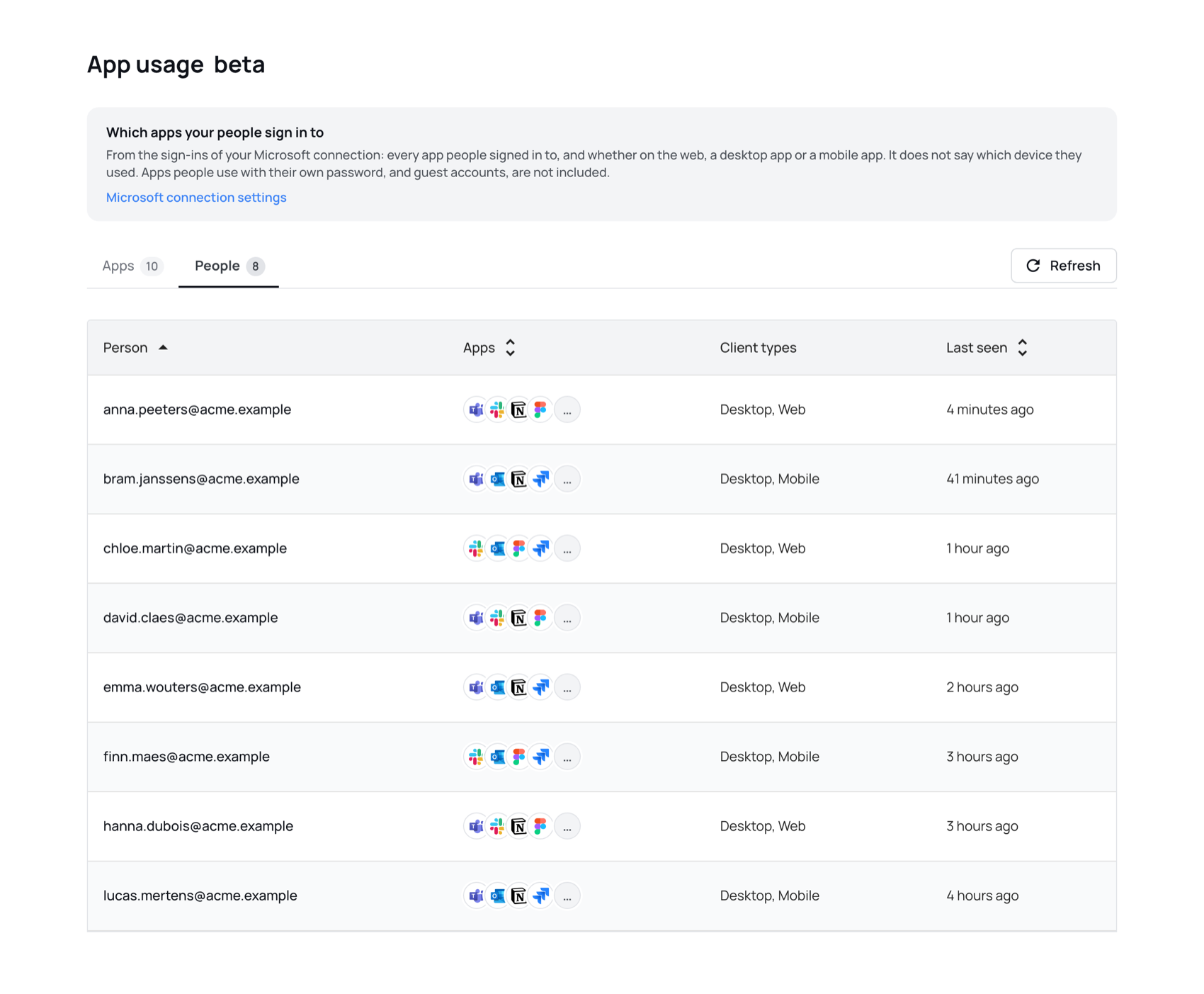
The People tab lists every person who signed in to an app, with the logos of the apps they used last.
One app, one person
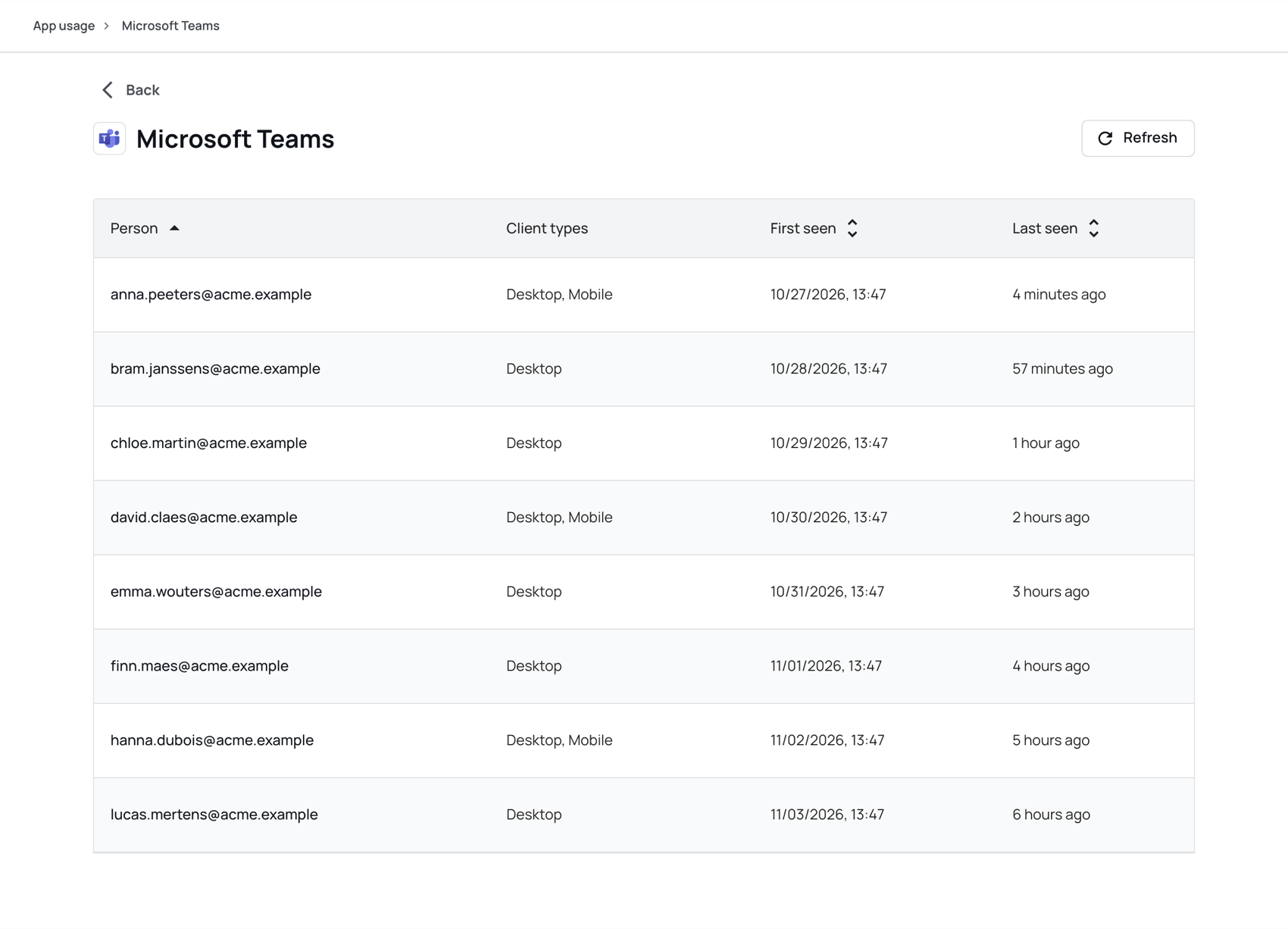
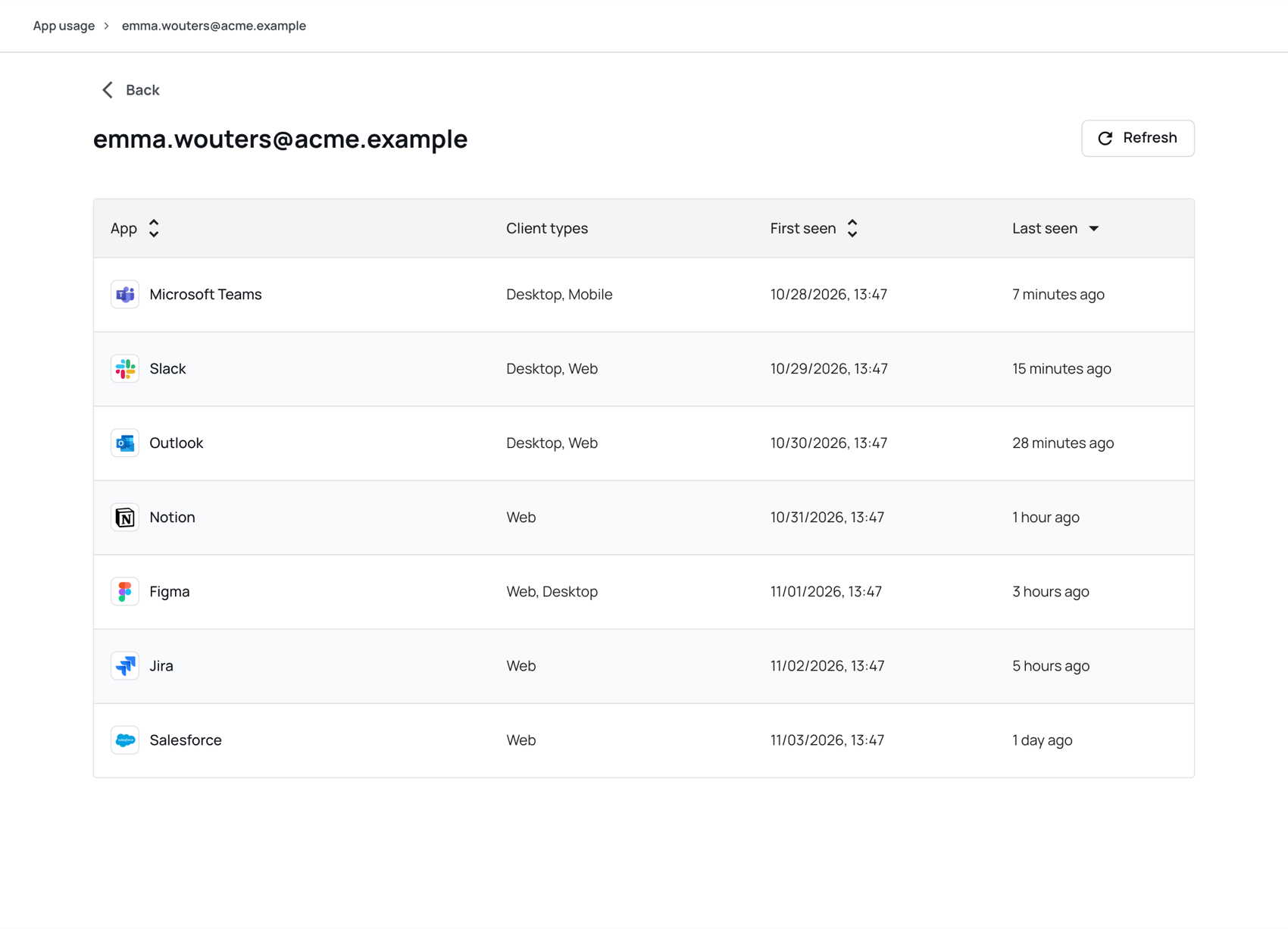
Click an app to see who uses it, or a person to see their apps, each with their client types and first and last sign-in.
Related
- Discover devices with Microsoft Entra ID: connect Microsoft and choose which devices and groups XFA reads.
- Team and roles: who can open which pages in the dashboard.
The screenshots show made-up data.