 Discover devices with Microsoft Entra ID
Connect Microsoft Entra ID to XFA to discover the devices your organization uses for work.
Before you begin
Your Microsoft tenant needs an Entra ID P1 or Microsoft 365 Business Premium license. One license in the tenant is enough; it does not have to be assigned to every user.
XFA identifies devices from your Microsoft 365 sign-in and audit logs, which it reads with the AuditLog.Read.All Microsoft Graph permission. Microsoft only exposes these logs to tenants with Entra ID P1. This is a Microsoft requirement, not an XFA one. If you are not sure your plan qualifies, contact support.
Step 1: Start the Microsoft connection
- In the XFA dashboard, open Discover.
- Click Add connection, or New if you already have a connection.
- Choose Discover devices in Microsoft and click Continue.
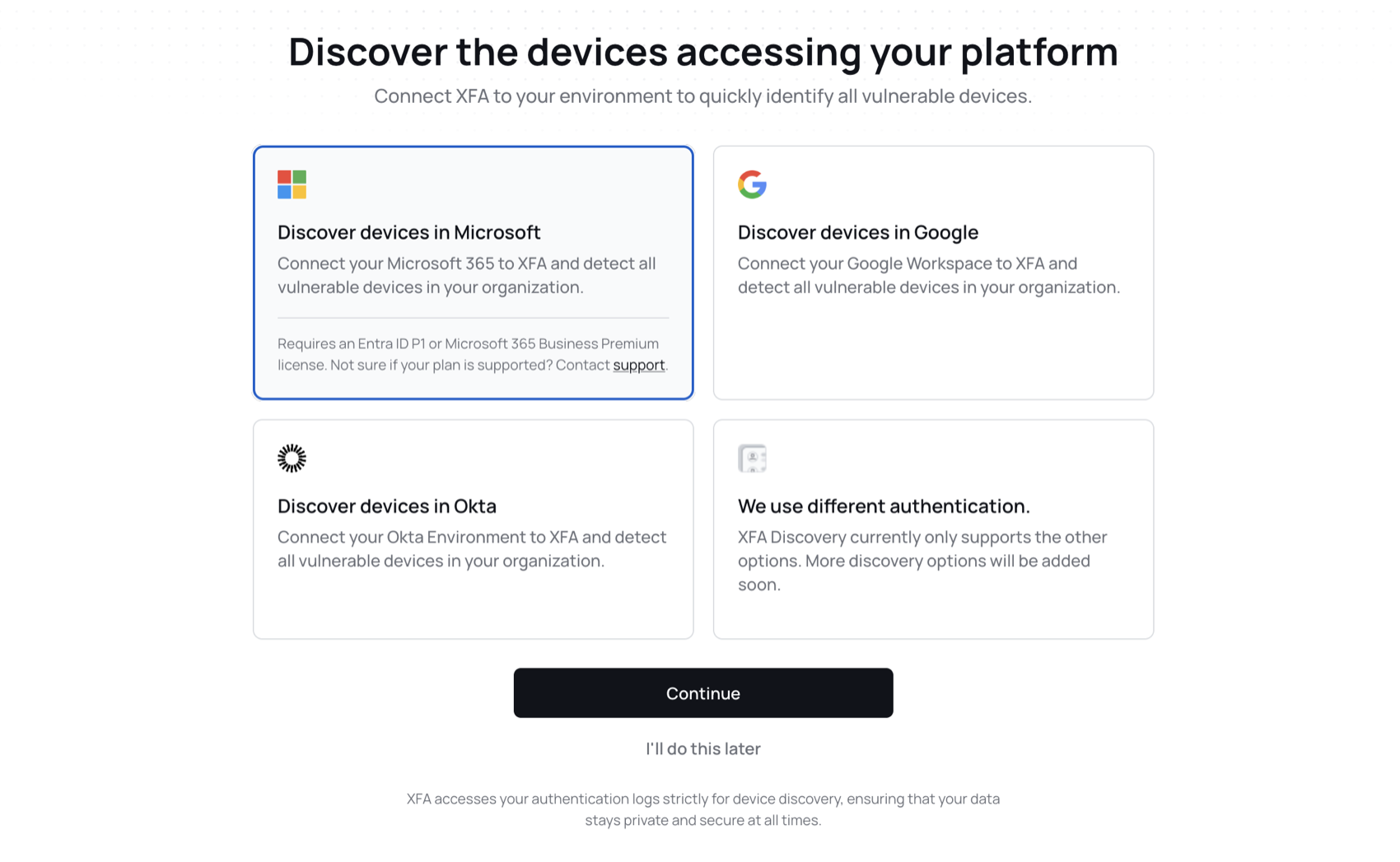
Each device discovery connection counts toward your plan’s limit. If you reach it, remove a connection or upgrade your plan.
Step 2: Connect XFA to Microsoft Entra ID
Click Grant admin consent. Sign in with an account that can grant admin consent for your tenant, review the requested permissions and approve them for your organization.
When consent completes, you return to XFA and see Successfully connected.
Step 3: Select the devices XFA needs to discover
Choose which devices XFA imports:
- Discover all devices imports every device found in your authentication logs.
- Only discover devices from selected groups imports devices for the groups you pick in the group selector.
To leave out a device type, tick Exclude desktop devices or Exclude mobile devices.
Click Start discovery. The first devices appear on the Devices page as XFA finds them.
Adjust scoping later
To change the scope after setup, open Discover and click Manage on your Microsoft connection. Besides the device type filters, this page has two more options:
- Only unmanaged devices skips devices that are already marked as managed, for example by Intune.
- Filter by groups limits device discovery to Only specific groups, or leaves out groups with Exclude groups. If a group is both included and excluded, it is excluded.
If the connection stops working, the connection card on the Discover page shows Reconnect. Use it to grant consent again.