User training Max plan Beta
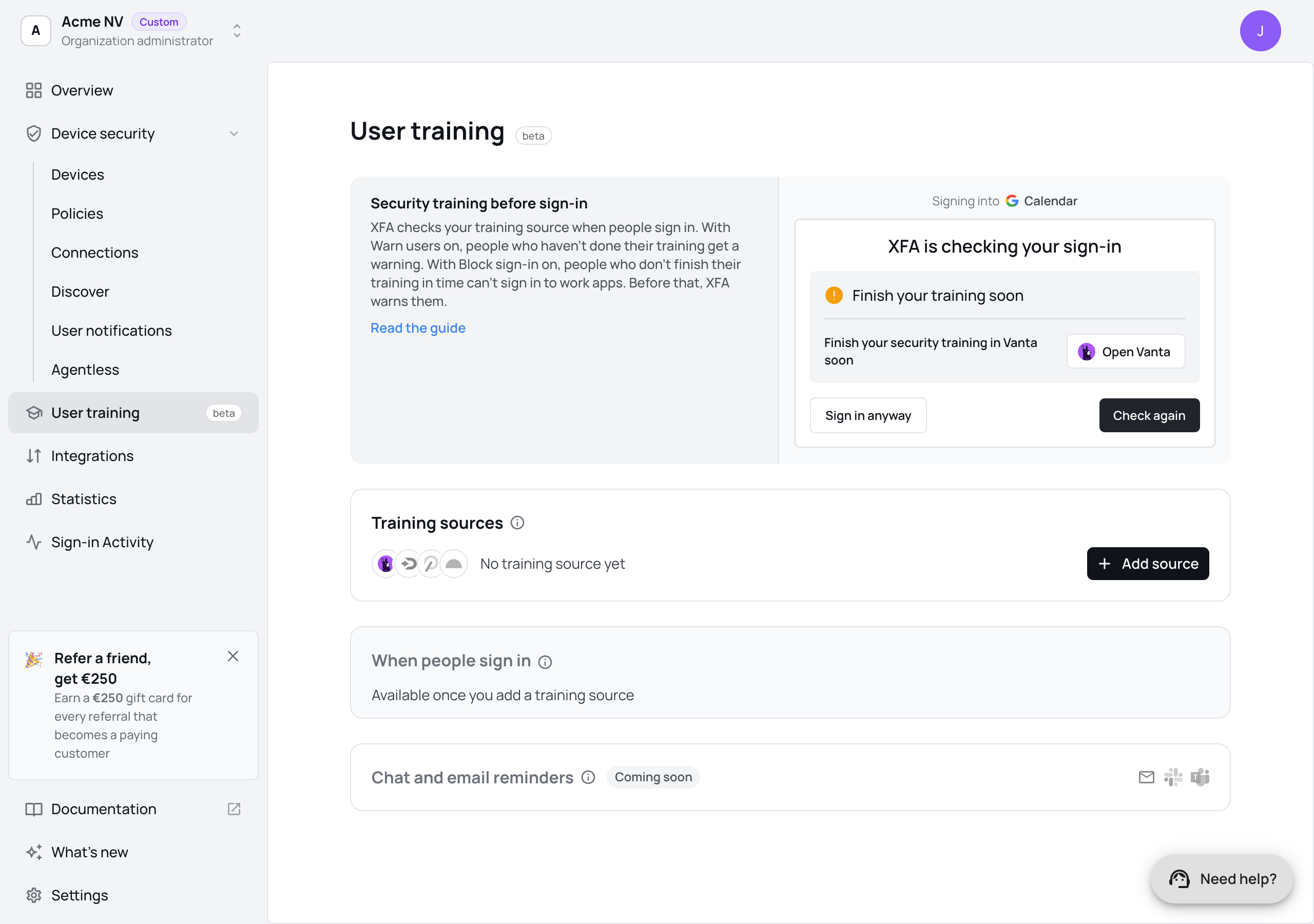
User training warns people at sign-in who haven't finished their security training or accepted your compliance policies. XFA reads each person's status from your training source, for example Vanta. With Block sign-in on, people who don't finish in time can't sign in to work apps.
For each person, XFA reads only done or not, and the due date. It never reads scores or training names, and it changes nothing in your training source. In the dashboard, you see which sign-ins were warned or blocked because of training, in Sign-in Activity.
Before you start
- Plan: User training, Block sign-in included, comes with the Max and Enterprise plans.
- Sign-in checks: XFA checks training when people sign in to work apps through XFA. Set up sign-in checks first. Without them, XFA can't warn or block anyone about training.
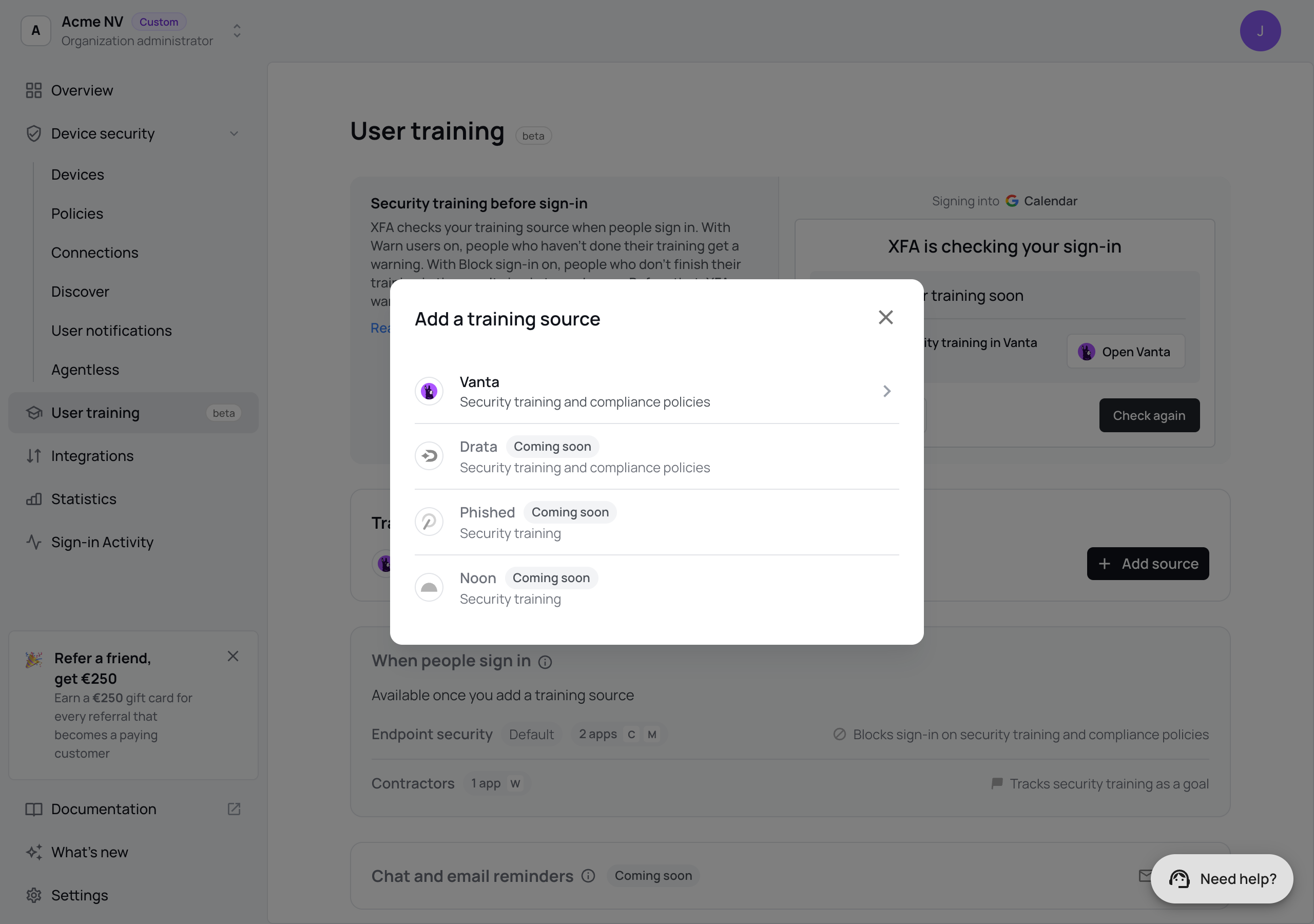
- Training source: an account in Vanta with access to its Developer Console. Drata and Phished are in beta with some customers. Noon is coming soon.
1. Open User training
In the XFA dashboard, open User training in the menu. The page has three parts: Training sources, When people sign in (your policies) and a preview of what people see.
2. Connect Vanta
-
Under Training sources, click Add source and choose Vanta.
-
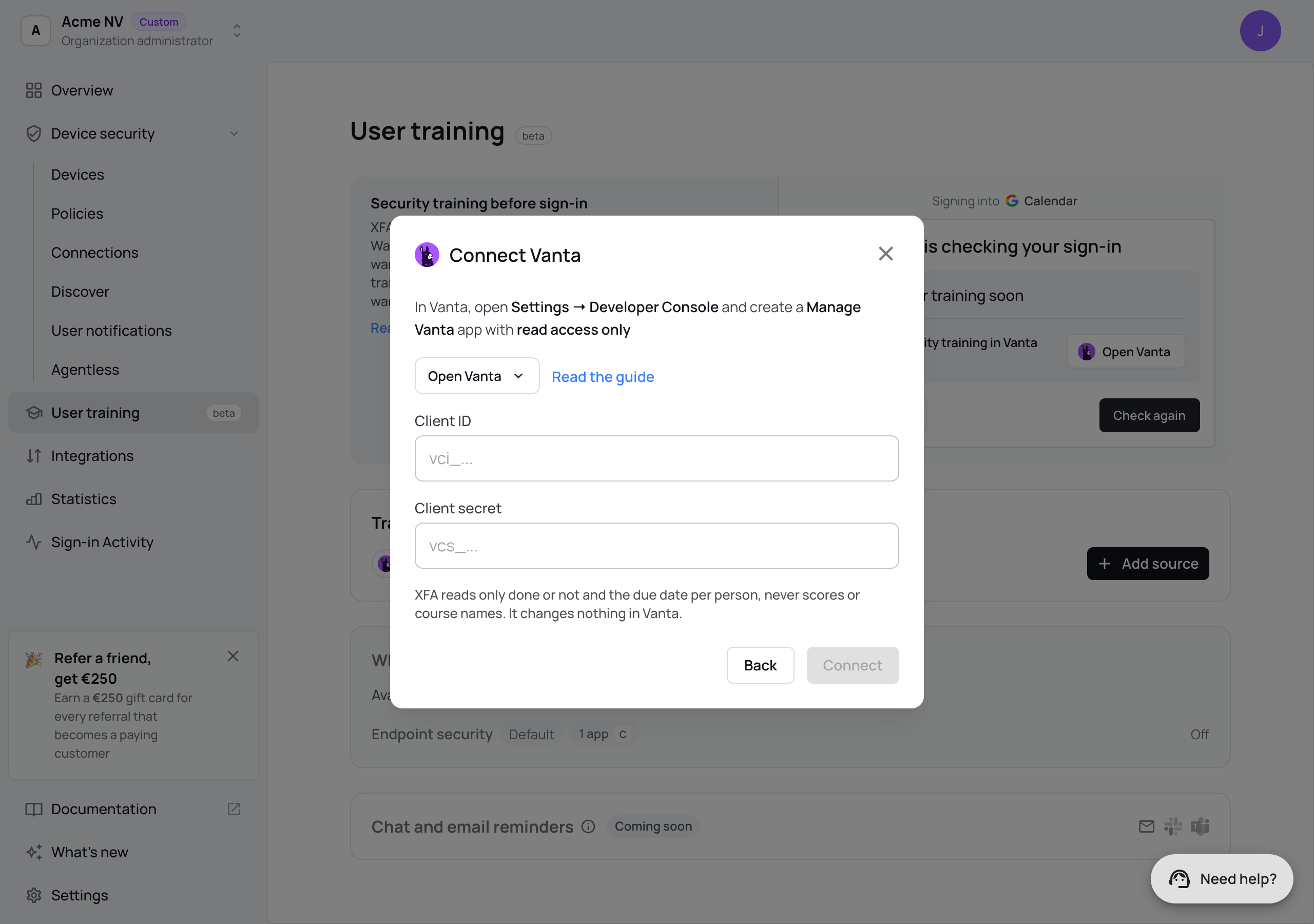
In Vanta, open Settings → Developer Console and create a Manage Vanta app with read access only. Open Vanta in the dialog opens the Developer Console for your region (US, EU or Australia).
-
Copy the client ID. Then generate a client secret and copy it.
-
Paste the Client ID and Client secret in the dialog and click Connect.
XFA checks the client ID and secret with Vanta right away:
- Vanta accepts them: the connection is saved and shows Connected.
- Vanta refuses them, or the app has no read access: nothing is saved. The dialog says what to fix.
- Vanta doesn't answer in time: the connection is saved and shows Couldn't reach Vanta yet. XFA tries again at the next sign-in that uses the check.
XFA stores the secret encrypted and never shows it again. Use this Vanta app only for XFA: Vanta allows one active token per app, so a new token cancels the one before it. To change the secret later, open the connection and click Replace the secret.
3. Check the connection
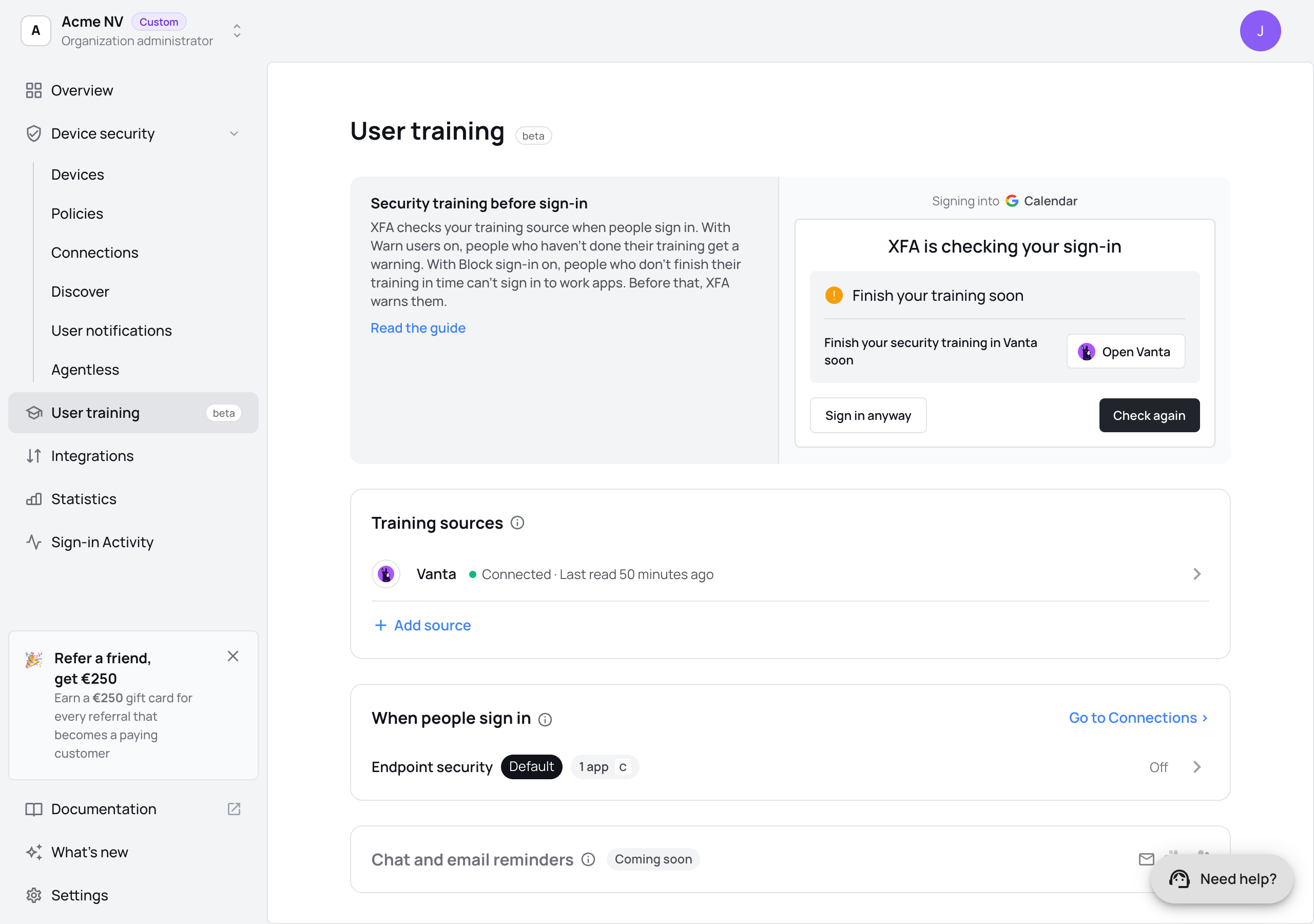
The connection shows under Training sources with its status.
| Status | What it means |
|---|---|
| Connected | XFA read Vanta. Last read shows when. |
| Not used by a policy yet | No policy reads this source. Turn on a check in step 4. |
| Checked when someone signs in | A policy reads this source, and XFA reads it at the next sign-in. |
| Couldn't reach Vanta yet | XFA tries again at the next sign-in. |
| Last check failed | Vanta didn't accept the client ID and secret, or none is saved. Open the connection to replace them. |
| Missing permission | Drata, Phished or Noon: the key or token works, but lacks a permission the checks need. The line under it says what to add. Add it in that tool, then click Check again. |
| Vanta asked XFA to wait | Vanta limits how often XFA can read. Nothing to change: XFA tries again at a later sign-in. |
| Unknown answer from Vanta | Vanta sent a training status XFA doesn't know. People see nothing about it, and nobody is blocked because of it. |
4. Turn on the checks in a policy
Under When people sign in, each policy that your sign-in connections use is one row. Click a policy to open its Training checks.
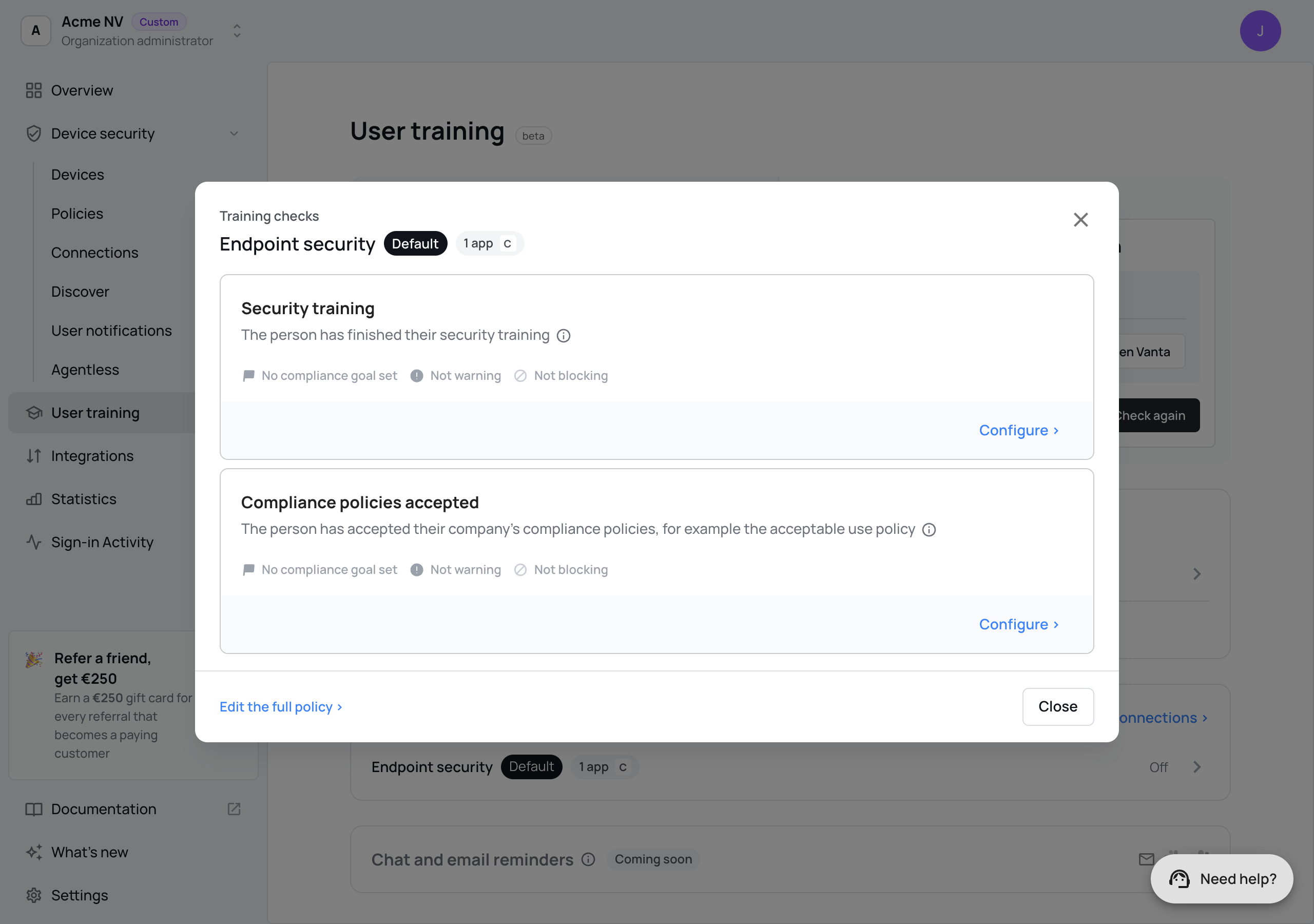
There are two checks:
- Security training: the person finished their security training.
- Compliance policies accepted: the person accepted your compliance policies, for example the acceptable use policy.
Click Configure on a check and choose what it does:
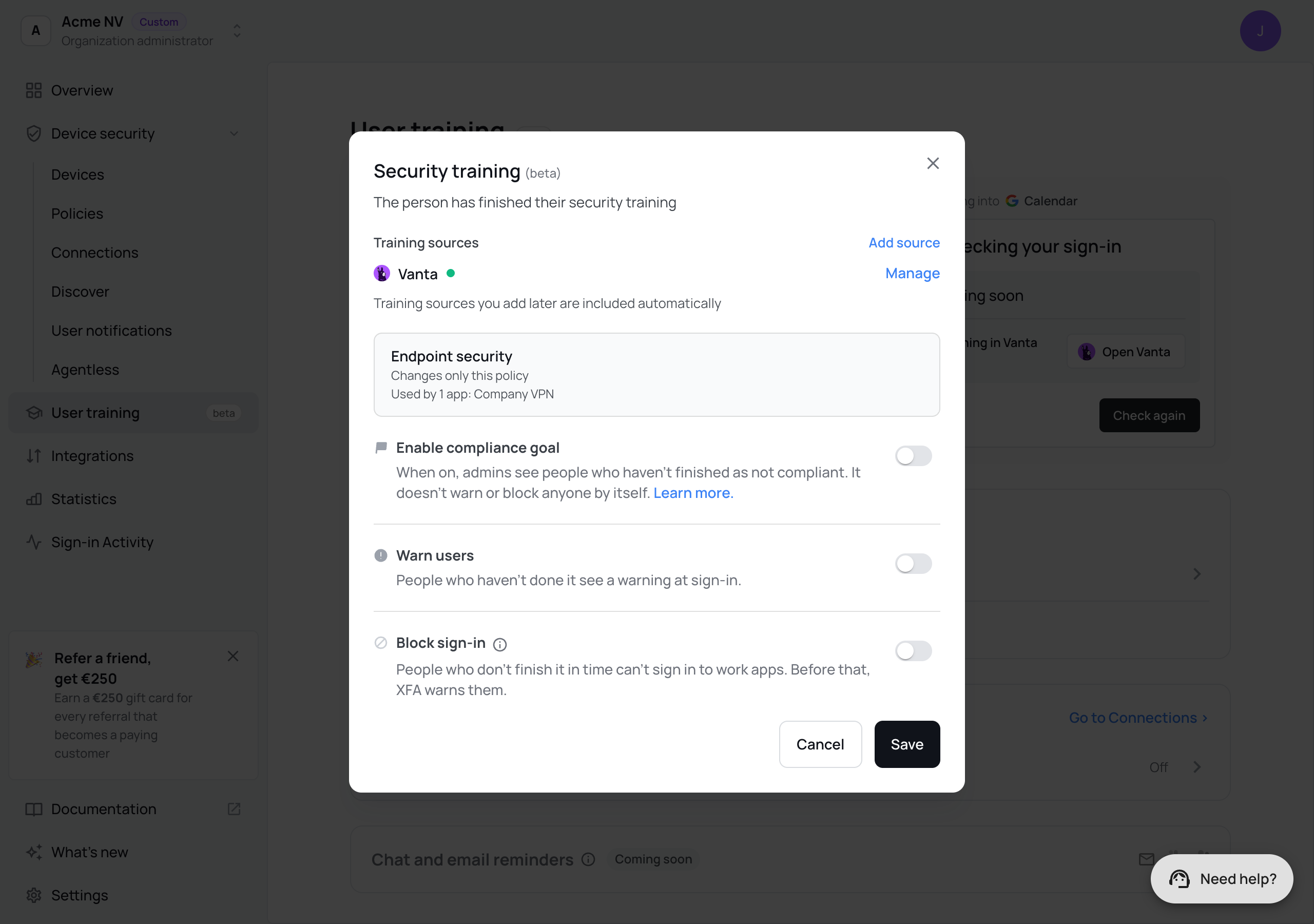
- Training source: the sources this check reads. Sources you add later are included automatically. For Compliance policies accepted, only sources that have compliance policies are listed.
- Enable compliance goal: people who haven't finished show as not compliant in the dashboard. Nobody gets a warning or a block from this alone.
- Warn users: people who haven't done it see a warning at sign-in.
- Block sign-in: people who don't finish it in time can't sign in to work apps.
- No due date: warn for: when the training has a due date, people are blocked as soon as it passes. When it has none, they are blocked when these days end, counted from the first sign-in where XFA found their training overdue. Don't warn, block right away blocks at once.
Click Save. The policy's row then says what its checks do, for example "Blocks sign-in on security training and compliance policies".
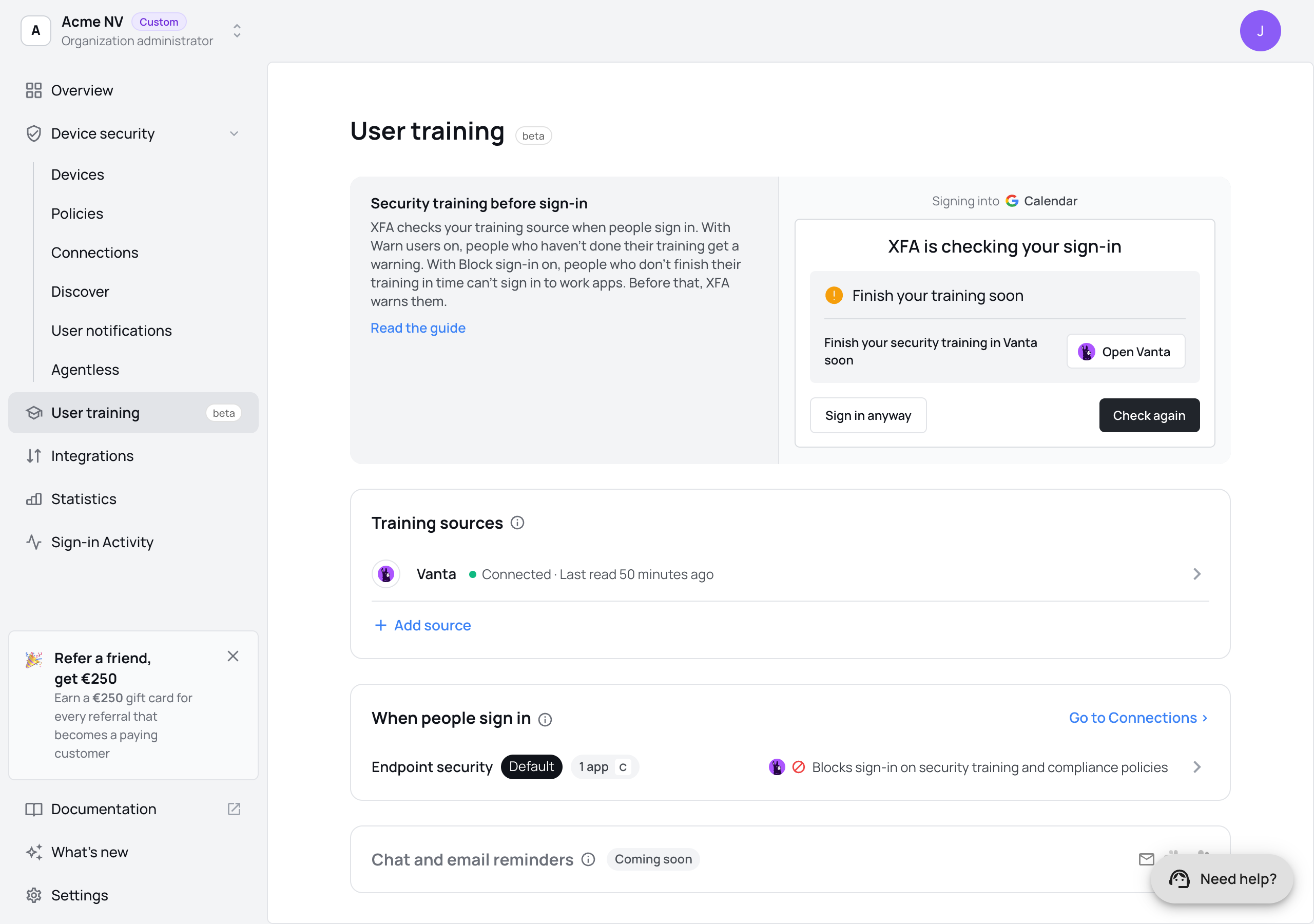
Edit the full policy › opens the same checks on the policy's User training tab. See Policies for the other checks in a policy.
What people see at sign-in
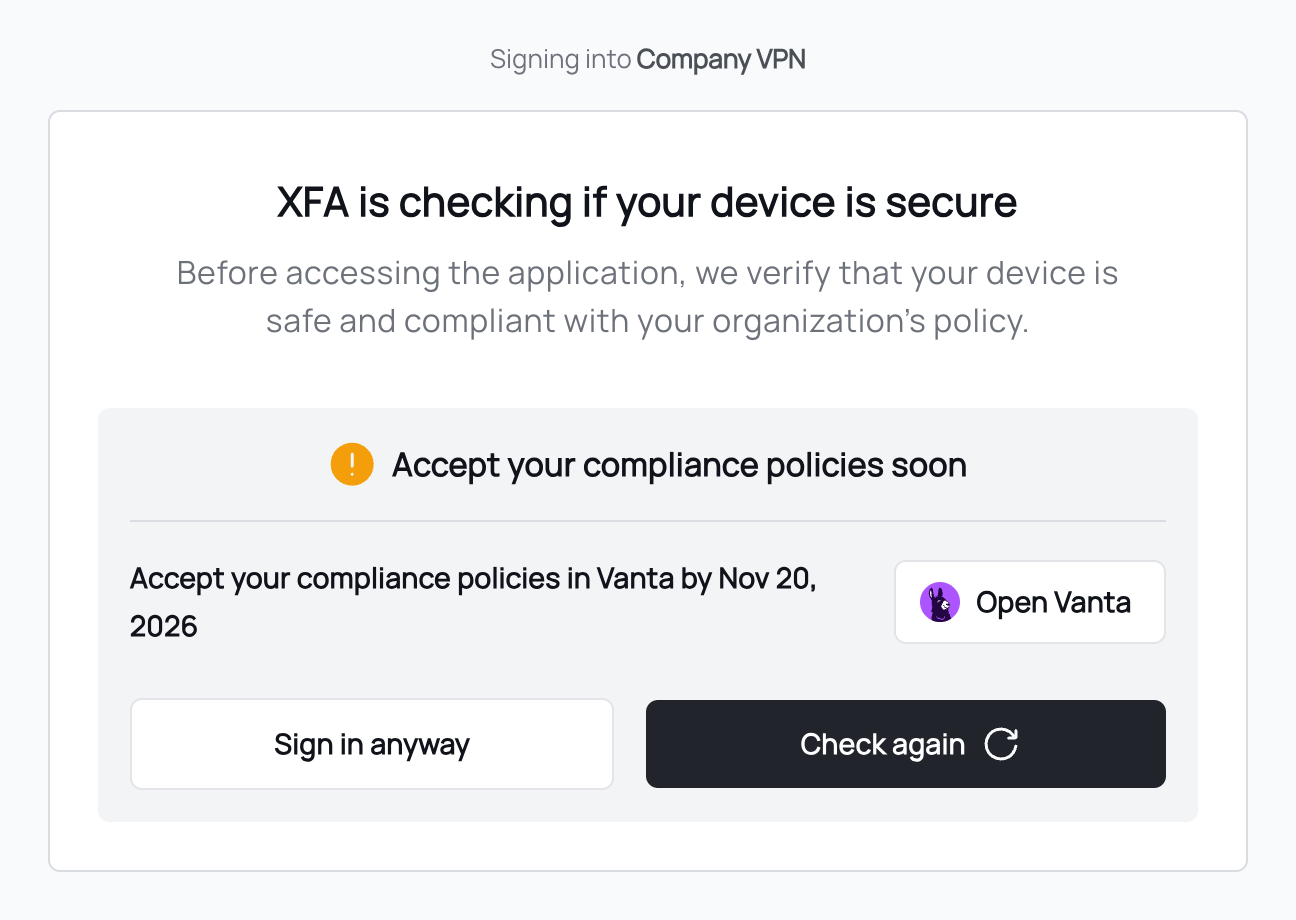
When someone signs in to a work app, XFA checks their device and their training at the same time. The sign-in page shows one card with what to do. Each example below is for Vanta. With another source, the card names that source.
On every card:
- Open Vanta opens Vanta, where the person does their training or accepts the policies.
- Check again asks Vanta again right away. After finishing in Vanta, the person sees the new status at once.
- Sign in anyway, when your skip settings allow it, lets the person continue past a warning. It never shows on a blocked card.
Due soon
The due date is close and the person isn't done yet. They see the due date and can sign in.
Before the block
Block sign-in is on and the block is coming: the due date is close, or the training has no due date and the days under No due date: warn for are running. The card shows the date from which they can't sign in. Until then, they can still sign in.
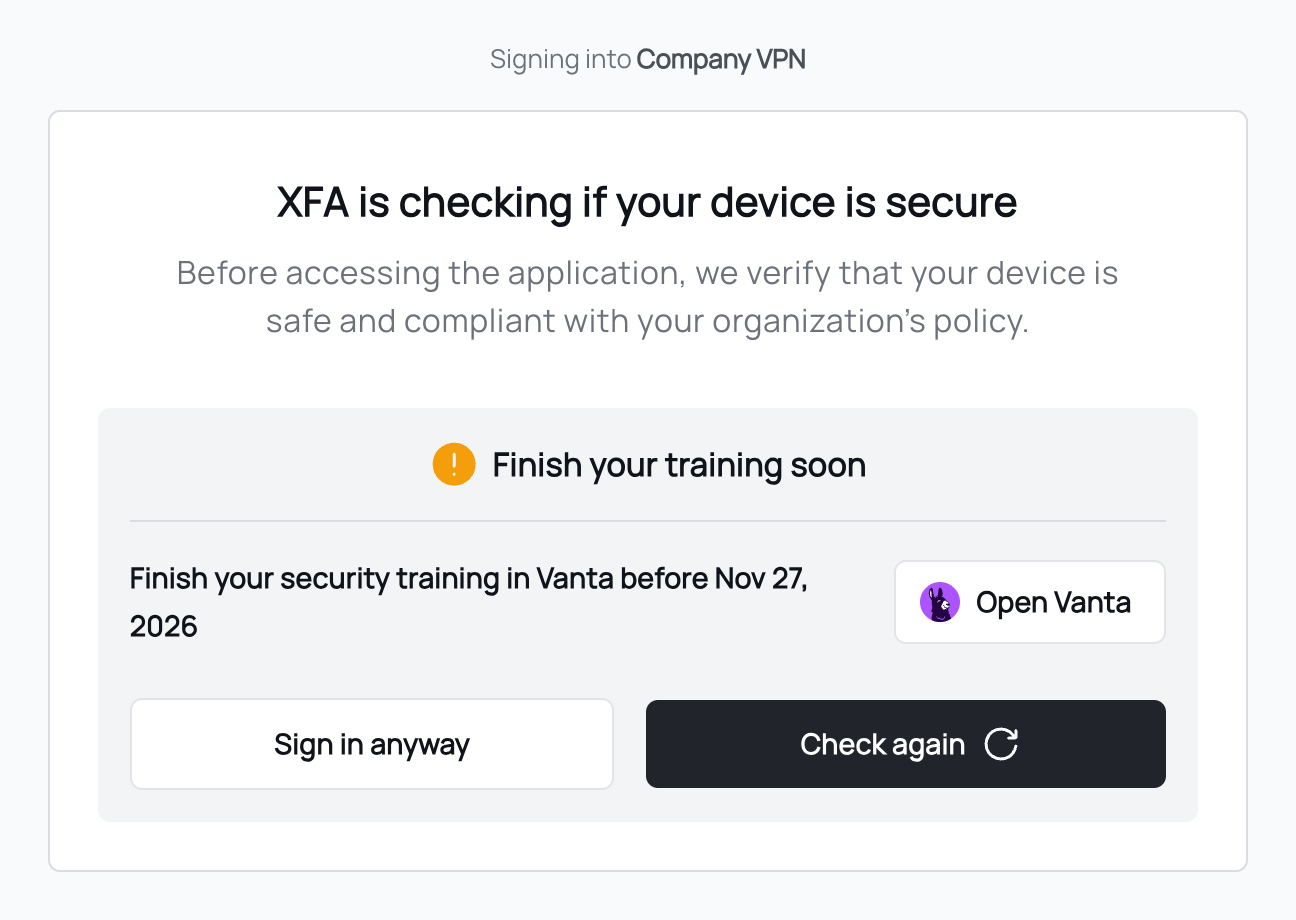
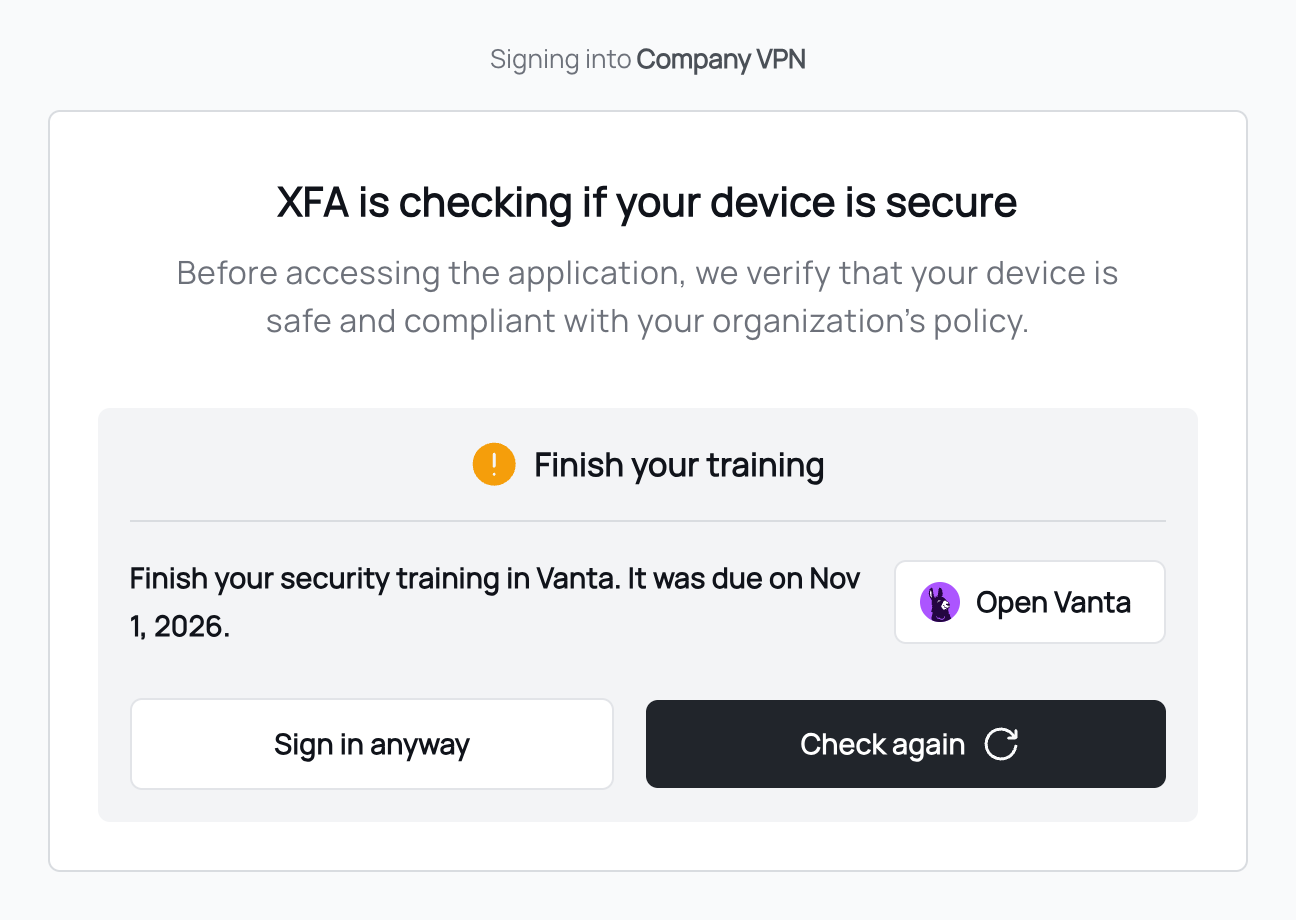
Overdue, warning only
The training is overdue and Block sign-in is off. The person sees when it was due and can still sign in.
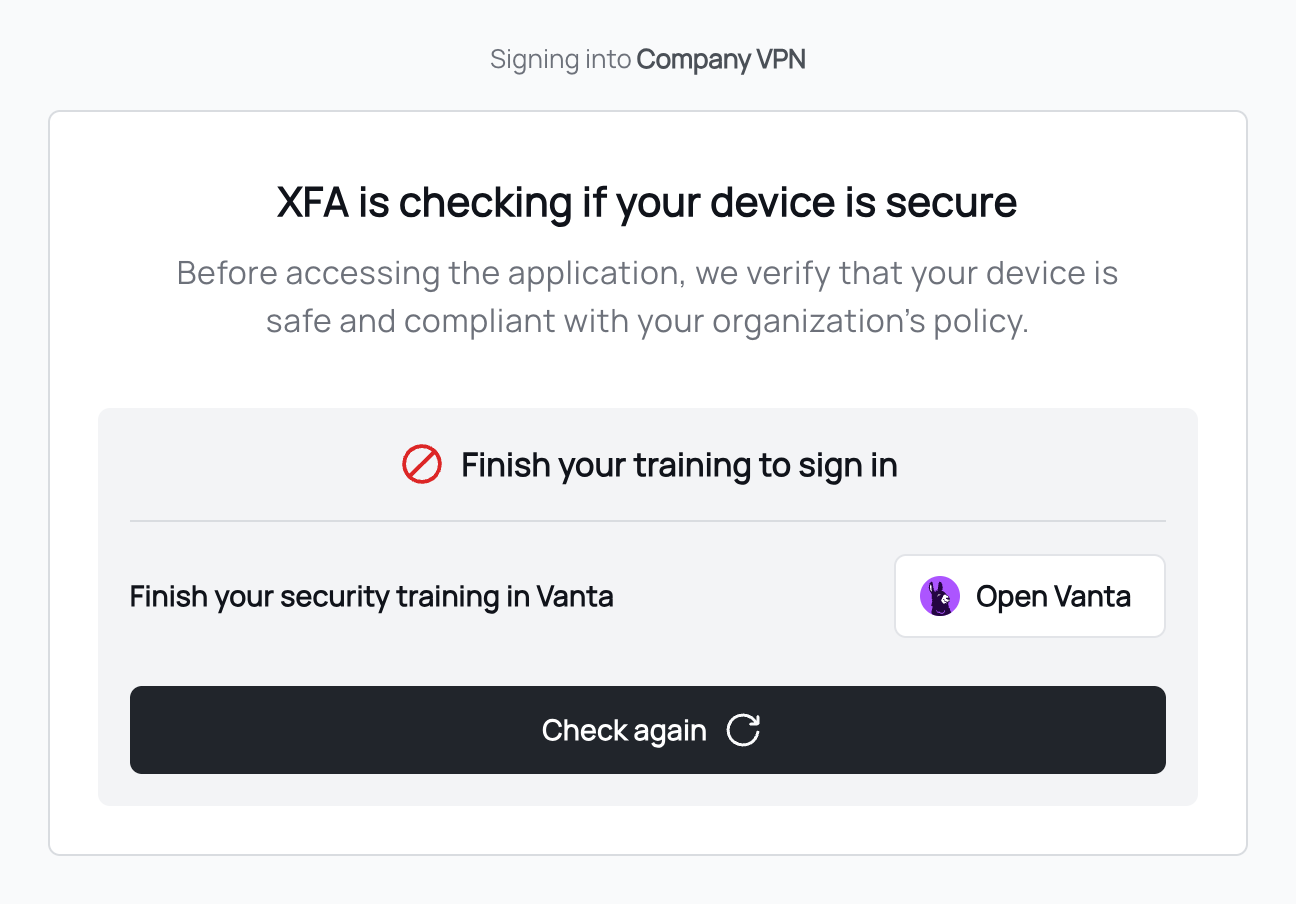
Blocked
The block date has passed. The person can't sign in until they finish in Vanta and click Check again. There is no Sign in anyway.
Couldn't check
XFA couldn't reach Vanta, or Vanta couldn't find the person. The person sees nothing about training and signs in as usual. In Sign-in Activity, the badge reads Training not checked or Compliance policies not checked. When XFA couldn't reach Vanta, a person who was already blocked stays blocked for up to 24 hours after XFA last found their training overdue.
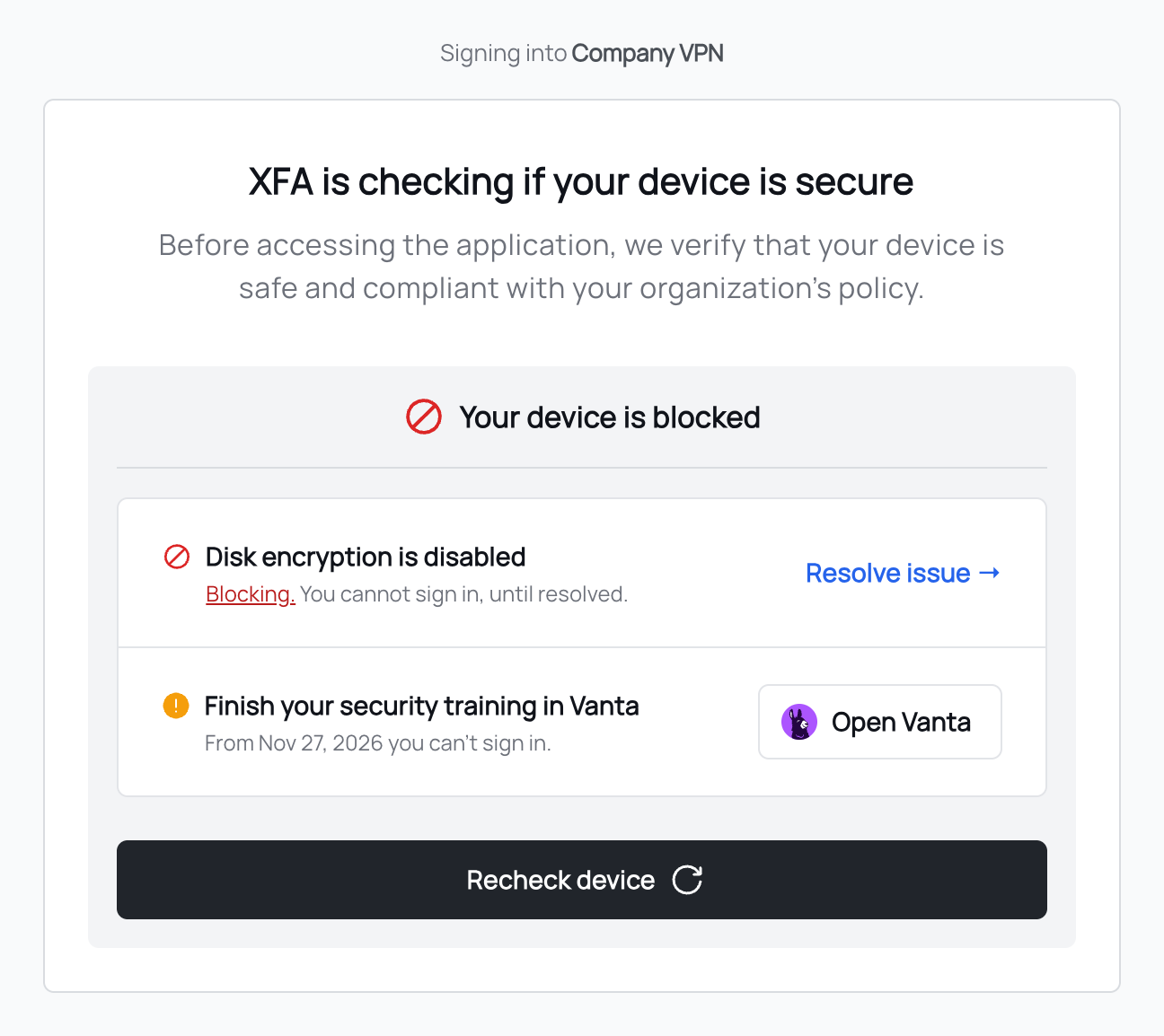
Together with a device check
When the device also fails a check, the card leads with the device. The training is one row in the list, with its own date.
Verify it worked
Open Sign-in Activity. Warned and blocked sign-ins carry a Training not done or Compliance policies not accepted badge, red when the sign-in was blocked. When XFA couldn't check, the badge reads Training not checked or Compliance policies not checked. To let one blocked sign-in through, click Allow access.
Notes and troubleshooting
- Sign-in through Google, Microsoft Entra ID or Okta: if the policy covers your identity provider's own sign-in, a blocked person may not reach their training. Let them in from Sign-in Activity, or turn on the block in a policy that doesn't cover your identity provider.
- Person not found in Vanta: XFA finds each person in Vanta by their email. At sign-in they see nothing about training and are never blocked by it; in Sign-in Activity the badge reads Training not checked or Compliance policies not checked. XFA remembers a done or "not found" answer for up to 10 minutes, so for a person just added to Vanta the check can take up to 10 minutes to start.
- Paused tasks: a task paused in Vanta counts as done.
- Unconfirmed sign-in: when XFA can't confirm who is signing in, the checks are skipped: no warning and no block.
- Plans without User training: the User training page shows what the feature does, with Upgrade plan. People are not checked.
Related
- Vanta: the Vanta integration, also for exporting device results.
- Drata and Phished: how to connect them as a training source (beta).
- Integrations: every tool XFA connects to.
- Security training at sign-in: the page for the people who see these cards.