 Discover devices with Okta
Connect Okta to XFA to discover the devices your organization uses for work.
Step 1: Start the Okta connection
- In the XFA dashboard, open Discover.
- Click Add connection, or New if you already have a connection.
- Choose Discover devices in Okta and click Continue.
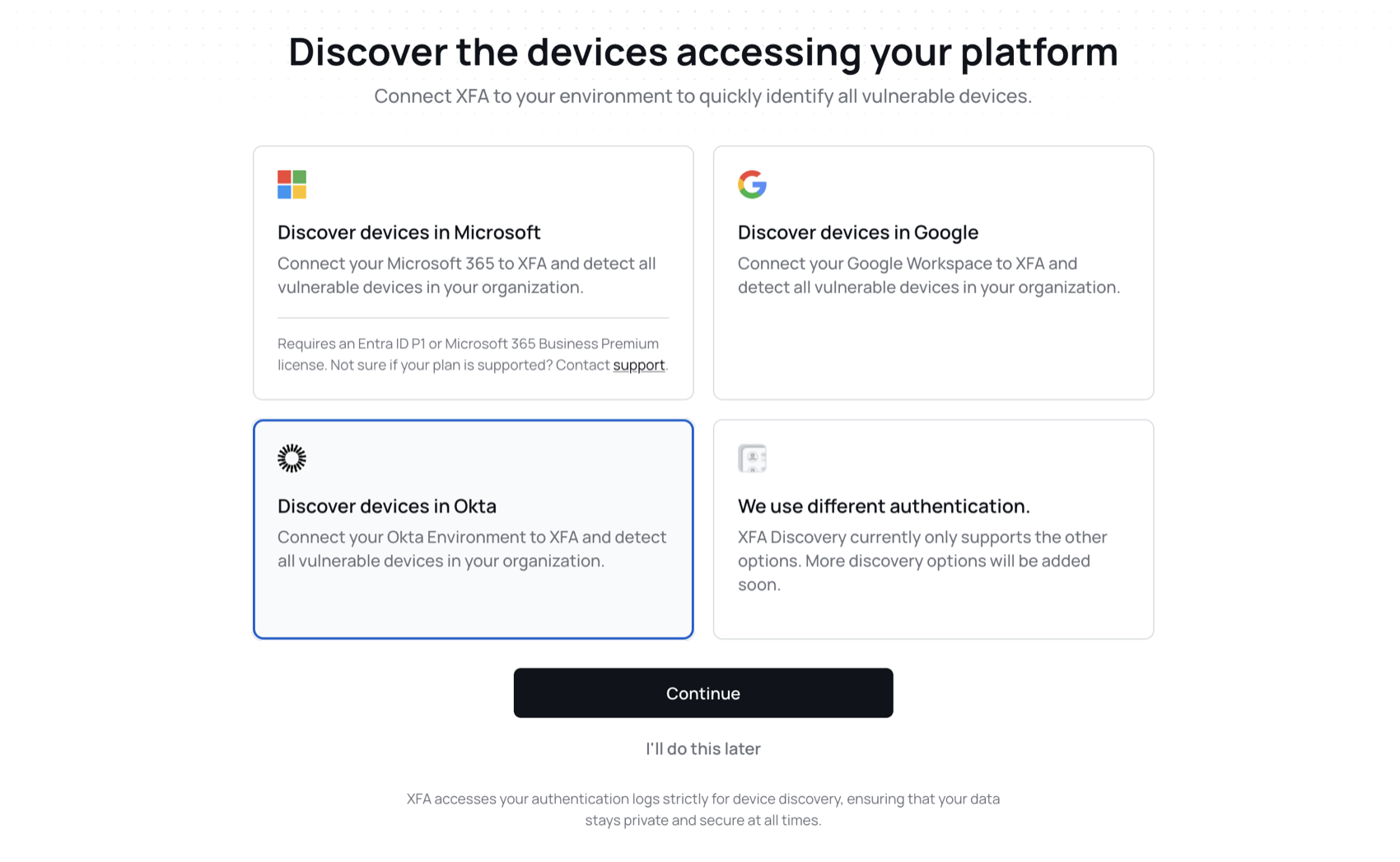
Each device discovery connection counts toward your plan’s limit. If you reach it, remove a connection or upgrade your plan.
Step 2: Create the XFA Service Integration in Okta
- In the Okta Admin Portal, go to Applications > API Service Integrations > Add Integration.
- Search for XFA Discovery and add it.
- Review the permissions and click Install & Authorize.
- Copy the Okta domain, Client ID and Client Secret of the new integration. You paste them into XFA in the next step.
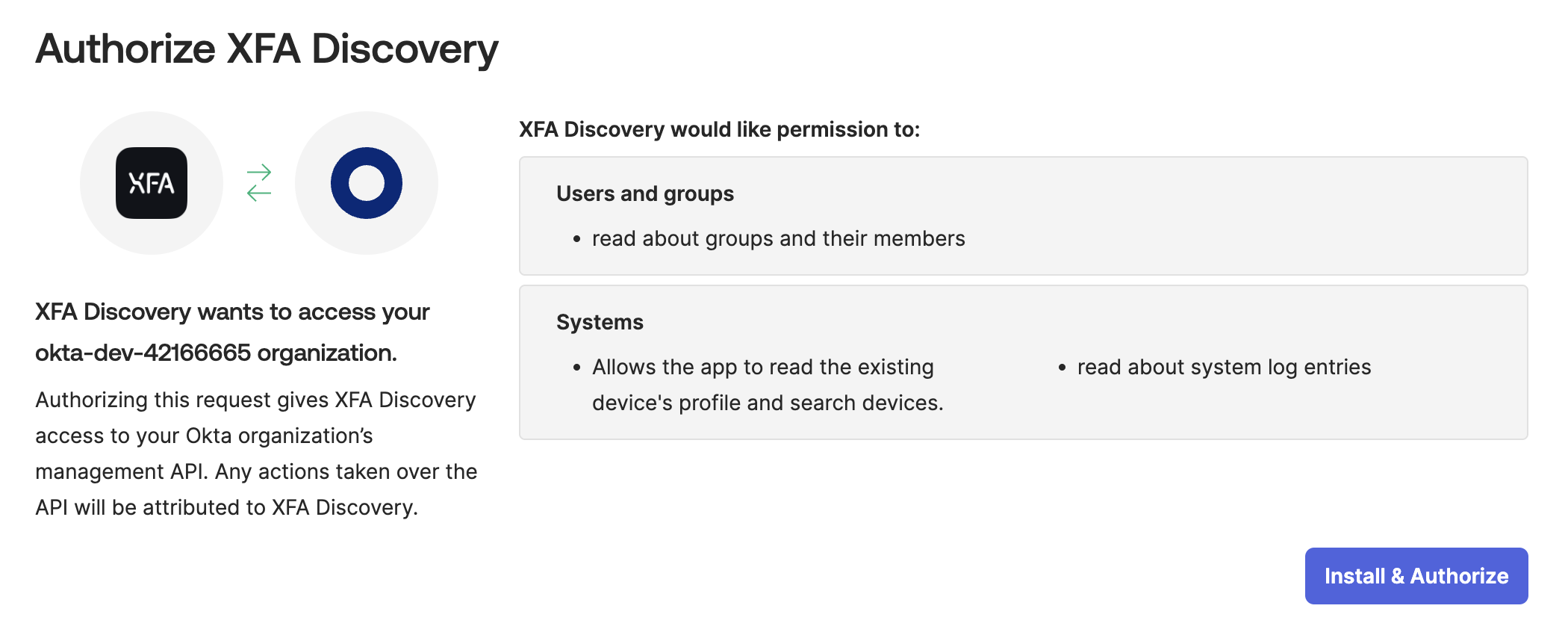
Step 3: Add your API Service Integration details
Back in XFA, fill in the three fields with the values from Okta:
| Field | Example |
|---|---|
| Okta domain | https://your-tenant.okta.com |
| Client ID | 0oa1b2c3d4e5FGHIJ678 |
| Client Secret | The secret Okta showed for the integration |
Start discovery becomes available once all three fields are filled in. Click it to finish. The first devices appear on the Devices page as XFA finds them.
Okta device discovery has no scoping options. XFA imports the devices it finds in your Okta authentication logs, without group or device type filters.