Custom onboarding and sign-in messages
Overview
Add your own message to the bottom of XFA's onboarding and sign-in cards. Custom messages let you reinforce company policies, link to an internal runbook, or add a bit of your own voice right in the flow, where end users will actually see it.
You can configure two separate messages:
- Message during onboarding: shown while a user is enrolling a new device.
- Message during signing in: shown while a user is verifying their device during sign-in.
Each message is edited independently, so you can tailor the tone and content to the moment. Emails and links are allowed inside a message.
Where to configure
In your Dashboard, open Enforcement from the left-hand navigation and click "Add custom message" in the top-right corner of the page. A dialog opens with a live preview next to the onboarding and sign-in message fields, so you can see exactly how the text will appear to users before you save.
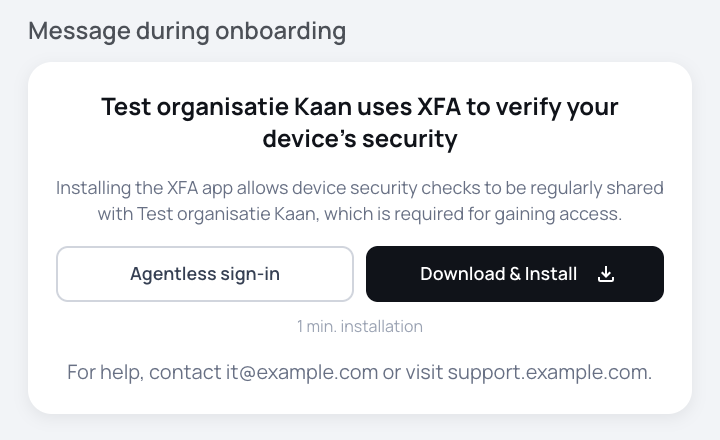
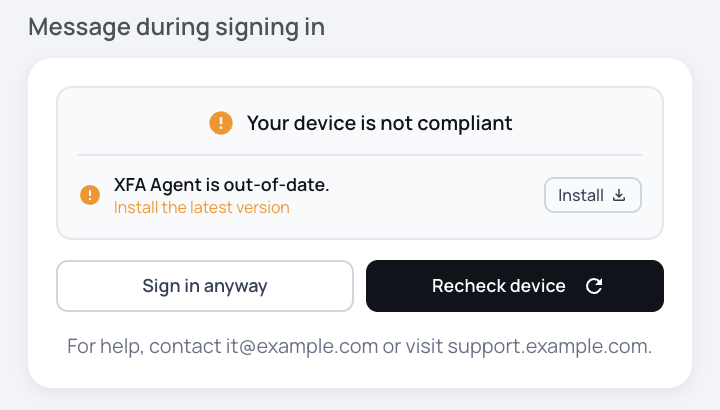
Custom messages appear at the bottom of the onboarding or sign-in card and are visible to every user going through that flow. Each message is limited to 140 characters, so keep them short and actionable.
What to use them for
- Link to your internal security handbook, wiki page, or help desk.
- Remind users which device they are expected to enroll (for example, company laptop vs. personal phone).
- Provide a local contact for users who run into trouble.
- Reinforce a compliance or policy message in your company's own voice.
Learn more
- Device verification: automated email reminders for device onboarding.
- Device risk notifications: email alerts when an onboarded device is at risk.
- Awareness through Slack: deliver the same awareness notifications directly in Slack.