How to secure Slack
Secure Slack with XFA by placing device verification in the SAML SSO flow. Users authenticate through your identity provider, XFA checks the device against your policy, and Slack access continues only when the device decision allows it. Use it to confirm the SAML values and test the flow before rollout.
To configure Slack with XFA you need the Business+ or Enterprise license that includes the SAML-based single sign-on (SSO) feature. You can find more information about the different licenses here.
Slack's SSO feature uses SAMLv2. By placing XFA between Slack and your identity provider, every login attempt is checked for device security before access is granted.
When a user signs in to Slack, the following happens:
- Slack → XFA → your IdP: Slack redirects the user to XFA, which immediately redirects to your identity provider (e.g. Google Workspace) to authenticate. The Entity ID configured in your IdP is the one for Slack. It identifies what the user is authenticating for.
- Your IdP → XFA: After authentication, the identity provider sends the user back to the ACS URL, which points to XFA instead of directly to Slack.
- XFA verifies the device: XFA checks the security posture of the device against your policy.
- XFA → Slack: If the device passes, XFA forwards the authentication to Slack using the application's real ACS URL and access is granted.
This guide will describe all steps needed to set this up.
Note: This article assumes that you have an account set up with XFA for your organization and your are an admin for that organization. If you do not have an account, you can create one at https://dashboard.xfa.tech/signup.
Configure Slack in your identity provider
Use our specific identity provider guides to learn how to setup an application with the provided settings.
Entity ID: https://slack.com
ACS URL / Redirect URL: https://device-api.xfa.tech/saml2/consume
Signed Response: false
The ACS URL / Redirect URL is different than the standard Slack configuration
Google Workspace: adapt the built-in Slack SAML app
If your identity provider is Google Workspace, we recommend adapting the built-in Slack SAML app in Google Admin rather than creating a new Custom SAML app. The built-in app already contains the SAML attribute mapping (first_name, last_name, User.Email) that Slack requires. A Custom SAML app does not, and will produce the error The SAML Response is missing a required attribute when you test the connection in Slack.
- Open admin.google.com/ac/apps/unified and open the existing Slack app from the list.
- Under Service Provider Details, change only the ACS URL to
https://device-api.xfa.tech/saml2/consume. Leave the Entity ID ashttps://slack.com. - Leave the SAML attribute mapping as it is. Slack relies on the default mapping shown below.
If Slack returns this error when testing the configuration, your IdP is not sending the user attributes Slack expects. In Google Workspace, open your SAML app and confirm the SAML attribute mapping matches:
| Google Directory attribute | App attribute |
|---|---|
| Basic Information → First name | first_name |
| Basic Information → Last name | last_name |
| Basic Information → Primary email | User.Email (required) |
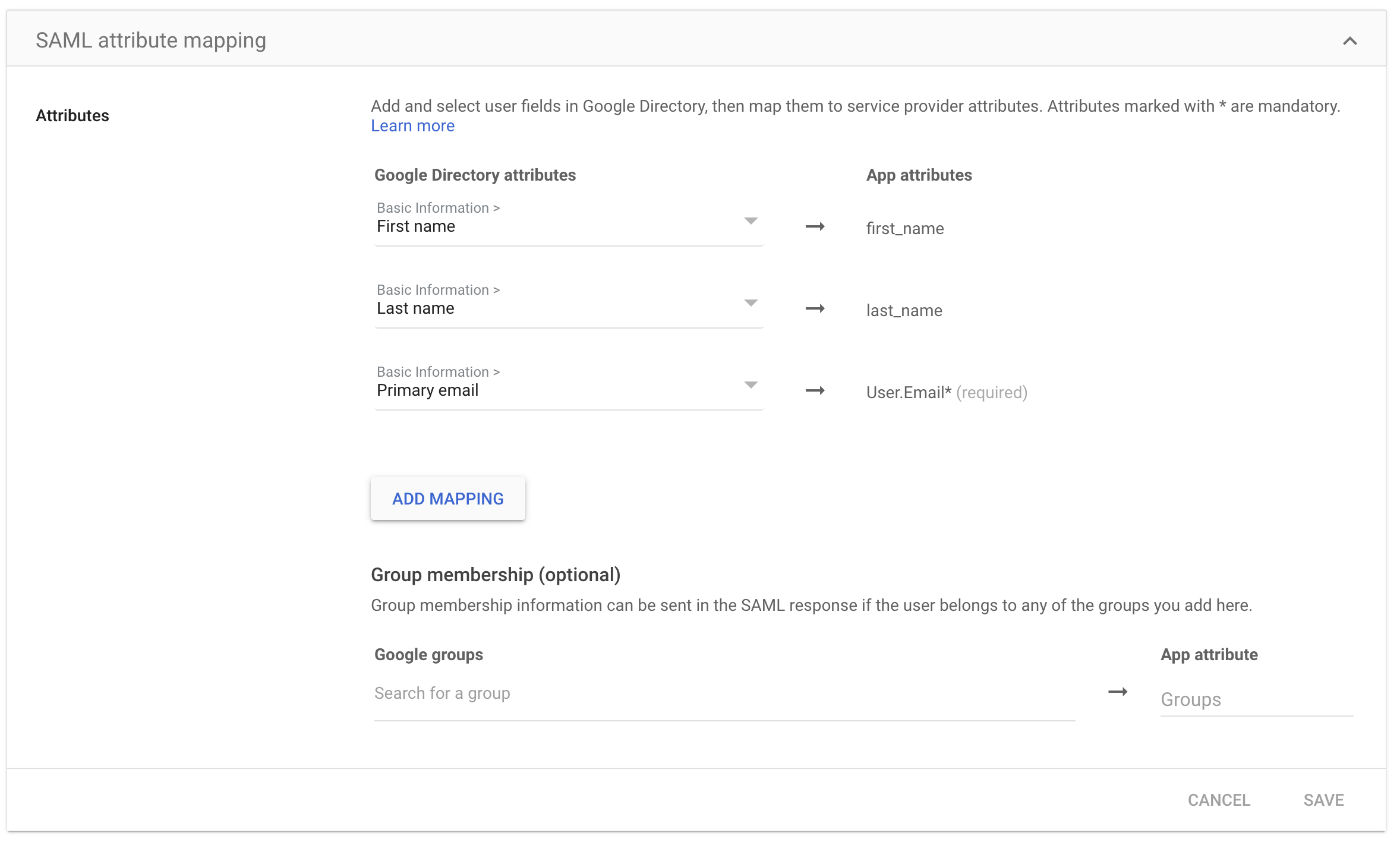
This mapping is configured automatically when you adapt the built-in Slack SAML app in Google Admin instead of creating a Custom SAML app.
Creating an application in XFA
A guide on how to create an application in XFA can be found here.
Assertion Consumer Service URL: https://<your-slack-domain>.slack.com/sso/saml
SSO URL: (provided by identity provider)
Entity ID: (provided by identity provider)
Certificate: (provided by identity provider)
Configure Slack with XFA
1. Login to your Slack Workspace Admin portal
Click on (your workspace) > Tools & Settings > Workspace settings.
Make sure you are on the right workspace and have the necessary permissions to configure SSO.
2. Go Settings & Permissions > Authentication > SAML Authentication > Configure
3. Switch into 'Test' mode
Next to "Configure SAML Authentication", click on the "Configure" switch to enable test mode. This will allow you to test the configuration before activating it.
4. Configure SAML settings
Make sure to select 'SAML Authentication'
Use the following settings to configure Slack with XFA.
SAML 2.0 Endpoint (HTTP): (SSO URL from XFA application)
Identity Provider Issuer: (Issuer from XFA application)
Public certificate: (Certificate from XFA application)\
Advanced Settings:
Sign AuthnRequest: false
Responses Signed: false
Assertions Signed: true
Make sure to only select 'Assertions Signed' and not 'Responses Signed'
5. Test configuration
Click on Test Configuration to test the configuration. You should be redirected to your identity provider to login, after which your device security will be checked by XFA before coming back to Slack.
6. Turn off test mode
Once the test is successful, turn off test mode by clicking on the "Configure" switch again. This will activate the configuration and your users will now be asked to verify their device security with XFA in addition to their identity before they can login to Slack.
7. Configure onboarding experience
You can start by making the SSO login optional by specifying "It's optional" under "Authentication for your workspace must be used by:". This will allow you to test the configuration with a few users before making it mandatory for everyone. You can switch to "All workspace members, except guest accounts" once you are confident that the configuration is working as expected.
You can also configure a "Custom Label" under "Customize" to make it clear to your users that they need to verify their device security with XFA before they can login. We recommend using "(your SSO + XFA)" as the custom label.
8. Activate the configuration
Click on "Save Configuration" to save the configuration. Your users will now be asked to verify their device security with XFA in addition to their identity before they can login to Slack.
You might want to also configure a "Session Duration" under Settings & Permissions > Authentication to control how often your users need to verify their device security with XFA. Note that to enforce a session duration on mobile devices, currently the Enterprise or Enterprise Grid plan is required.
For users that are on the Business+ plan, the session duration will only be enforced on desktop devices (web and desktop app), we currently recommend to regularly remind your users to verify their device security with XFA on mobile devices or to regularly 'Force logout' all users from the admin panel to enforce the session duration.