Custom onboarding and sign-in messages
Custom onboarding and sign-in messages let you add your own guidance to the XFA cards users see during onboarding and authentication. They are useful for pointing people to internal policies, support channels, or context that makes the device check easier to understand.
Overview
Add your own message to the bottom of XFA's onboarding and sign-in cards. Custom messages let you reinforce company policies, link to an internal runbook, or add a bit of your own voice right in the flow, where end users will actually see it.
You can configure two separate messages:
- Message during onboarding: shown while a user is enrolling a new device.
- Message during signing in: shown while a user is verifying their device during sign-in.
Each message is edited independently, so you can tailor the tone and content to the moment. Emails and links are allowed inside a message.
Where to configure
In your Dashboard, open Enforcement from the left-hand navigation and click "Add custom message" in the top-right corner of the page. A dialog opens with a live preview next to the onboarding and sign-in message fields, so you can see exactly how the text will appear to users before you save.
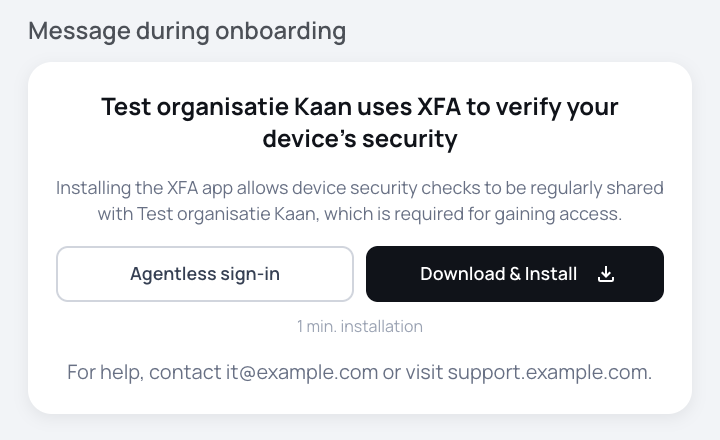
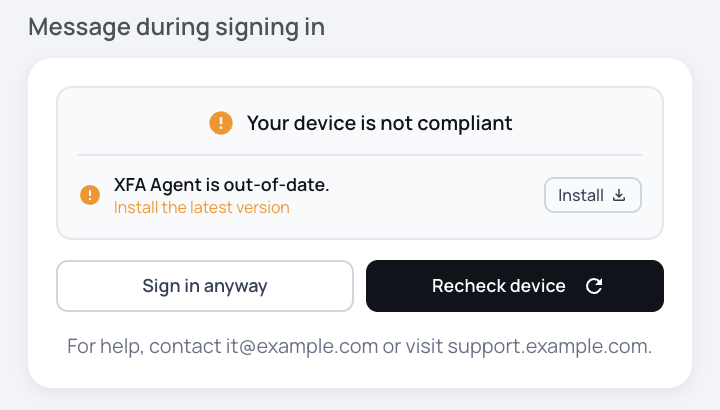
Custom messages appear at the bottom of the onboarding or sign-in card and are visible to every user going through that flow. Each message is limited to 140 characters, so keep them short and actionable.
What to use them for
- Link to your internal security handbook, wiki page, or help desk.
- Remind users which device they are expected to enroll (for example, company laptop vs. personal phone).
- Provide a local contact for users who run into trouble.
- Reinforce a compliance or policy message in your company's own voice.
Learn more
- Device verification: automated email reminders for device onboarding.
- Device risk notifications: email alerts when an onboarded device is at risk.
- Awareness through Slack: deliver the same awareness notifications directly in Slack.