Automatic accounts (SCIM) Beta
With automatic accounts (SCIM), also known as SCIM provisioning, XFA keeps the accounts in an application in step with your People page. You set it up in the Automatic accounts (SCIM) card on an identity-provider connection, such as Proton. When you add, deactivate or remove a person in XFA, XFA does the same in the application.
Note: This guide assumes that you're an admin of your organization in XFA and an administrator of the application, on a plan that offers SCIM.
Before you start
Check these first. If the first one is not done, stop here.
- Single sign-on through XFA already works for the application. For Proton, this means Proton's single sign-on is set up with XFA as the identity provider. Follow the Proton guide first.
- The email domains of your people are set. Set them under Allowed email domains on the connection, or as your organization's email domains. XFA only sends people whose email domain is in one of these.
- XFA has switched on the beta for your organization. Contact support@xfa.tech to ask.
XFA creates an account for each of these people. If the application charges per user, each account costs a seat.
What happens to accounts
| In XFA | In the application |
|---|---|
| You add a person | XFA creates an account, or links one with the same email. |
| You click Deactivate | The account is switched off. Its data is kept. Activate switches it back on. |
| You click Remove user | The account is deleted. In many applications this can't be undone. |
| The person's email domain is no longer allowed | The account is switched off, not deleted. |
| You switch Automatic accounts (SCIM) off | Nothing changes. XFA stops sending until you switch it back on. |
| The person's email changes | See Change a person's email. |
XFA only touches accounts it created or linked. Other accounts in the application stay as they are. Deleting the connection in XFA also leaves the accounts as they are.
Removing a person deletes their account in the application. What happens to their data then depends on the application. In Proton, check Proton's own guide before you remove someone whose data you need. To keep the account and its data, deactivate the person instead.
Deactivate or remove a person
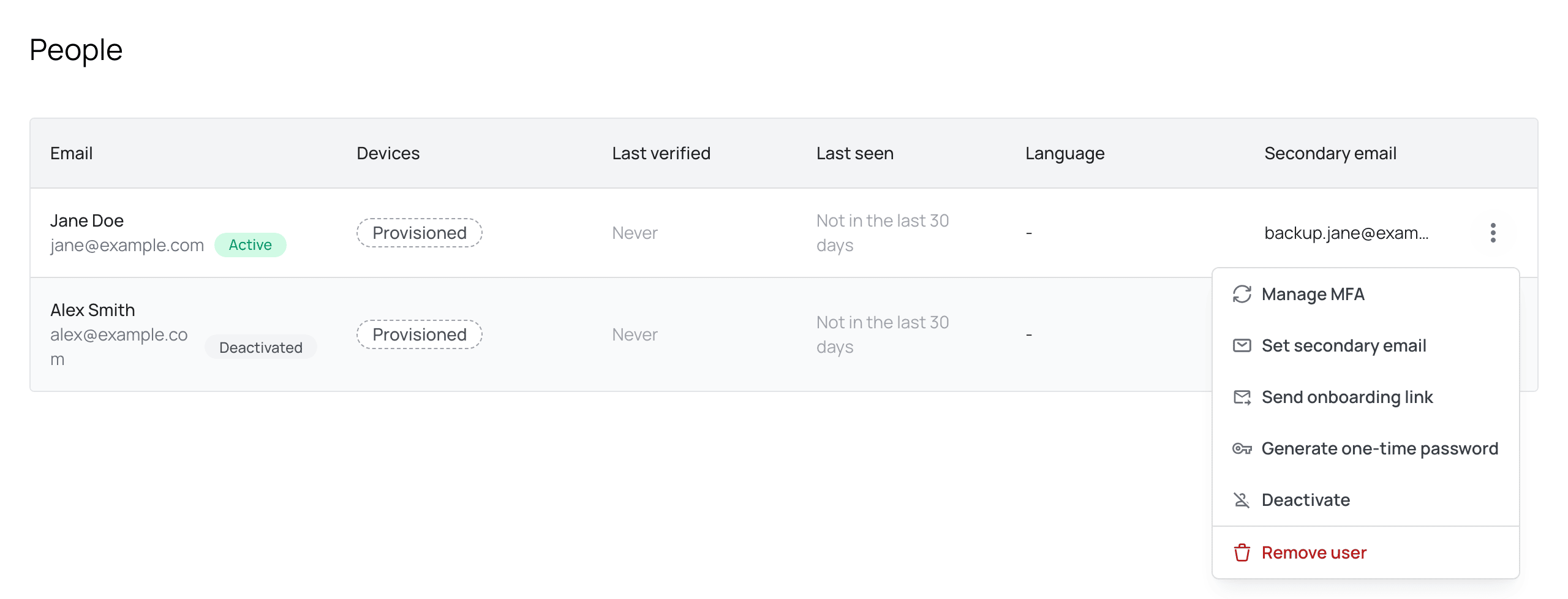
On People, open the menu (⋮) at the end of the person's row. Choose Deactivate or Remove user.
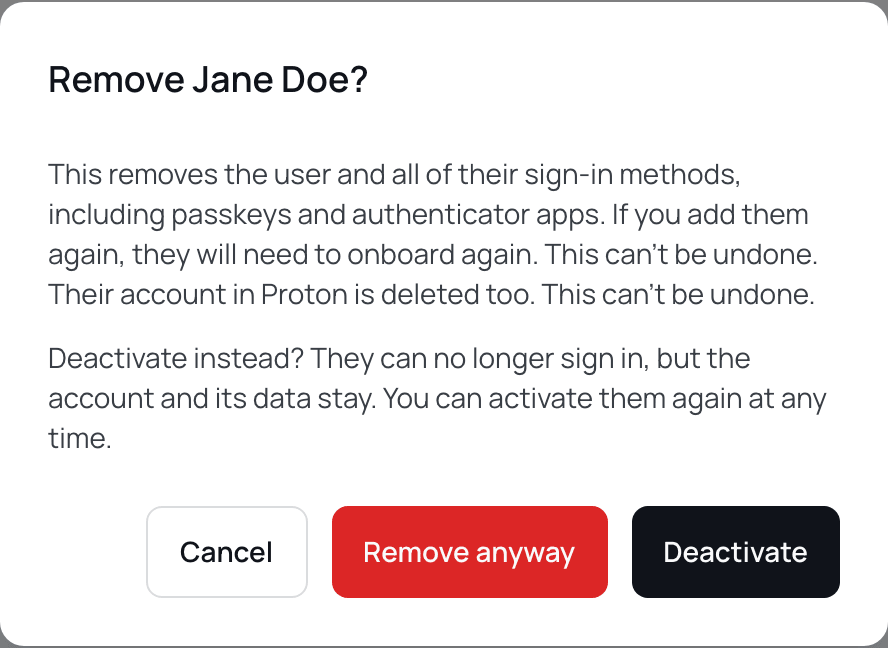
If the person is active, Remove user opens a dialog that also offers Deactivate. Click Deactivate to keep the account, or Remove anyway to delete it.
Change a person's email
XFA can't change a person's email. To give someone a new email, remove the person in XFA and add them again with the new email. XFA then deletes the old account in the application and creates a new one. If the application already has an account with the new email, XFA links that one instead. Ask the person to save anything they need from the old account first.
Get the SCIM base URL and SCIM token
XFA needs two things from the application: a SCIM base URL and a SCIM token. Copy them from the application first.
Proton
In Proton, go to Settings (⚙), Organization, Single sign-on, SCIM automatic provisioning, Configure SCIM. Copy the SCIM base URL and the SCIM token. Single sign-on must be set up in Proton first.
Other applications
Look in the application's user provisioning or SCIM settings. Most applications offer it on business or enterprise plans. Examples are Slack, GitHub Enterprise Managed Users, Atlassian, AWS IAM Identity Center, Zoom and Notion.
Set it up in XFA
-
In the XFA Dashboard, open Identity provider in the sidebar. Open the connection.
-
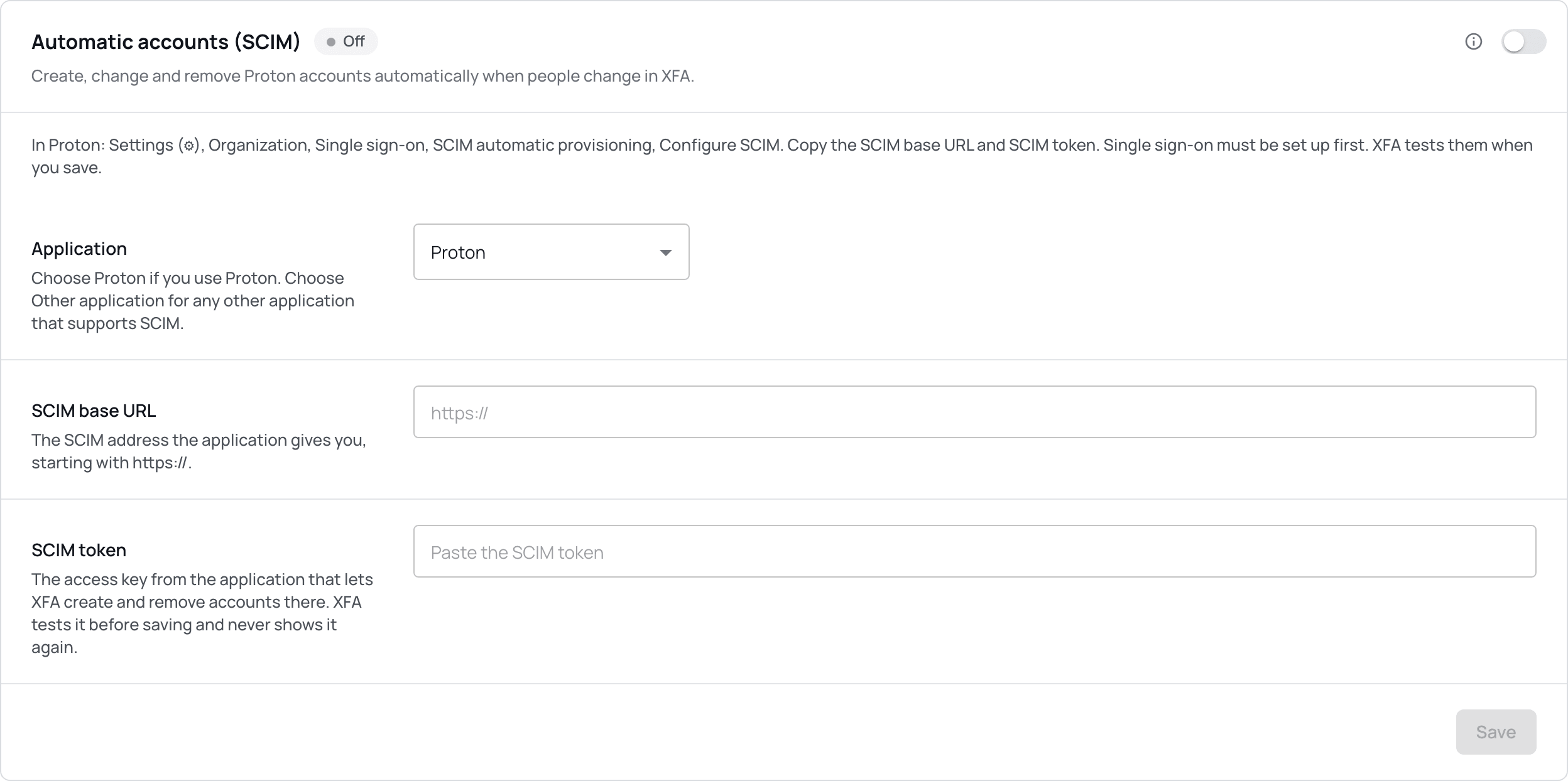
In the Automatic accounts (SCIM) card, choose the Application: Proton, or Other application for any other application.
-
Paste the SCIM base URL. It starts with
https://. -
Paste the SCIM token.
-
Turn on the switch at the top right of the card.
-
Click Save. XFA tests the token first. If the application refuses it, you see why and nothing is saved.
-
Click Test connection. It checks the URL and the token only. It sends nobody. The result shows under the buttons: "Connection works", or "Connection failed" with the reason.
-
Click Sync now. It sends everyone in the allowed email domains. If the application already has an account with the same email, XFA links it. It does not create a second one. After that, XFA sends changes by itself.
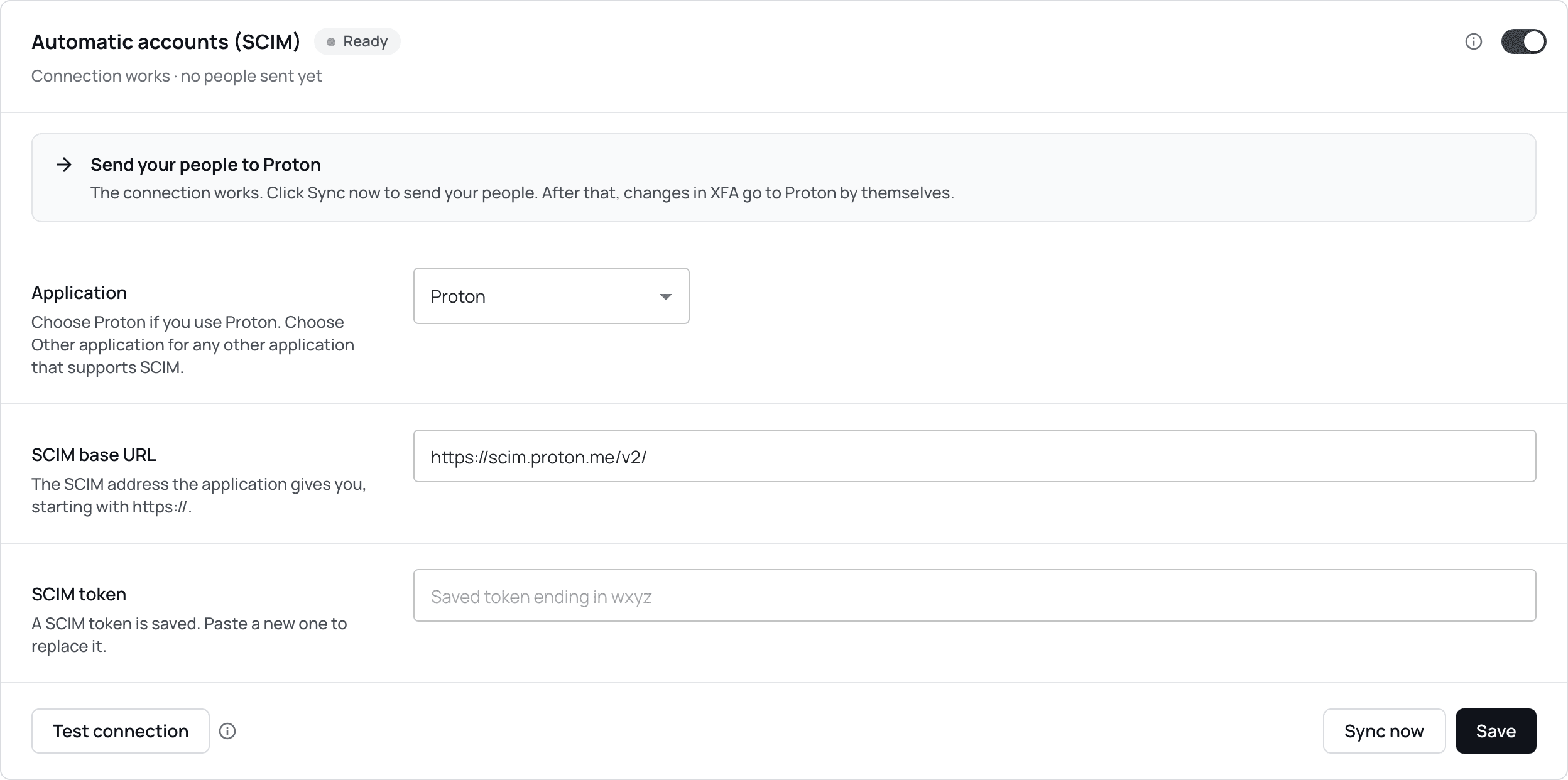
XFA never shows a saved token again. The field shows only its last 4 characters. To replace the token, paste a new one and click Save. If you change the SCIM base URL while the switch is off and save without a new token, XFA asks you to confirm with Save and clear token. XFA then removes the old token, because it belongs to the old address. With the switch on, a new address needs a new token.
Check that it works
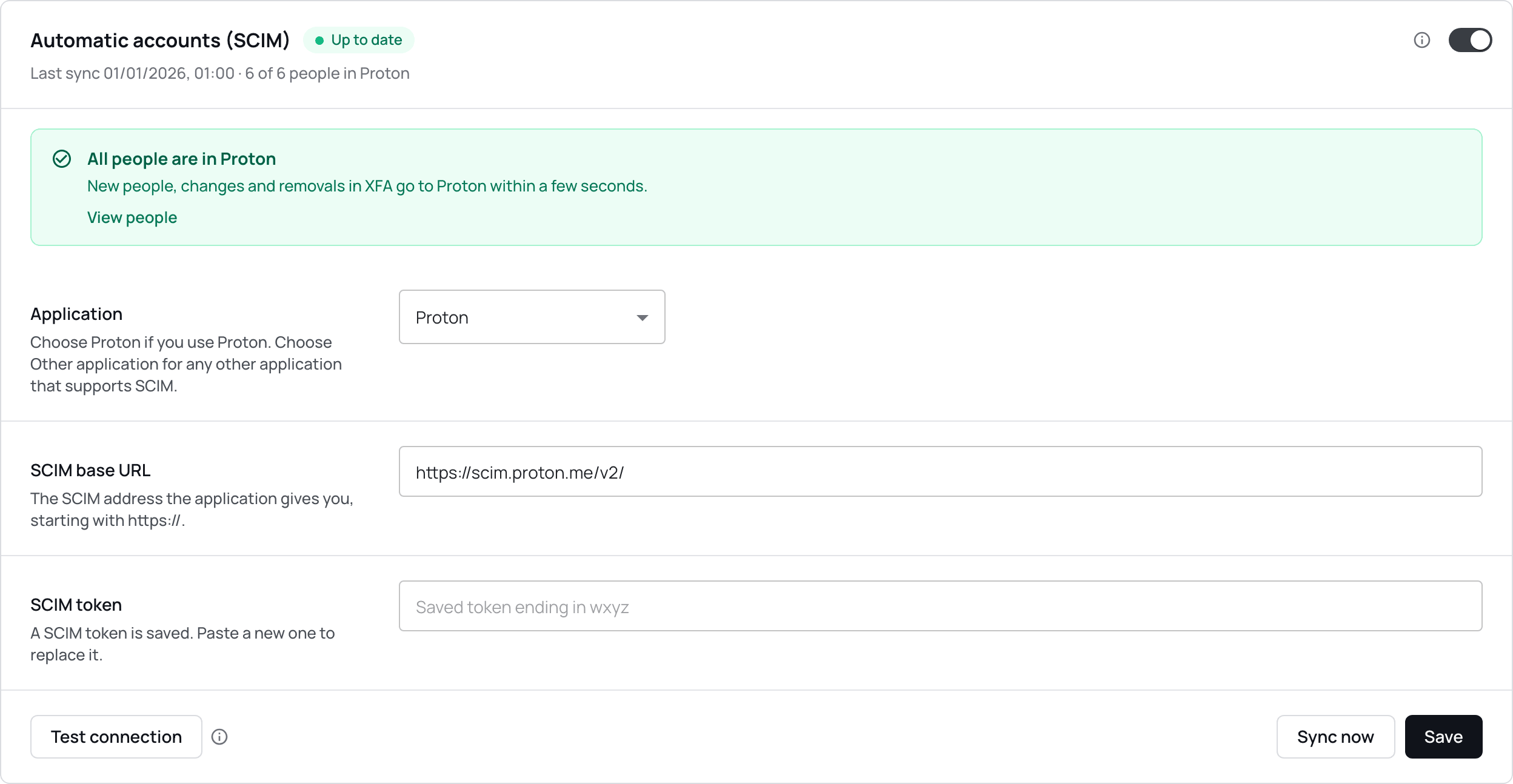
The card shows Syncing while a sync runs and Up to date when it is done. The card updates by itself. You do not need to reload. A first sync usually takes a few seconds to a few minutes. With hundreds of people it takes longer. After that, a change in XFA reaches the application within a few seconds.
- The line under the title shows how many people are in the application, for example "6 of 6 people in Proton".
- On People, click Column settings: the gear icon at the right end of the table's header row. Tick App accounts. The column shows each person's state, such as In Proton, Not sent yet or Switched off in Proton.
What the statuses mean
The pill next to the card title shows the status.
- Off: SCIM is not set up, or the switch is off. Nothing is sent. Follow Set it up in XFA.
- Ready: the connection works, but not everyone was sent yet. Click Sync now. See Ready.
- Syncing: a sync is running. Wait. The card updates by itself.
- Up to date: everyone in the allowed email domains is in the application. You don't need to do anything.
- Action needed: the application refused some people. See Action needed.
- Not connected: the application rejected the token, or XFA can't reach it. Nothing is sent. See Not connected.
Troubleshooting
The pill next to the card title shows what is wrong. The block under it says what to do. On Identity provider, the connection's tile also shows how many people were not sent.

Action needed
The application refused some people. Click View N people to see who, with the reason for each person. For Proton, Open Proton admin opens Proton's admin in a new tab. The card names the application, here Proton. The most common reasons:
- Proton has no free seats. Buy more seats, or remove an account you don't need, in Proton's admin. Then click Sync now. For another application, do the same in that application.
- An account with this email already exists in Proton. XFA could not link it to this person. Remove or rename that account in the application, then click Sync now.
- Not sent: email domain not set on this connection. Add the domain to Allowed email domains on the connection, or to your organization's email domains. Then click Sync now.
- Proton does not allow this. Check that the SCIM token has admin rights, and that the application's plan includes SCIM.
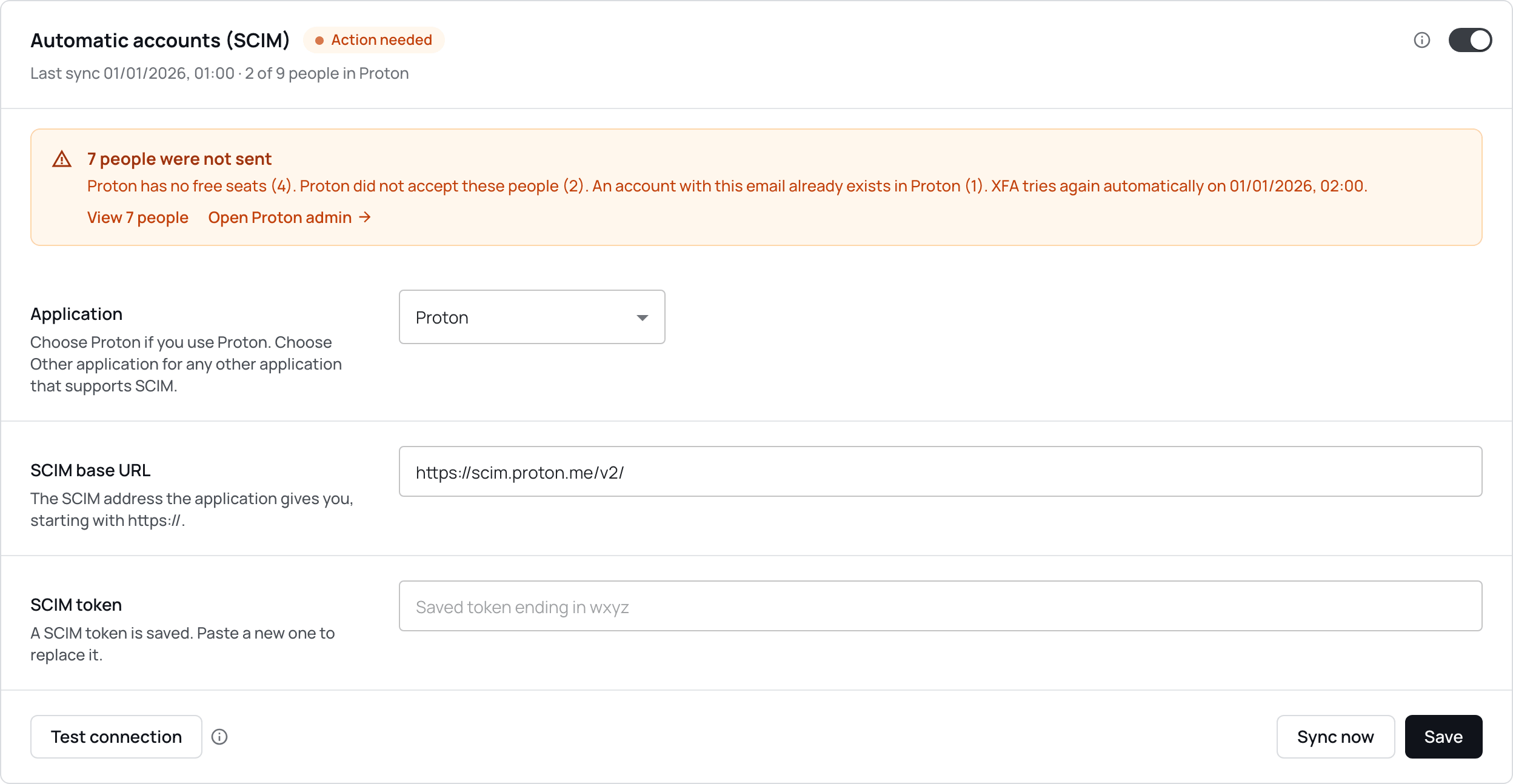
For other reasons, XFA tries again by itself. Click Sync now to try again right away.
Not connected
The application rejected the SCIM token, for example because it expired. Sending is paused. Click Paste a new SCIM token, paste a new token and click Save. XFA then sends the changes that were waiting.
If the card shows another reason, check the SCIM base URL and SCIM token, then click Test connection.
Ready
The connection works, but not everyone was sent yet. Click Sync now.
The last sync did not finish
A sync that runs for more than 15 minutes shows "The last sync did not finish". Click Sync now.
A warning that XFA could not check SCIM
When you deactivate or remove a person, the dialog can say "XFA could not read the automatic accounts settings for [connection] just now". XFA can't tell you then if the account in the application changes too. If SCIM is on for that connection, it does. Reload the page. If it keeps happening, contact support@xfa.tech.
Still failing
Contact support@xfa.tech. Give the name of the connection and the time it went wrong.
Per-application notes
Notes for Proton
Proton Pass and Proton VPN share Proton's single sign-on, so one connection covers both. Proton charges per user, so each account XFA creates takes a seat.
Proton documents creating and deleting accounts over SCIM. To switch an account off, XFA uses a SCIM PATCH. If Proton does not accept PATCH, XFA falls back to PUT. If Proton rejects both, the card shows Action needed.
Notes for other applications
SCIM provisioning works only on an identity-provider connection where XFA signs people in. It does not work on SAML-proxy applications or Google Workspace connections.
The application must accept SCIM from a custom identity provider, with the email as the user name. Some applications need extra fields. If the application rejects a person, People shows the application's reason. Send it to support@xfa.tech.
Technical details
- XFA speaks SCIM 2.0 (RFC 7643, RFC 7644). XFA is the client, the application is the server.
userNameis the person's email, the same email XFA uses at sign-in.externalIdis a stable id XFA makes for each person on each connection. It is not the XFA user id.- XFA switches an account off with PATCH (
activefalse), or with PUT when the application has no PATCH. XFA removes an account with DELETE. - The SCIM base URL must be a public HTTPS address with a host name. An IP address, an internal host or plain HTTP is refused.
- A failed push is retried after 5, 15 and 60 minutes, then every 6 hours, for up to 7 days.
- Every night, XFA runs a full sync of each connection. Sync now runs the same sync right away. It also repairs changes someone made in the application.
- Mass-delete guard: a sync that would delete more than 20 accounts and more than 20 percent of the accounts on the connection deletes nothing. The card shows Not connected with the reason. Check People and the application, then click Sync now. If you really are removing that many people, contact support@xfa.tech.
What XFA sends
XFA sends each person's email, first name, last name, and whether the account is active or switched off. An empty name in XFA never wipes a name in the application.
XFA does not send the secondary email, passwords, devices or policies.