Limit skipping Max plan
Skip limits are two policy settings. A Skip limit caps how many times each user can skip device verification. A grace period lets a device fail a check for a few days, with a warning, before XFA blocks it.
Before you start
- Your plan is Max or Enterprise. On a plan where users can always skip, the skip limit is not shown.
- A grace period needs blocking, which comes with the same plans, and at least one connected application or identity provider.
Set a skip limit
- In the XFA dashboard, open Policies and click the policy.
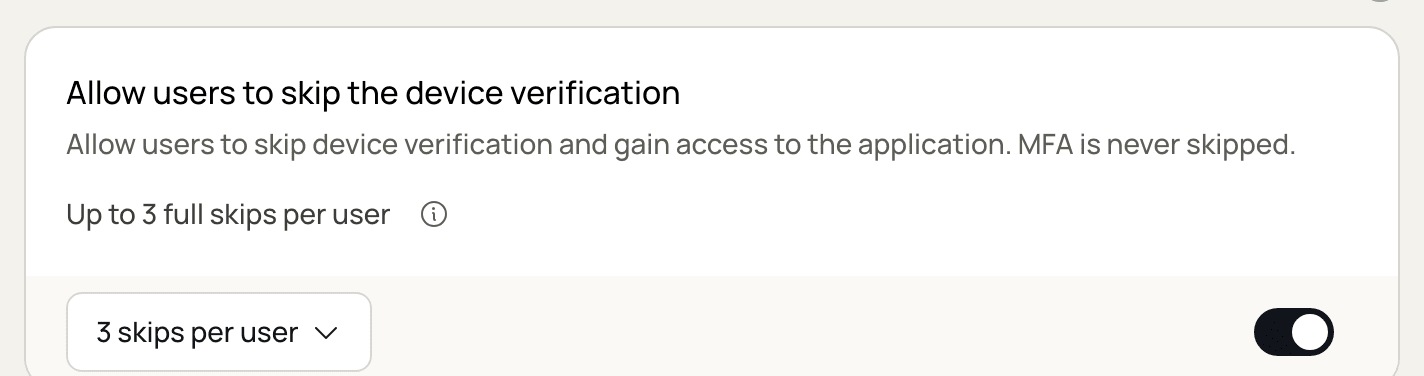
- Under Access, turn on Allow users to skip the device verification.
- Open the dropdown next to it and choose how many skips each user gets: 1, 2, 3, 5, 10 or 20, or Unlimited.
XFA saves the policy as you change it. The row then shows the limit, for example Up to 3 full skips per user.
How skips are counted
- The limit is per user, across all their devices.
- Counting starts when you set a limit. It never resets, not even when you remove the limit and set it again.
- Only a full skip counts: the user signs in without opening XFA. Sign in anyway after a warning does not count.
- When the limit is used up, the user has to open or install XFA and pass the checks. To allow more skips, raise the limit.
- MFA is never skipped.
Give a grace period before blocking
A grace period works for the checks that are on or off, such as Firewall status, and for the DNS check.
- In the policy, click Configure next to the check.
- Turn on Warn users and Block a device.
- Under Block a device, choose after how many days XFA blocks: 1, 2, 3, 7, 14, 21, 30, 60 or 90 days. Immediately blocks at once.
- Click Save.
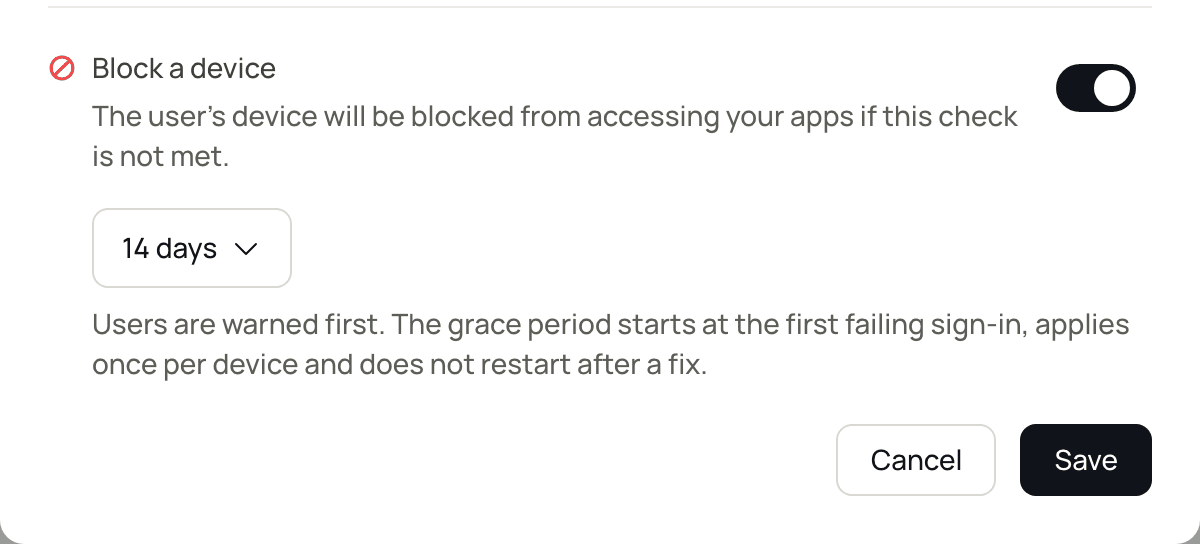
The grace period starts at the first sign-in where the device fails the check. During the grace period, the user is warned. It applies once per device: it does not start again after the user fixes the check and it fails later.
Related
- Policies: every check and its warn and block settings.