What your organization sees
When your device is connected to your organization, XFA sends your organization a short status of your device. This page lists what is in that status, which extra checks your organization can ask for, and how you share them or stop sharing them.
On this page, Acme is an example. On your screen, you see the name of your organization.
What your organization sees by default
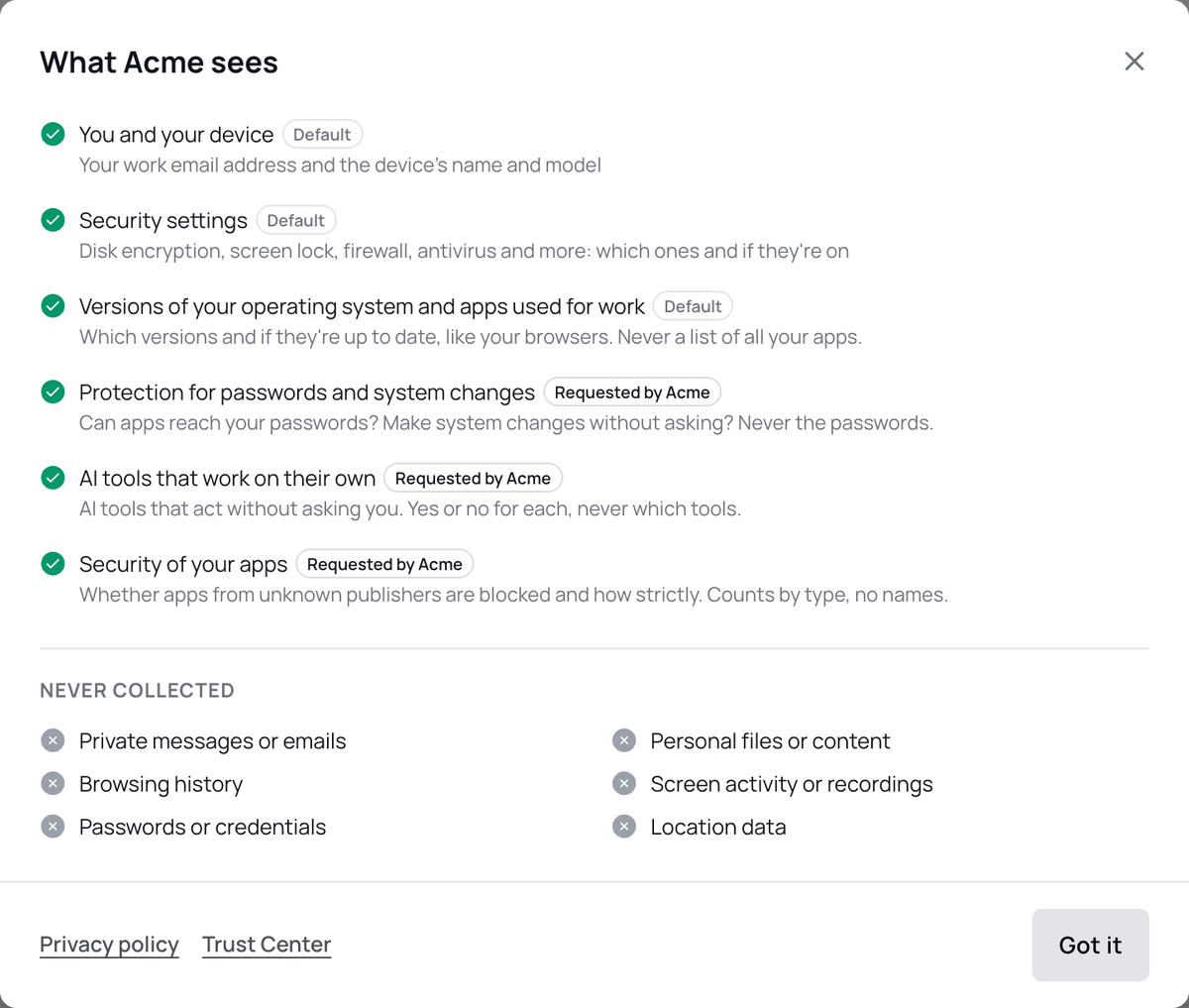
When you use the XFA app, every organization you connect to sees these three things.
- You and your device: your work email address and the device's name and model.
- Security settings: disk encryption, screen lock, firewall, antivirus and more: which ones and if they're on.
- Versions of your operating system and apps used for work: which versions and if they're up to date, like your browsers. Never a list of all your apps.
Extra checks your organization can ask for
Your organization can ask for up to three extra checks, listed below. They are only for computers, not for phones.
Only you can share them: with Verify & Accept on the sign-in page, or in the XFA app. Your organization cannot share them for you, and it gets these results only after you share them. Some checks are optional. Others your organization requires: you can still choose not to share them, but then you cannot sign in, or you see a warning when you sign in.
| Extra check | What your organization sees |
|---|---|
| Protection for passwords and system changes | If any app on your device can get your passwords: yes or no, never the passwords. System changes, like installing software, that don't ask you first: yes or no. |
| AI tools that work on their own | AI agents that do tasks on their own: yes or no. AI coding tools that take actions without asking you: yes or no. Never which tool. |
| Security of your apps | Your computer's block on apps from unknown publishers: if it's on and how strict it is. How many apps of each type, never their names. |
If you have just one app of a type, the count shows you have one, but not which.
Your organization may ask for only some of these checks. XFA then shows only those.
The sign-in page and the XFA app show which checks your organization requires.
Share extra checks when you sign in
When your device is not connected to your organization yet, the sign-in page shows the Verify & Accept button. If your organization asks for extra checks, the line under the button says so, for example "Verify & Accept also shares 3 extra checks requested by Acme."
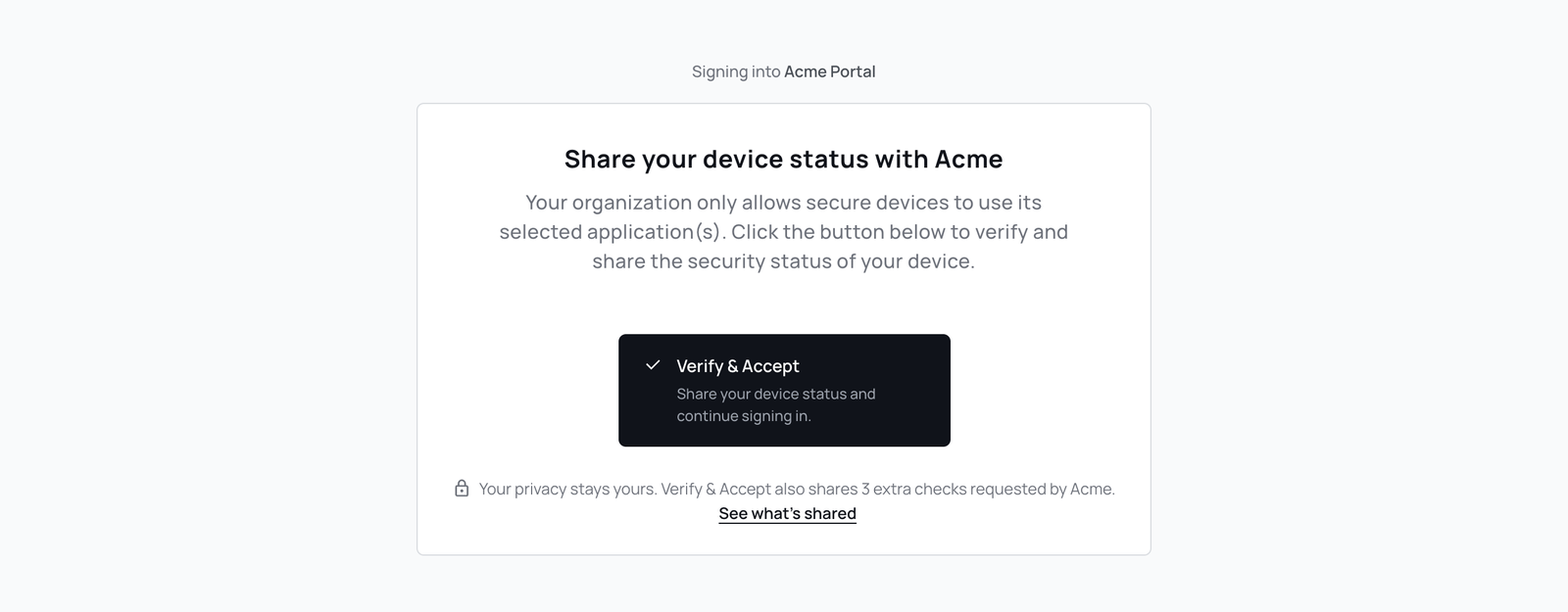
- Click See what's shared, at the end of the line under the button. A window lists everything Acme will see.
- Click Got it to close the window.
- Click Verify & Accept. This connects your device and shares your device status and the extra checks in the list.
Sometimes the XFA app opens a window to confirm. Check the list there and click Share.
You can stop sharing the extra checks later, in the XFA app. Extra checks you shared earlier show in the XFA app.
Share a check the sign-in page asks for
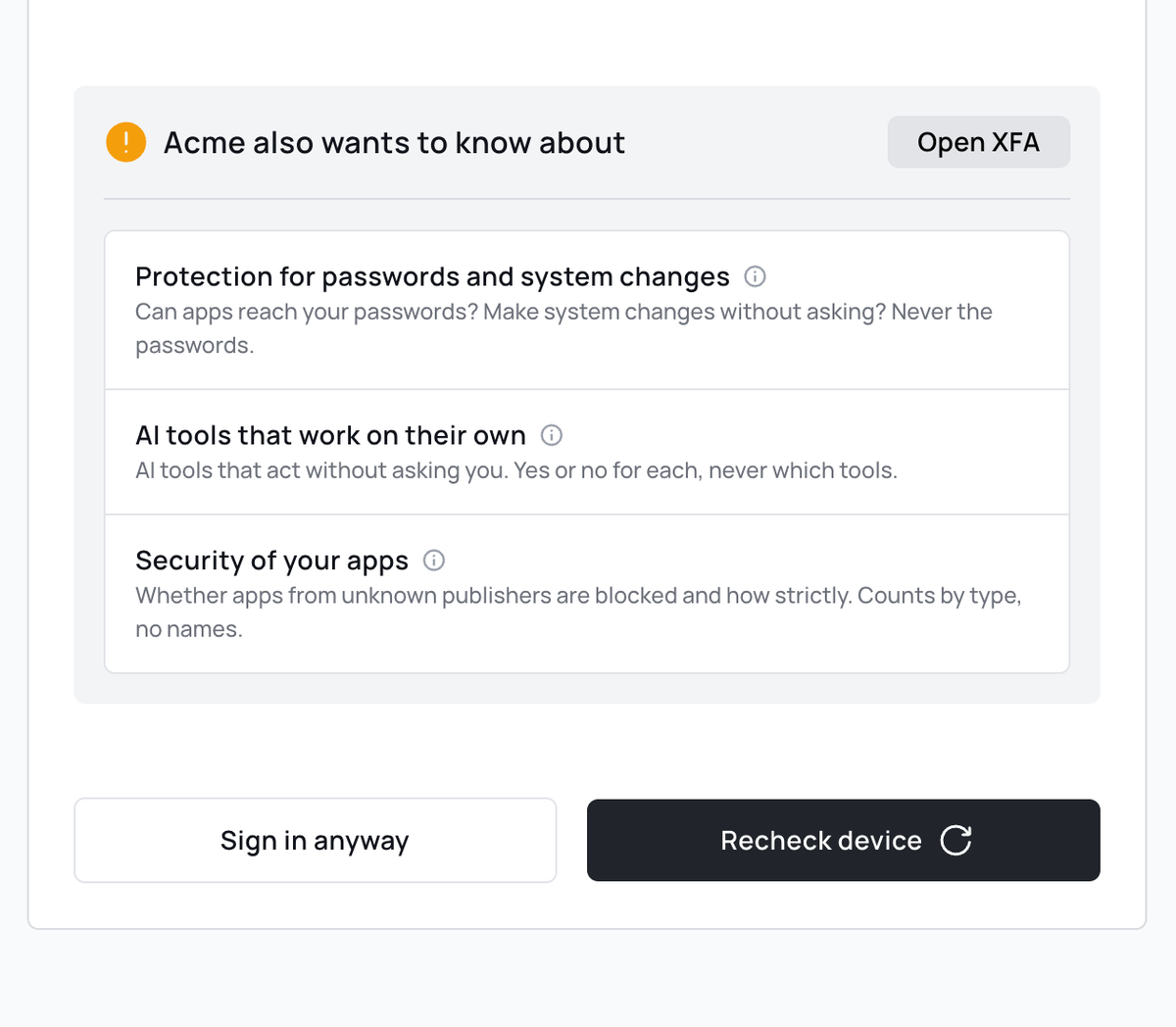
If you did not share an extra check, the sign-in page can ask for it later, in a grey block:
- To sign in, Acme needs to know about (red icon): you can only sign in after you share these checks.
- Acme also wants to know about (orange icon): you can share them, or click Sign in anyway and sign in without sharing.
- Click Share in the block. The XFA app opens and asks you to confirm.
- Click Share in the XFA app.
- Back on the sign-in page, click Recheck device.
Share extra checks in the XFA app
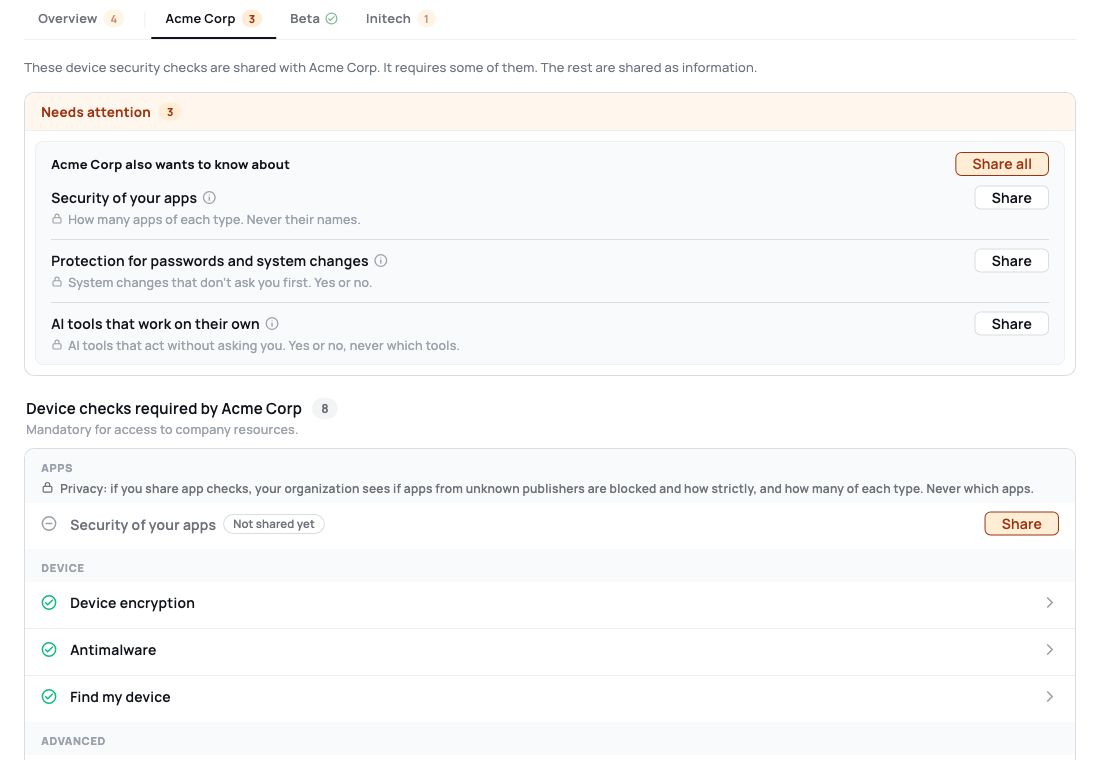
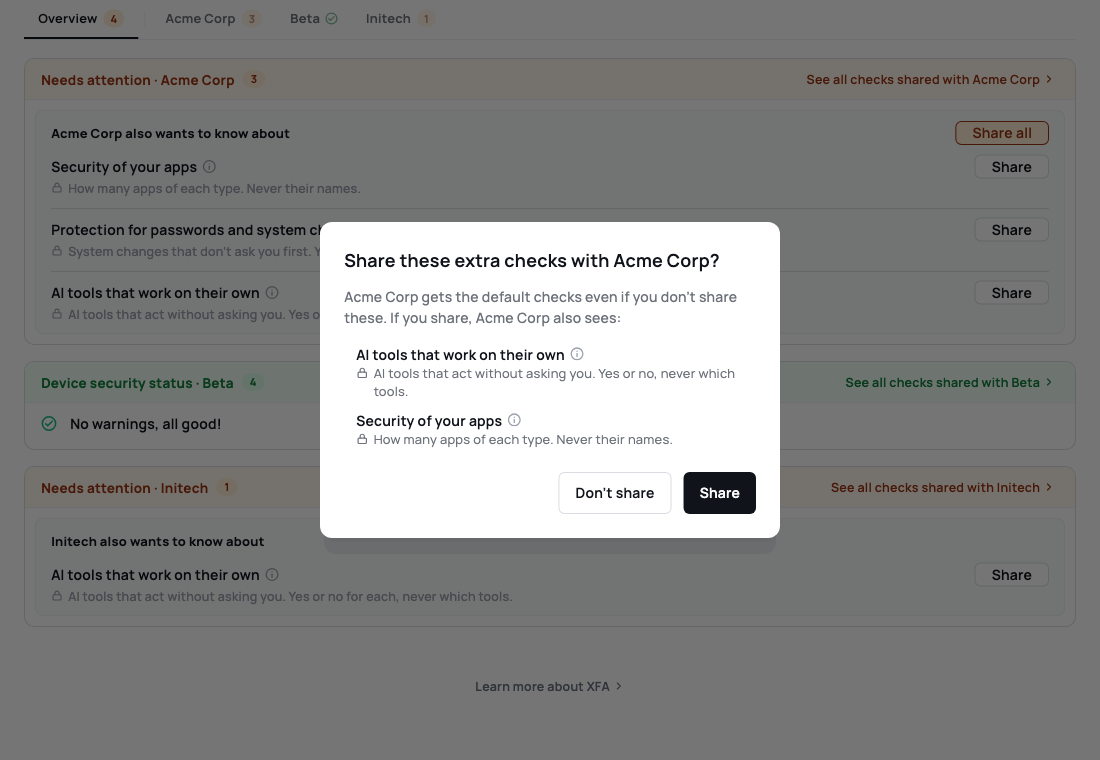
When your organization asks for extra checks, the XFA app shows them in the Needs attention box, under the title Acme also wants to know about.
- Open the XFA app.
- Click Share next to one check, or Share all to share every check in the list.
- XFA asks you to confirm and lists what Acme will also see. Click Share to share, or Don't share to keep them on your device.
Click the (i) icon next to the name of a check to read exactly what is sent.
Stop sharing a check
You can stop sharing an extra check at any time.
- Open the XFA app. At the top of the window, click the tab with the name of your organization.
- Click the check you shared.
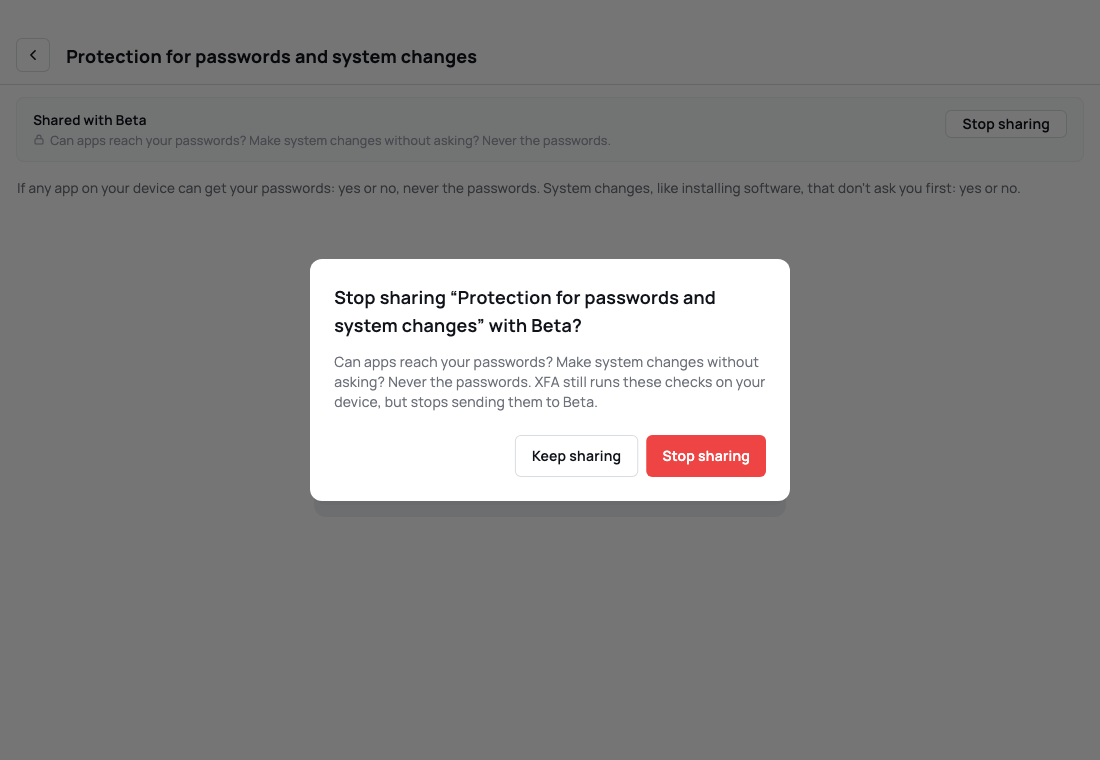
- Click Stop sharing.
- A message opens. Read it, then click Stop sharing in the message to confirm, or Keep sharing to cancel.
A check you shared that your organization does not require also has a Stop sharing button next to it in the list.
After you stop, XFA still runs the check on your device, but your organization stops receiving new results. Results sent before stay in its records. What happens next depends on your organization:
- If it requires the check, it blocks your sign-in, or you see a warning when you sign in. The message tells you which one before you confirm.
- If it does not require the check, nothing else changes.
You can share the check again later.
What XFA never collects
XFA never collects or sends these, from any check:
- Private messages or emails
- Browsing history
- Passwords or credentials
- Personal files or content
- Screen activity or recordings
- Location data
Before XFA 2.1.26, the app shared every check, including the extra checks. On the sign-in page, those versions show Open XFA instead of Share.
Related
- Ask employees to share extra checks, the same feature from the IT admin's side.
- Device checks, about the checks that look at your apps.
- Desktop application