TOTP Authentication
This guide explains how to set up and use TOTP (Time-based One-Time Password) authentication with XFA.
What is TOTP?
TOTP is a security method that generates temporary 6-digit codes on your phone. These codes change every 30 seconds and provide an extra layer of security when signing in to applications.
Benefits of TOTP:
- Works offline - no internet connection needed on your phone
- Widely supported by many authenticator apps
- Not tied to a specific device - you can set it up on any phone or tablet
Requirements
Before you start, make sure you have:
- A smartphone or tablet
- An authenticator app installed (see below)
- Access to your email for device verification
Recommended authenticator apps
- Google Authenticator - iOS | Android
- Microsoft Authenticator - iOS | Android
- Authy - iOS | Android
- 1Password - If you already use 1Password, it can also store TOTP codes
Setting up TOTP (first time)
Step 1: Choose Authenticator App
When signing in, you may be asked to choose a verification method. Select Authenticator App and click Continue.
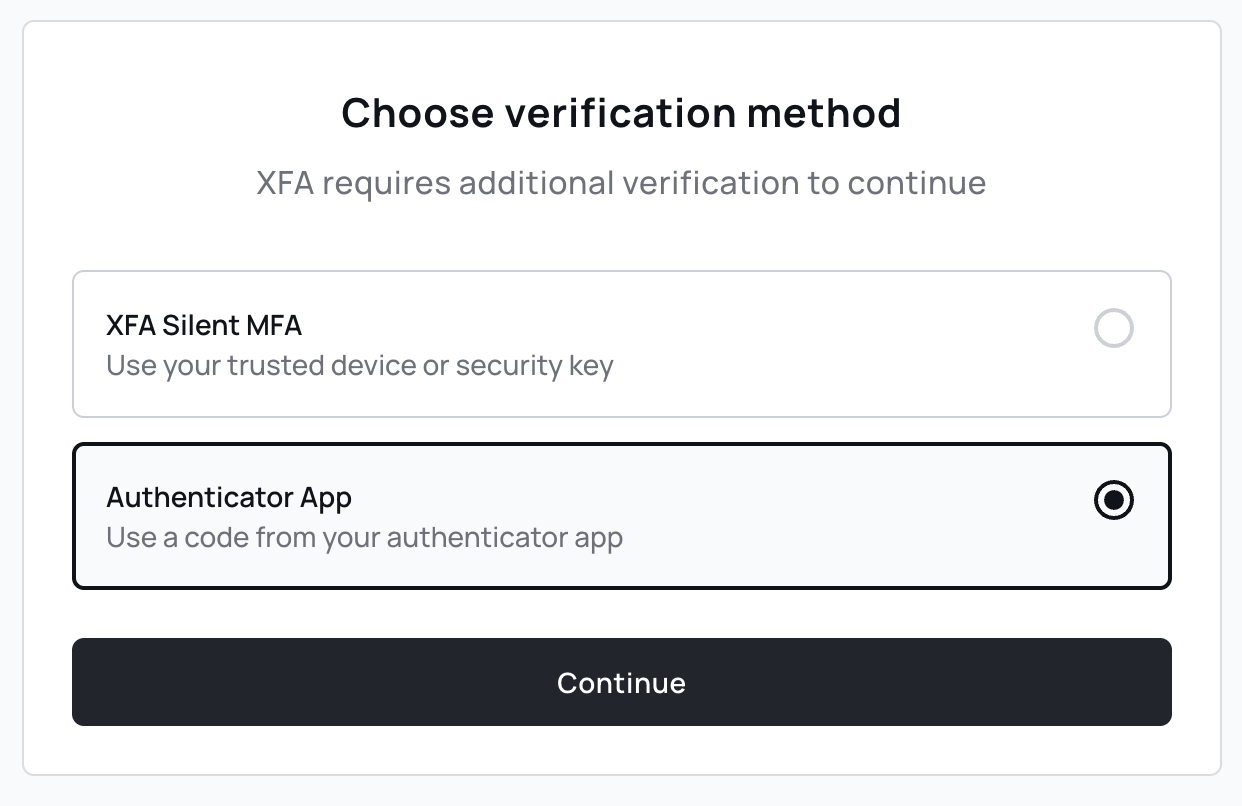
If your organization only has TOTP enabled, you won't see this choice and will go directly to the next step.
Step 2: Verify your identity
You will receive an email to verify your device. Open your email and click the link to approve the device.
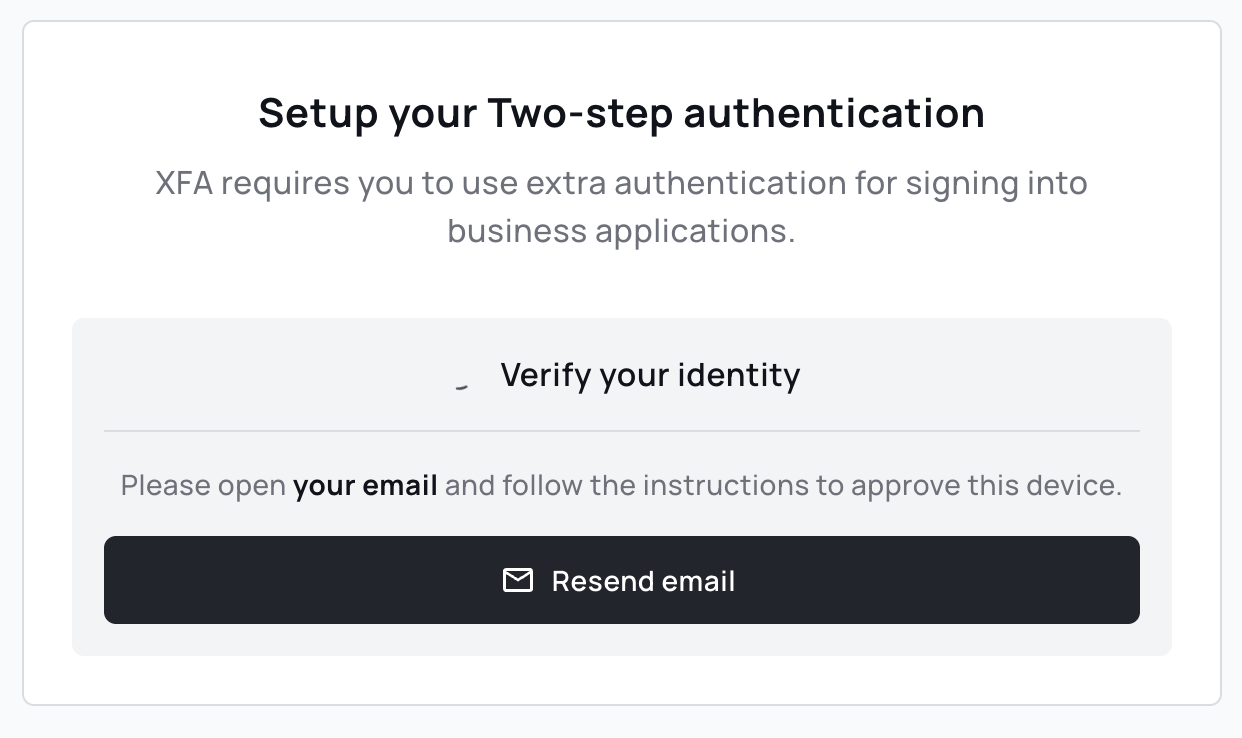
If you don't receive the email, check your spam folder or click Resend email.
Some organizations have auto-approve enabled, in which case you may skip this step.
Step 3: Scan the QR code
After email verification, you'll see a QR code. Open your authenticator app and scan it:
- Open your authenticator app on your phone
- Tap + or Add account
- Select Scan QR code
- Point your camera at the QR code on screen
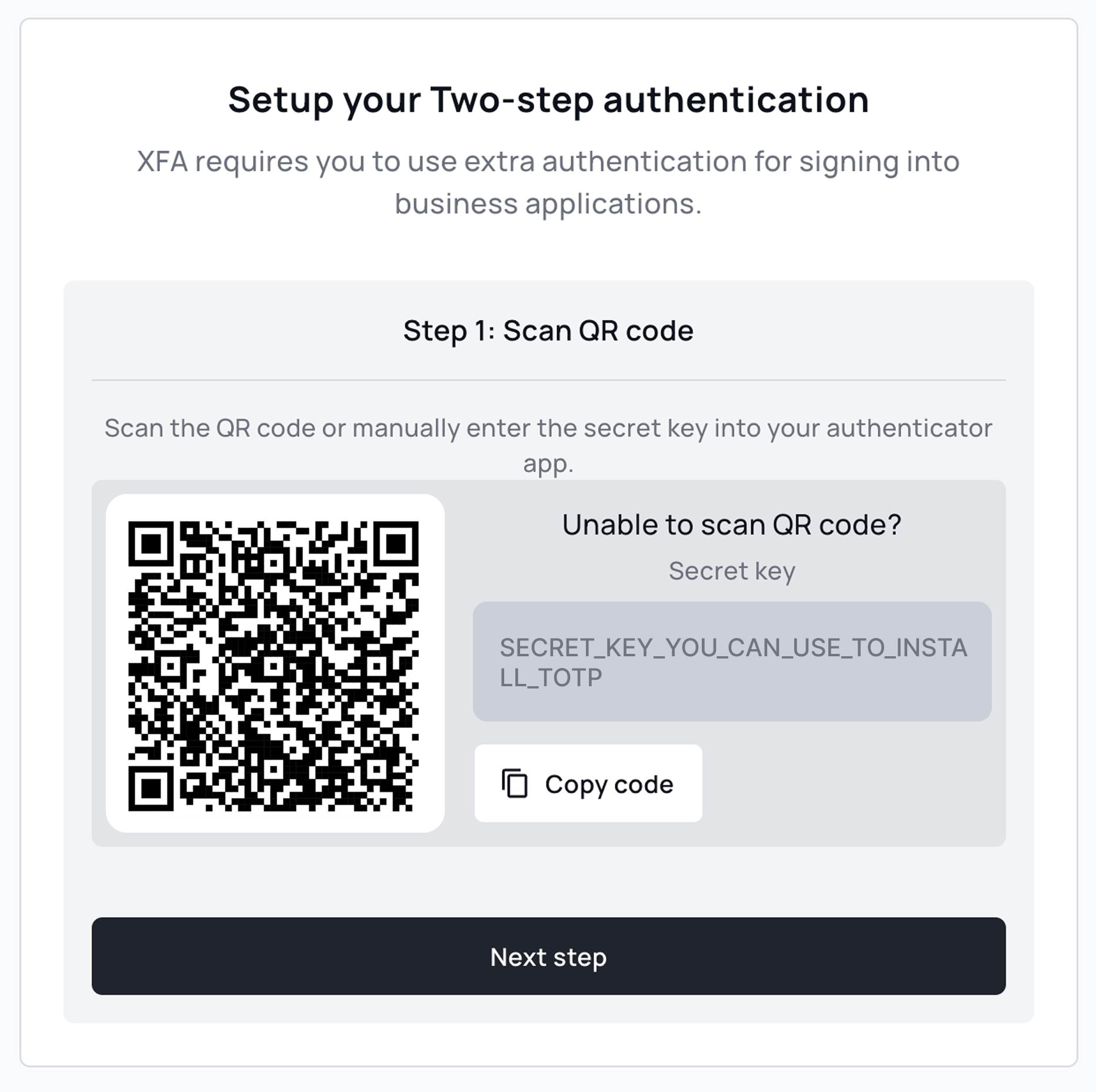
Can't scan the QR code? Click Copy code and manually enter the secret key in your authenticator app.
Step 4: Enter the verification code
After scanning, your authenticator app will show a 6-digit code. Enter this code and click Verify.
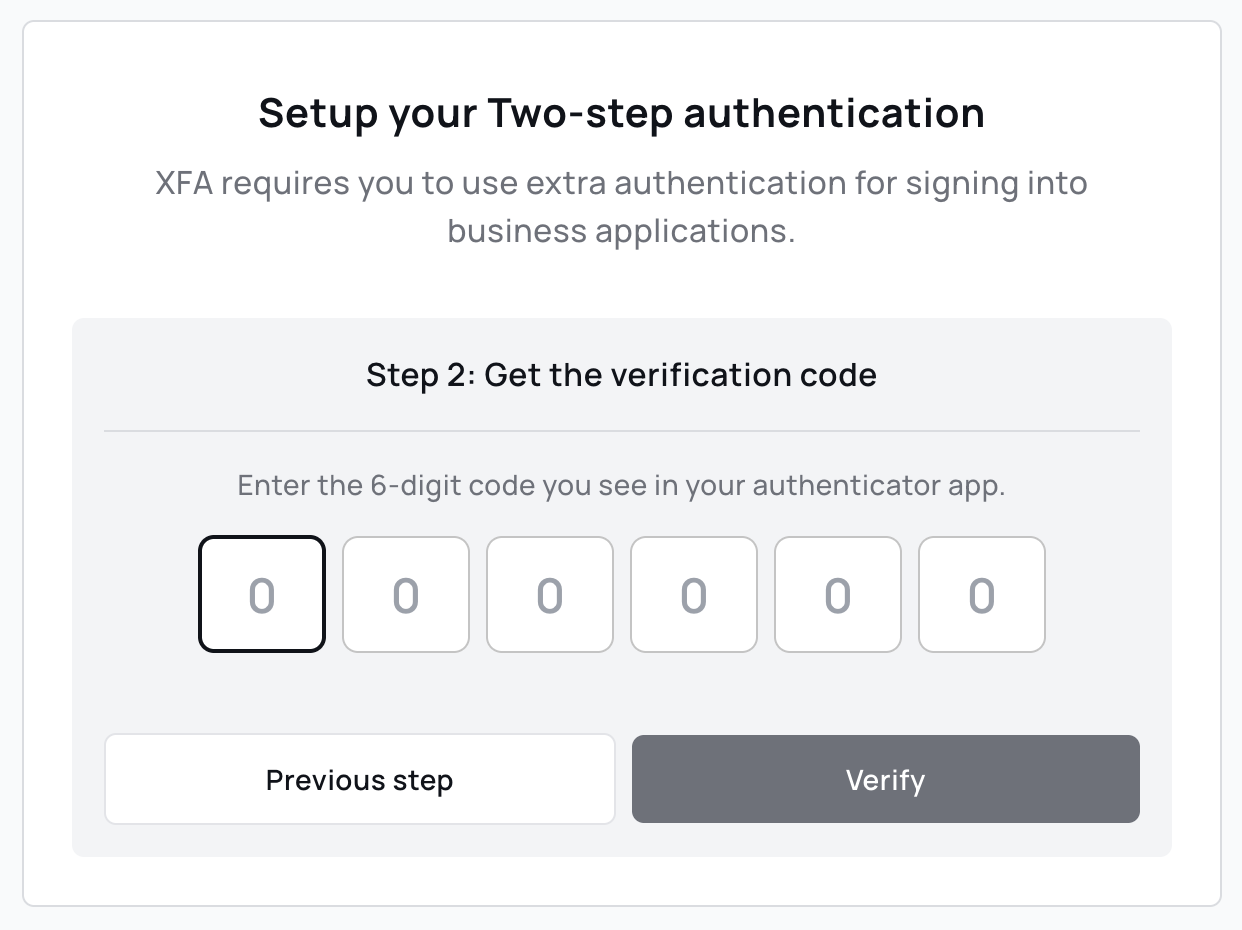
After successful verification, you will be redirected to your application.
Signing in with TOTP
Once TOTP is set up, you'll use it each time you sign in:
- Sign in to your application as usual
- When prompted, open your authenticator app
- Find the XFA account and note the current 6-digit code
- Enter the code and click Verify
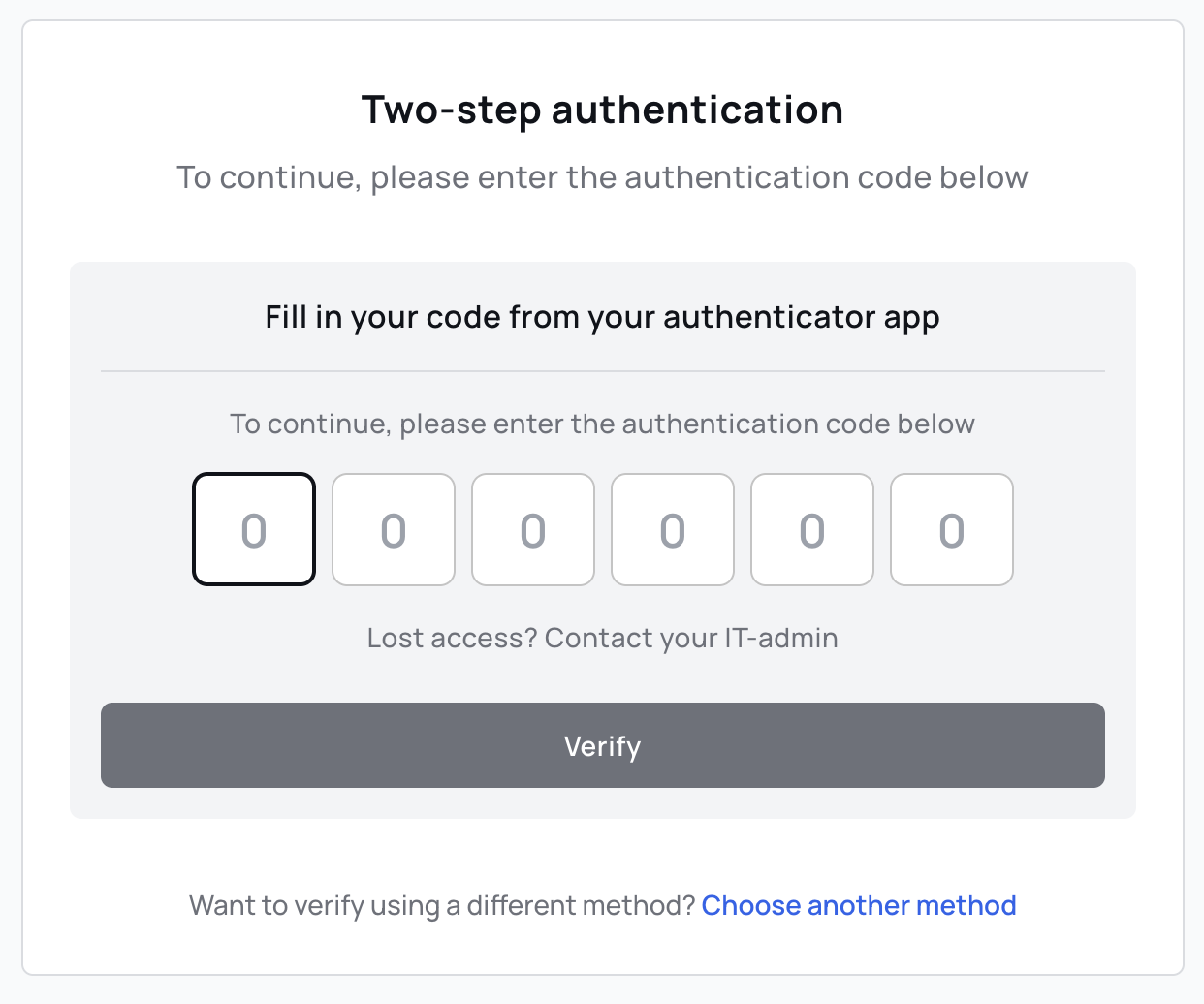
Codes change every 30 seconds. If the code is about to expire, wait for the next one.
Switching between methods
If your organization has enabled multiple verification methods, you can switch by clicking Set one up, next to Want to use a different method? on the verification screen. In the XFA mobile app, tap Use a different method.
Troubleshooting
Code is invalid
- Check your phone's time: TOTP codes are time-sensitive. Make sure your phone has automatic time enabled:
- iPhone: Settings → General → Date & Time → Enable "Set Automatically"
- Android: Settings → System → Date & Time → Enable "Automatic date & time"
- Wait for a new code: If the code is about to expire, wait for the next one
- Check the right account: If you have multiple accounts in your authenticator app, make sure you're using the XFA code
Didn't receive the verification email
- Check your spam or junk folder
- Click Resend email on the verification screen
- Make sure you're checking the correct email address
Lost access to your authenticator app
If you no longer have access to your authenticator app (lost phone, deleted app), contact your IT administrator. They can reset your TOTP configuration so you can set it up again.
Got a new phone
To transfer TOTP to a new phone:
- Google Authenticator: Use the "Transfer accounts" feature
- Microsoft Authenticator: Enable cloud backup in settings
- Authy: Accounts sync automatically if you use the same phone number
If you can't transfer, contact your IT administrator to reset your TOTP.
Need help?
If you're having trouble with TOTP authentication, contact your IT help desk.