Admin approval for MFA Beta
Admin approval lets an administrator decide which devices may be used for multi-factor authentication (MFA), the extra identity check at sign-in. A user completes MFA, then waits for an administrator to approve the new device.
You enable device approval once for the whole organization, not separately for each application. It applies to all applications except the XFA Dashboard, the portal administrators use to configure XFA. Approval does not replace the application's MFA or device security checks.
Before you start
- You need an Administrator role and a plan that includes device checks at sign-in.
- This Beta feature must be available for your organization. Contact XFA support if the setting is missing. It is off by default.
Prepare MFA
Connections are the applications and identity providers linked to XFA. Configure their MFA methods before enabling organization-wide device approval:
- In the dashboard's left navigation, open Connections.
- Click Manage on a connection used for sign-in. Under Multi-Factor Authentication, enable at least one available method and save your changes. For example, TOTP uses codes from an authenticator app. See MFA methods to compare the options.
- Repeat for the other connections used for sign-in. If the activation error names My account, this is a built-in XFA application; click Change it in My account settings in that message to open its settings. If an application has no MFA option, contact XFA support.
Enable device approval
- Open Connections in the left navigation of the XFA Dashboard. Stay on the page listing the connections; do not open an individual connection.
- Scroll below the connection cards to Settings.
- Turn on Require device approval for multi-factor authentication. If activation fails, XFA shows an error message listing the affected applications. Follow Prepare MFA for those applications, return to this setting and try again.
Devices already linked to your organization are automatically approved when you first enable the setting; you do not receive a new request for each of them. New devices need approval after completing MFA. You can revoke an existing device's approval later.
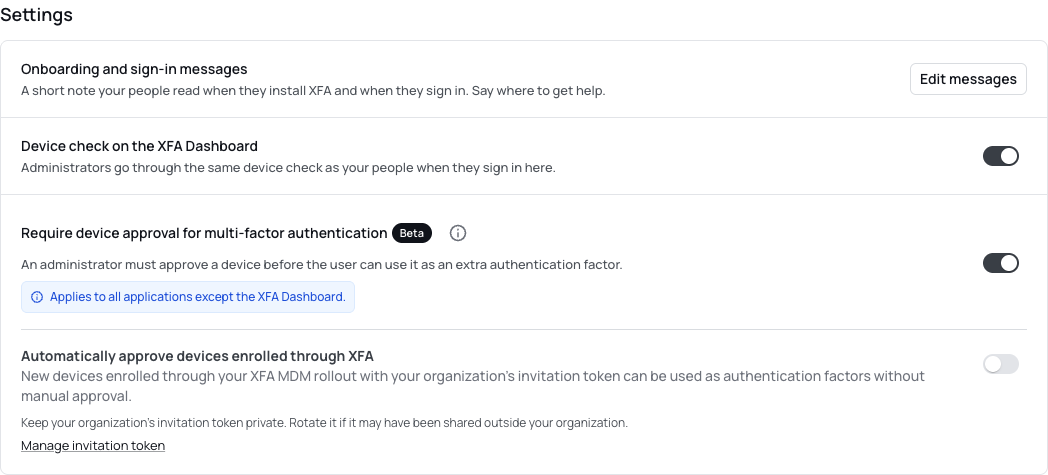
Screenshots show the current dashboard components in English with fictional example data.
Review a request
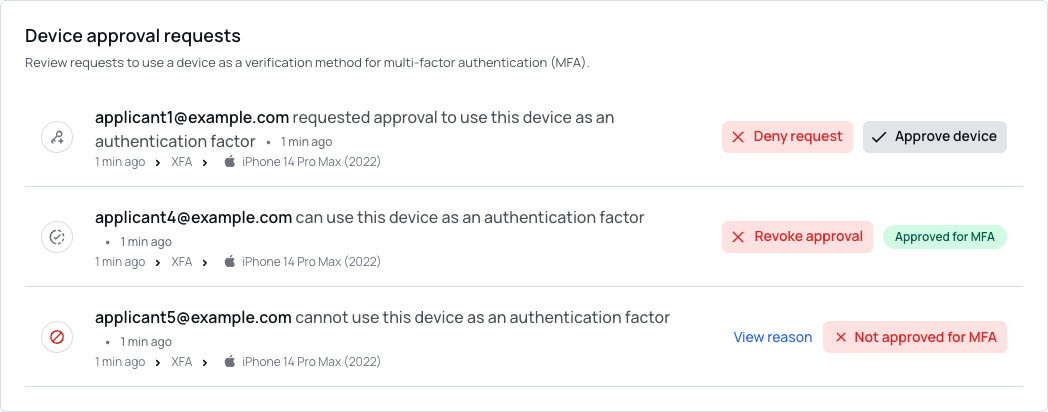
The user waits for your decision after completing MFA. XFA sends new-request emails to administrators with full access; connected Slack or Teams integrations can also deliver messages. In the dashboard, the bell shows a red dot while requests are pending. Click the bell, then View request to open the list, or use the navigation below. You can check the list even if you have not received an email.
- Open Sign-in Activity and select Approval requests.
- Check the requester and device before deciding.
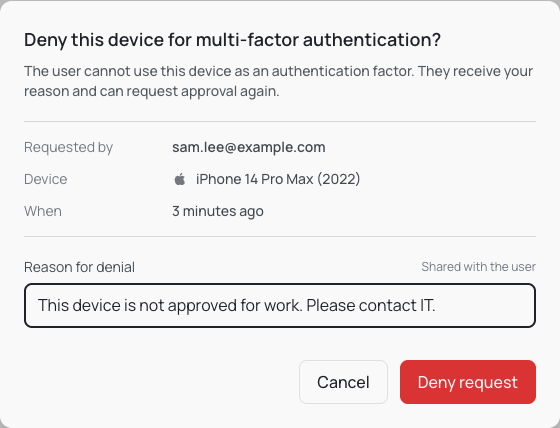
- Click Approve device and confirm, or click Deny request, enter a Reason for denial, and confirm. The reason is shared with the user.
Verify it worked
The device's approval status tells you the result:
| Status | Meaning |
|---|---|
| Awaiting approval | An administrator still needs to decide. The user is waiting. |
| Approved for MFA | The device may be used for MFA. The application's other sign-in checks must still pass. |
| Not approved for MFA | The device may not be used for MFA. The user receives the reason. |
After approval, the user can continue the sign-in that is still open. If that sign-in has expired, ask them to start it again; the device approval is retained.
Change or revoke approval
For a denied device, click View reason and then Approve device to approve it after review. For an approved device, click Revoke approval and give a reason. Existing sessions remain active until they expire.
Automatic approval for MDM rollout
This step is optional. MDM (Mobile Device Management) is software your organization uses to manage company devices. If you deploy XFA with an MDM, you can turn on Automatically approve devices enrolled through XFA after enabling device approval.
This approves new devices enrolled through that rollout using your organization's invitation token, its secret enrollment code. Finding a device through Discover does not qualify it for automatic approval.
Keep the invitation token private. See Deploy XFA with an MDM.
Notes and troubleshooting
- No request in the list? Ask the user to finish MFA, then refresh the list.
- Approval permits the device to be used for MFA; it does not bypass a failed device check.
- Turning the setting off approves pending requests and preserves denied statuses. Review denied devices separately.